
This section explains the troubleshooting steps for the errors that can arise while using the Azure DevOps Connector app.
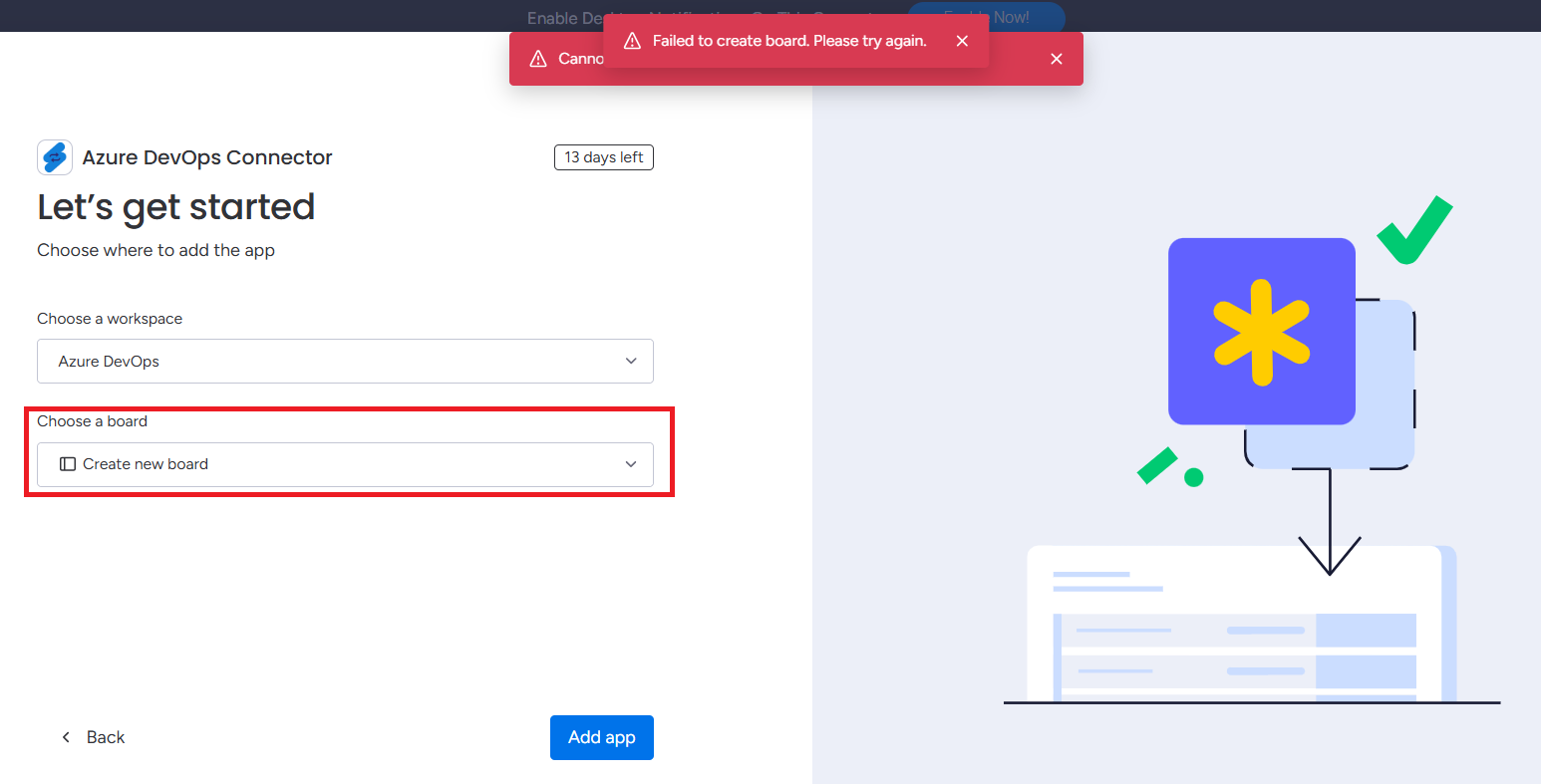
1. Failed to create a board while adding the app to your workspace.
The error appears if you choose the Create new board option.
Choose an existing board from the selected workspace.
2. An empty project field appears while adding the recipe.

This error will occur because ADO will not allow third-party apps to read the data.
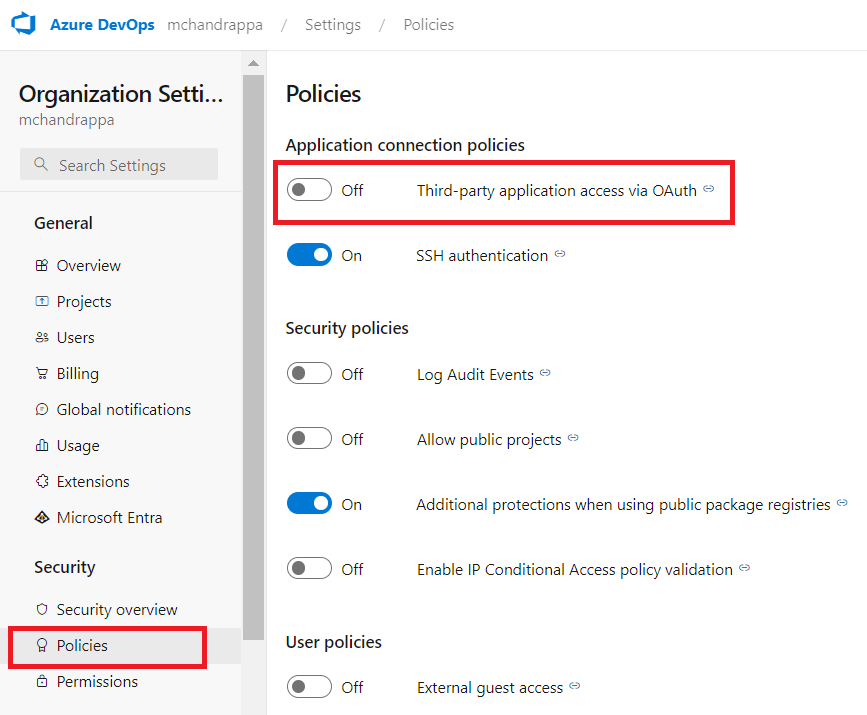
Enable Third-party application access via OAuth.
Follow the below steps to enable third-party access.
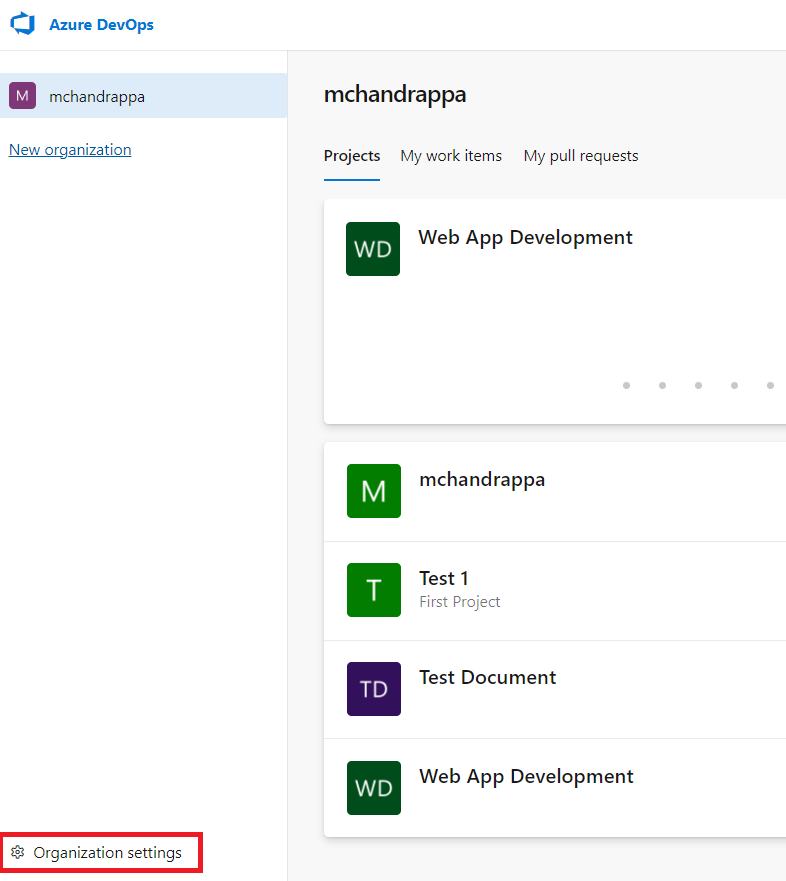
Step 1: Login to your Azure DevOps account.
Step 2: Click on Organization Settings.
Step 3: Click on Policies under the Security section. Enable Third-party application access via OAuth.
3. Automation Error
Check and add all the recipes if any automation is not working while using the Azure DevOps Connector app.
4. Internal Server Error
The server encountered an internal error and was unable to complete your actions and run automations. request.
To prevent this error, check your internet connection and try again.