This section contains the installation procedure for the LookupSync application.
Install the LookupSync app developed by appserve.ai on your monday platform.
If you subscribe and unsubscribe on the same day, it will have no impact on the billing cycle of the app.
Follow the below steps to install the application:
Step 1: Log in to monday.com.
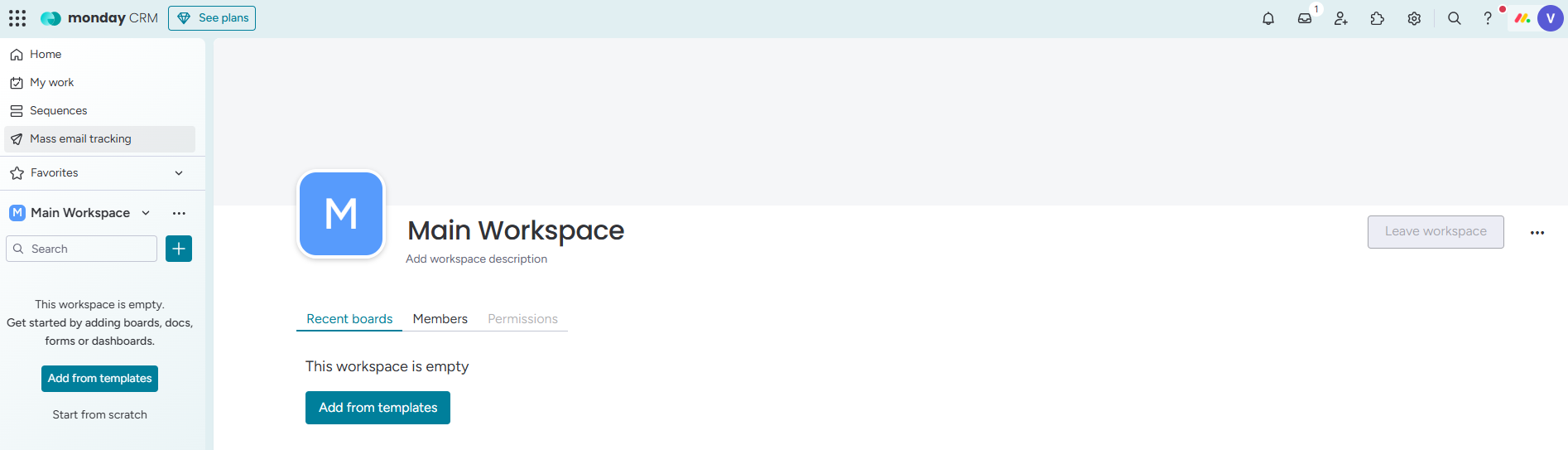
Create a new workspace for the LookupSync app.
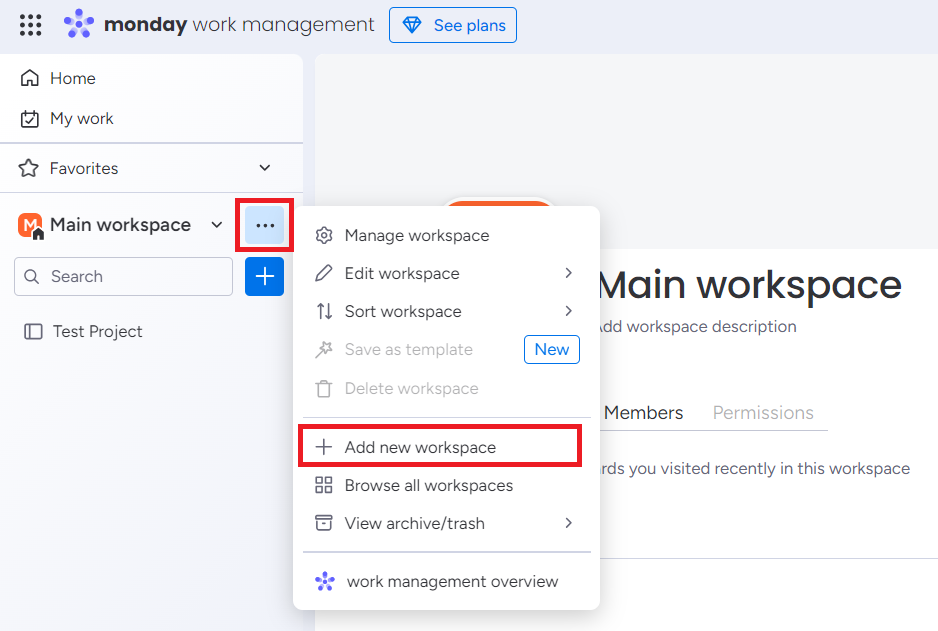
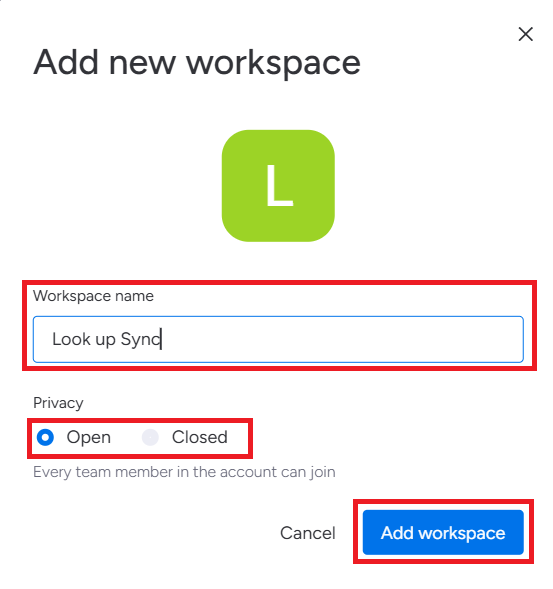
Step 2: Click on dropdown and click on Add new workspace.
Step 3: Enter the Workspace name. Select Privacy requirements. Click on Add Workspace.
-
Privacy requirements are selected as Open by default, which allows your team members to join the board.
-
Select the Closed option to prevent team members from joining the board.
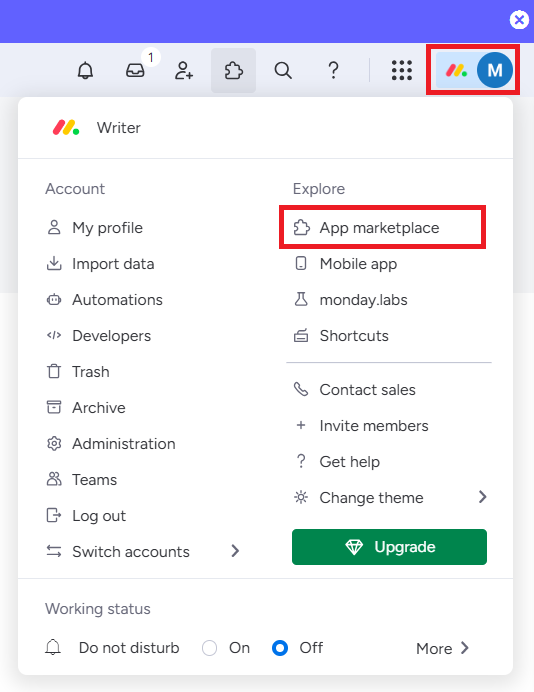
Step 4: Click on the profile icon from the top-right corner of the window and select App marketplace.
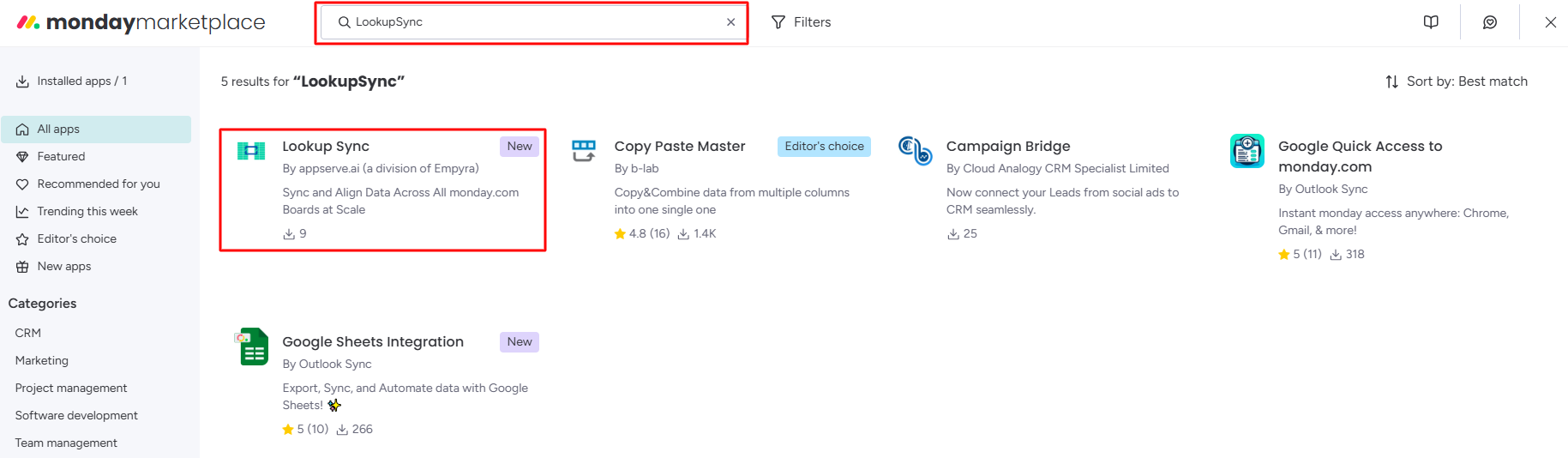
Step 5: Enter the app name and click the app.
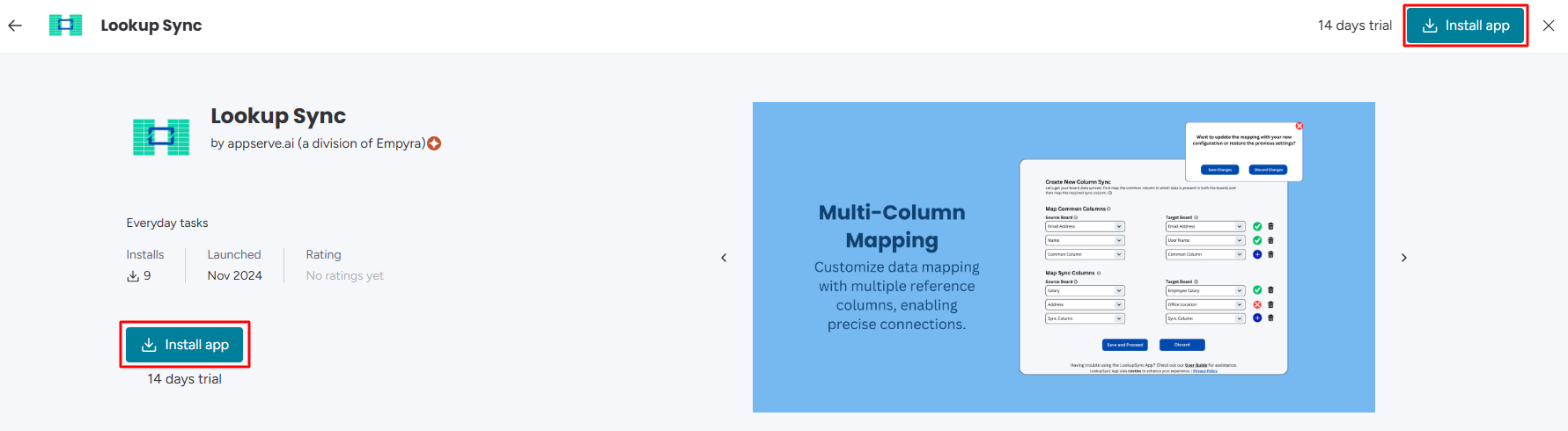
Step 6: Click on the Install app.
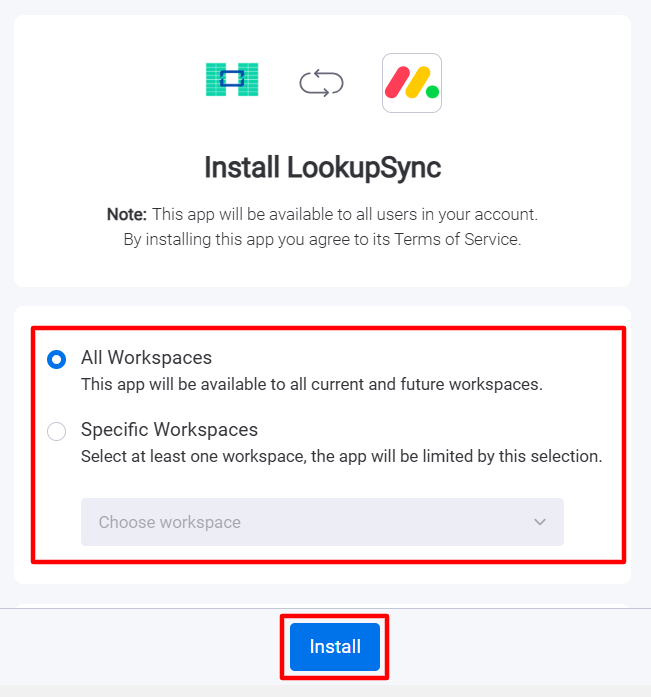
Step 6: Select the Workspace and click on Install.
-
If you select the All Workspaces option, the app will be available on all current and future workspaces.
-
If you select the Specific Workspaces option. Choose the Workspaces from the dropdown, the app will be limited to those workspaces only.
Step 7: Choose your target board from the dropdown and click on the Add app button.
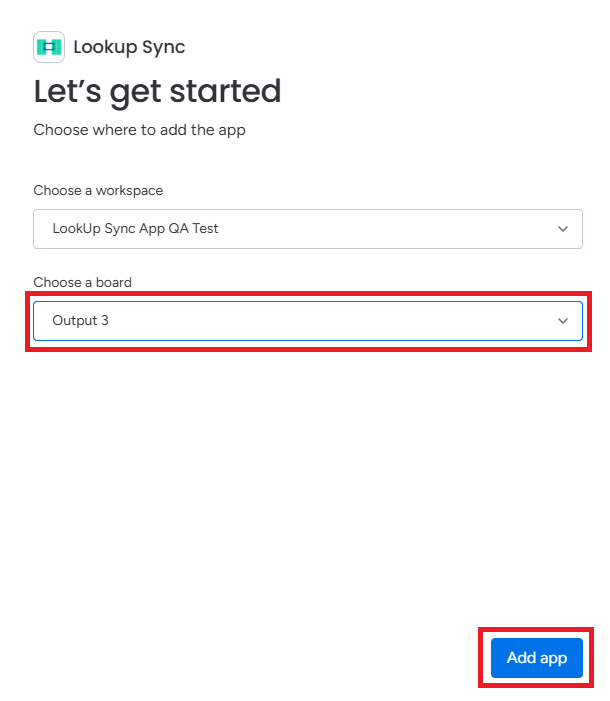
The Lookup Sync app will be installed in the selected workspaces.
Step 8: Click on Authorize.
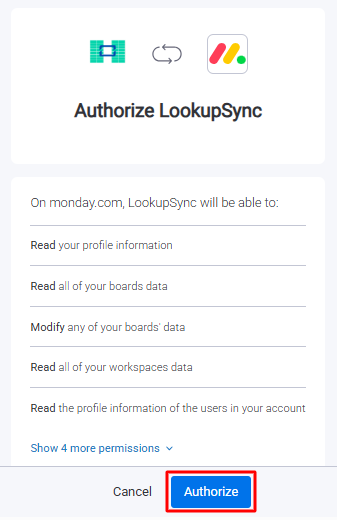
After installing and authorizing the application, set up your monday board and add the required columns to sync the data.
Uninstall the App
The steps to uninstall the app are as follows:
-
Go to the Monday Marketplace. Search for the Lookup Sync app. Click on the app.
-
Click on the dropdown and Uninstall the app.
Reinstall the App
After uninstalling, you can re-install the app using the simple steps:
-
Go to the Monday Marketplace. Search for the Lookup Sync app. Click on the app.
-
Click on Install.
The app will be re-installed.