Configure your monday workspace by adding both a Source Board and a Target Board, and create columns on each board based on your project data sync requirements. Data will sync from the Source Board to the Target Board when values in common columns match the specified criteria.
If you install the Lookup Sync app for your existing workspace (which already contains your required data for the lookup and sync process), don’t add the Source Board. Your existing board will act as a source board. Just add the Target Board during the configuration settings.
1. Setup your monday boards.
Follow the below steps to configure your monday board.
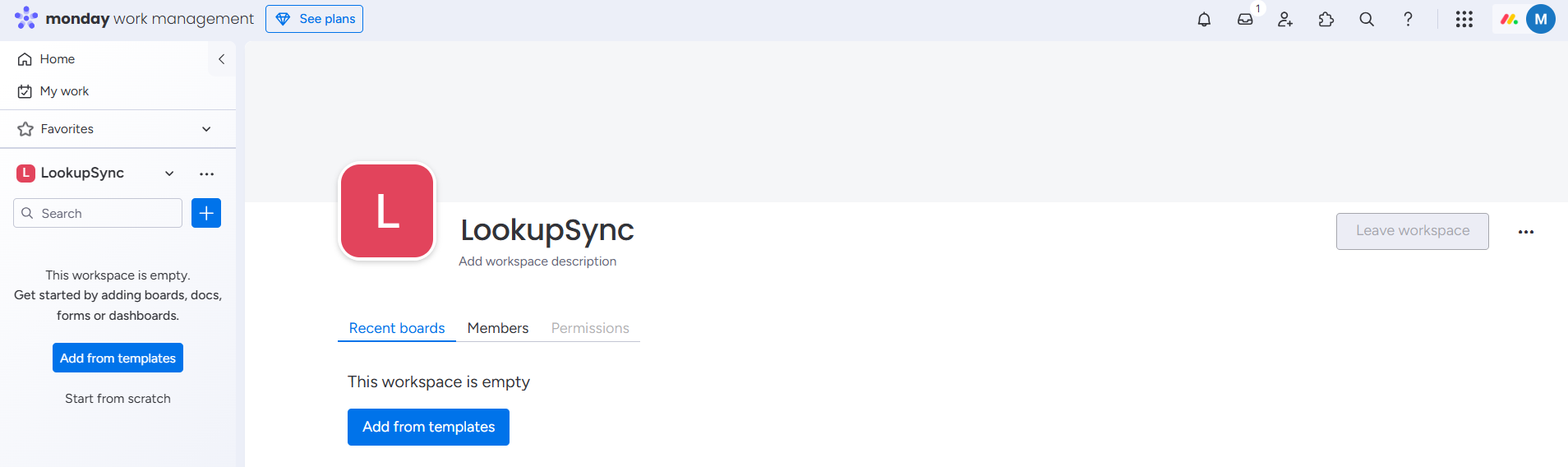
Step 1: Go to LookupSync workspace.
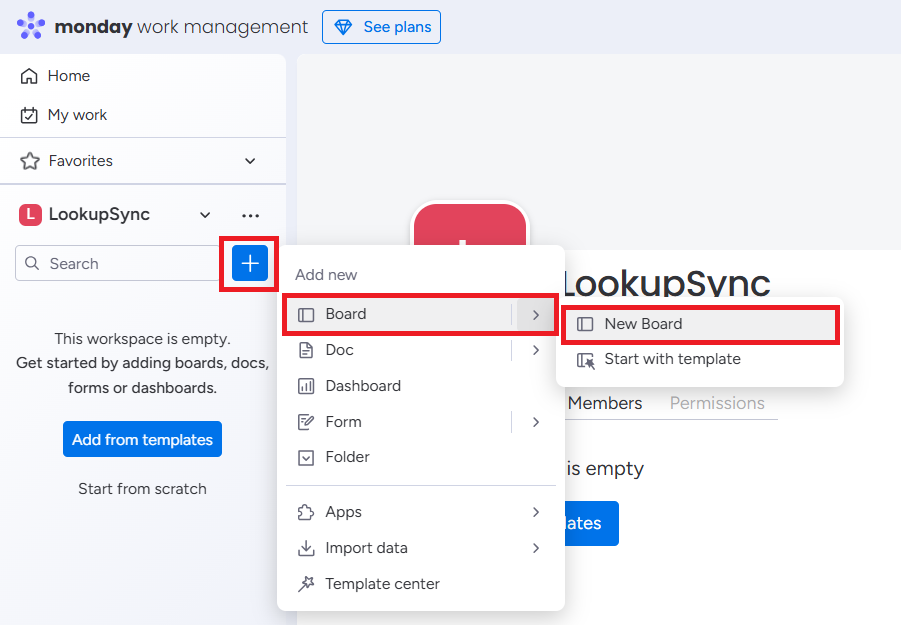
Step 2: Click on '+' button -> Select Board -> Click on New board.
Step 3: Add Board name and click on Create Board.
-
Select the Privacy options based on the requirements.
-
Select Item types under Select what you’re managing in this board section.
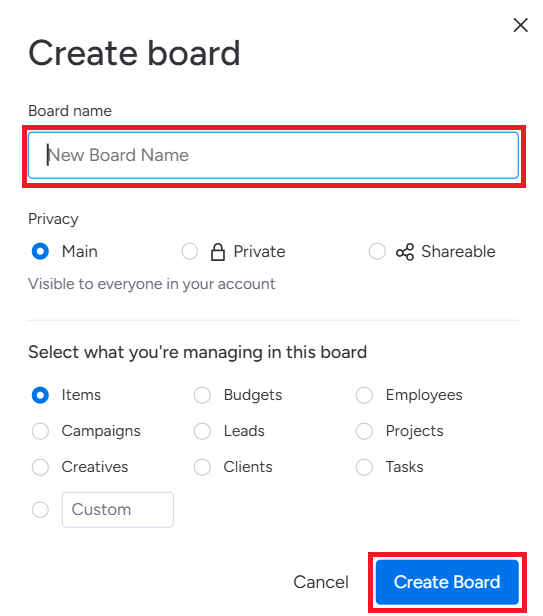
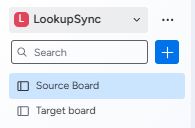
Create a Source Board and Target Board.
Don’t add Source Board if you already have existing data to lookup and sync.
Step 4: Add the required columns to the source board and target board according to your project requirements.
The source board and target board should contain identical columns to ensure consistent data synchronization.
Avoid adding the below-mentioned columns for a better lookup and synching process:
Files, Tags, Dependency, monday Doc, Vote, Creation log, Last updated, Auto number, Progress tracking, Button, Formula, Color picker, Time tracking, Connect boards, and Mirror columns.
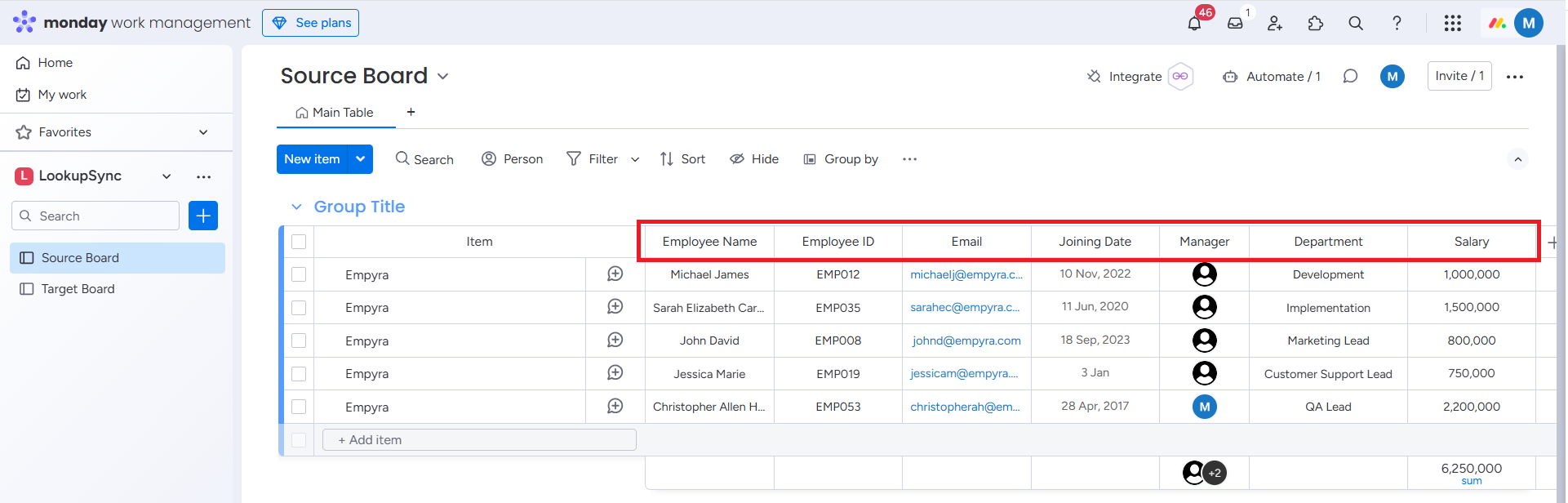
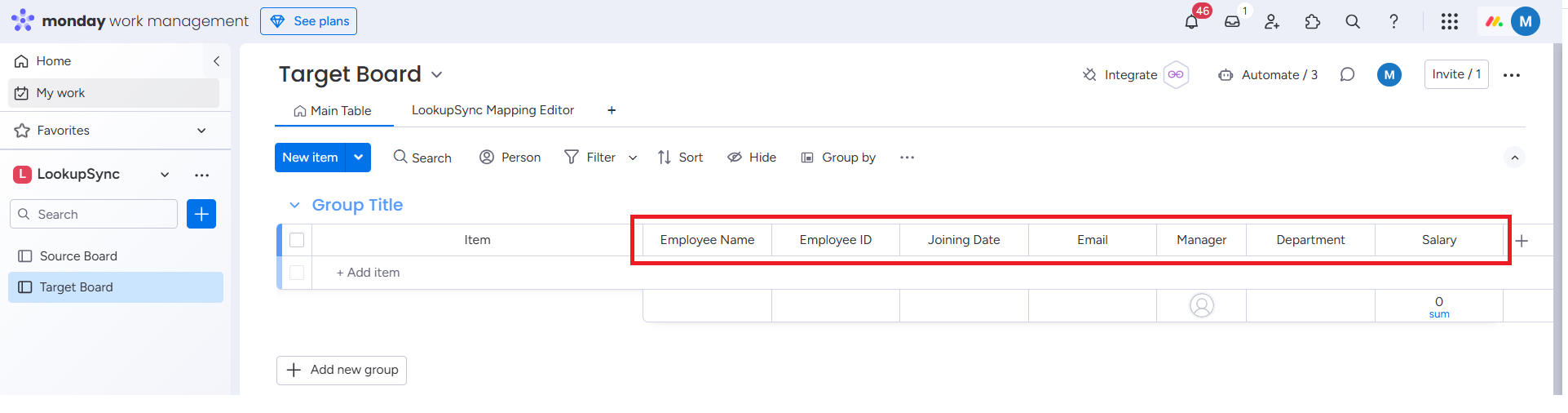
After adding columns, add or import the data to the source board.
2. Setup Sub Item Level in Boards (Optional)
Add a sub-item in the Source Board (existing board) and Target Board to lookup and sync data from the sub-item level.
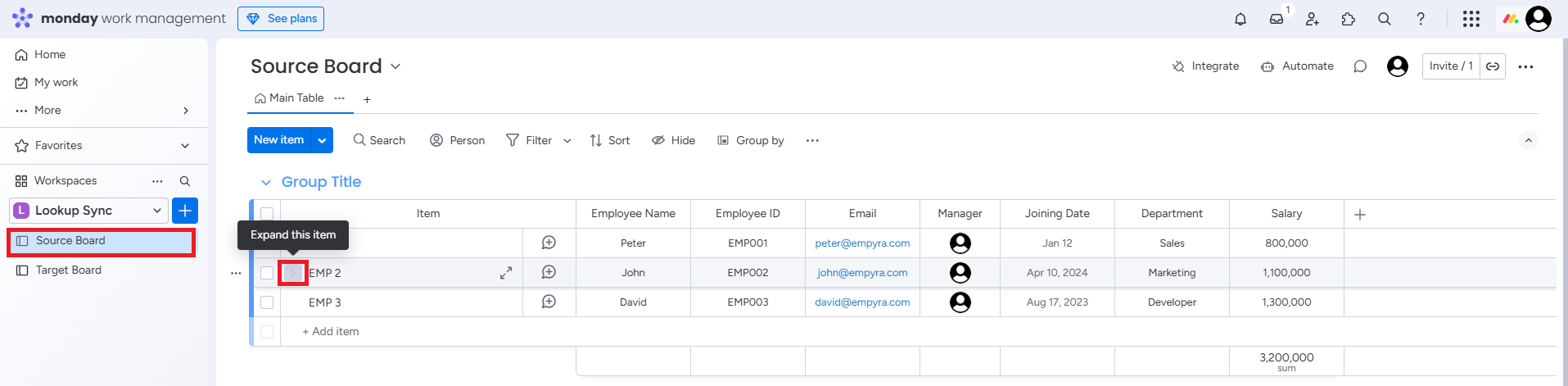
Step 1: Go to Source Board or Existing Board -> Click on the Expand this item button.
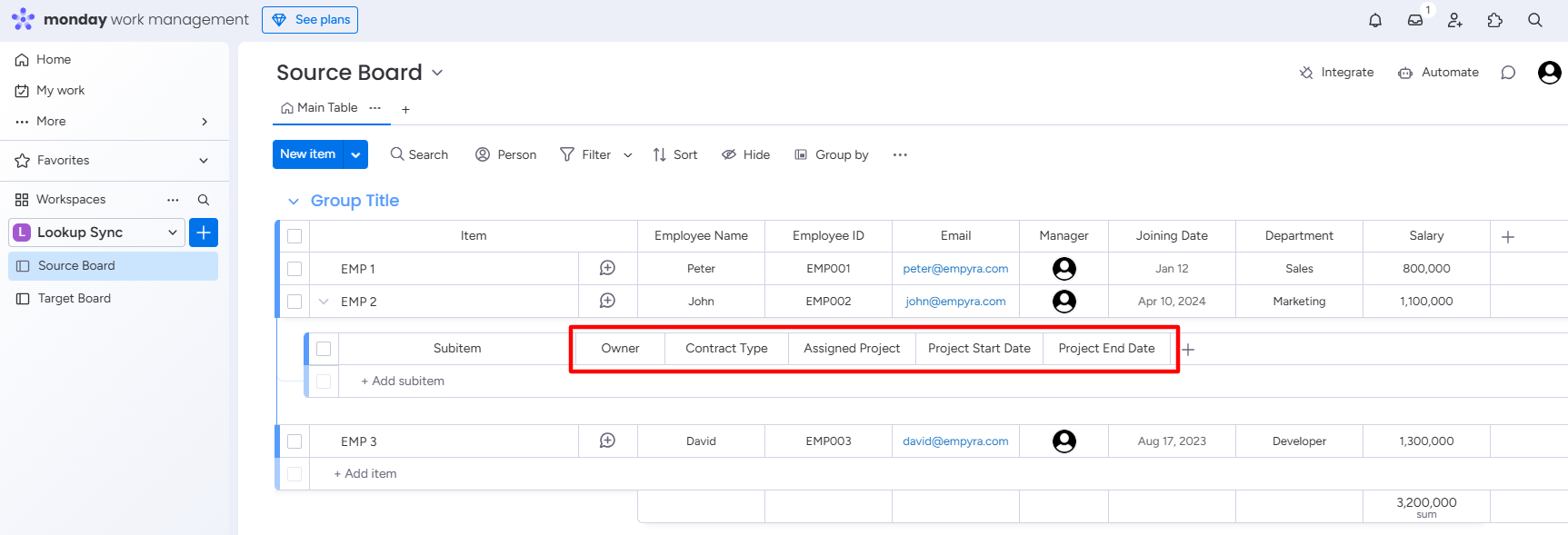
Step 2: Add the required columns to the subitem.
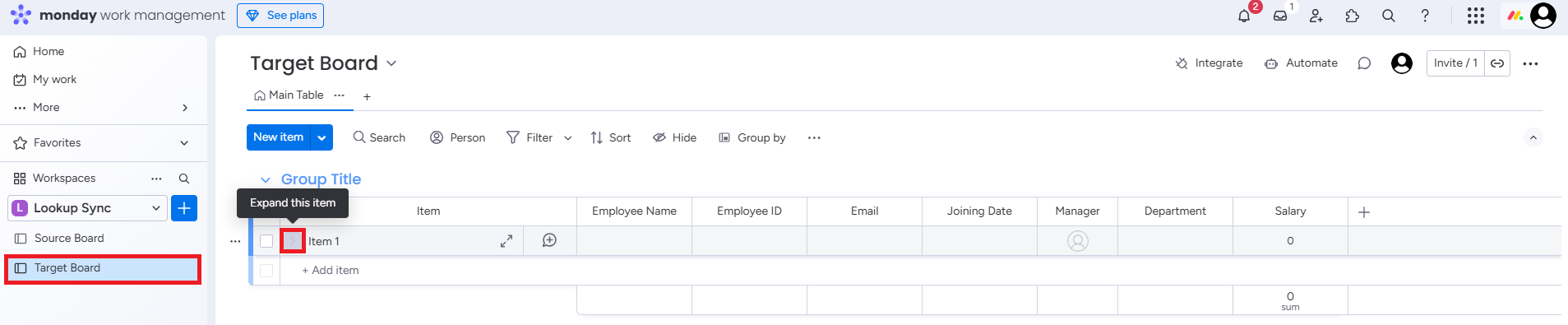
Step 3: Go to Target Board -> Click on the Expand this item button.
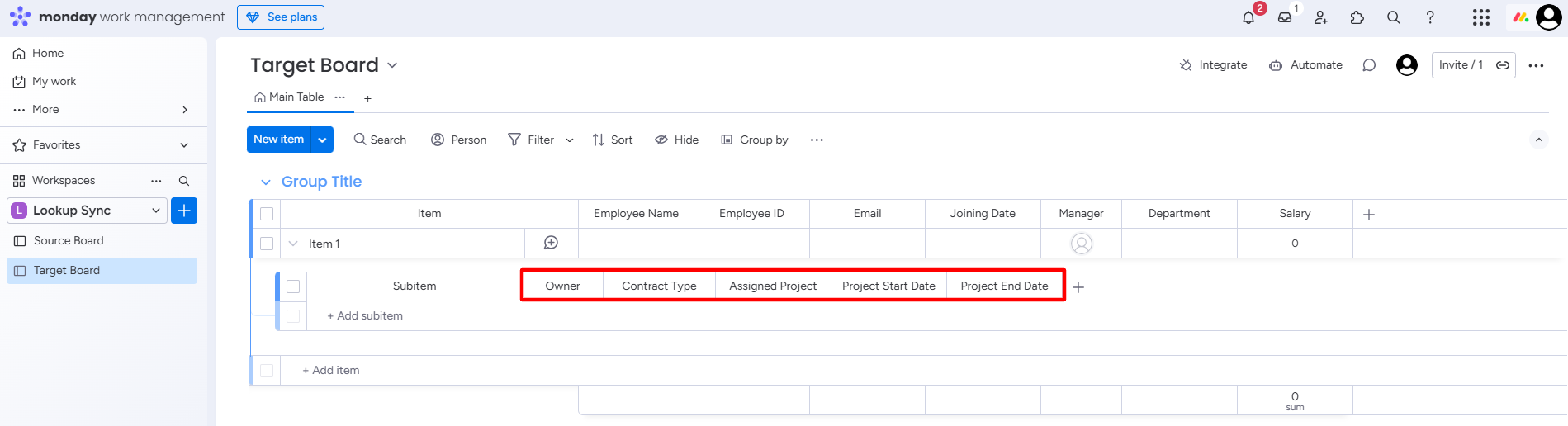
Step 4: Add the required columns to the subitem.
Add identical columns similar to source board sub-items.
After setting up your monday workspace, add workflows to the Target Board.