

This section provides the necessary configuration settings to add the Power BI Connector app to monday.com workspaces.
Power BI App Configuration
Follow the steps below to add the Power BI Connector app to your monday workspace:
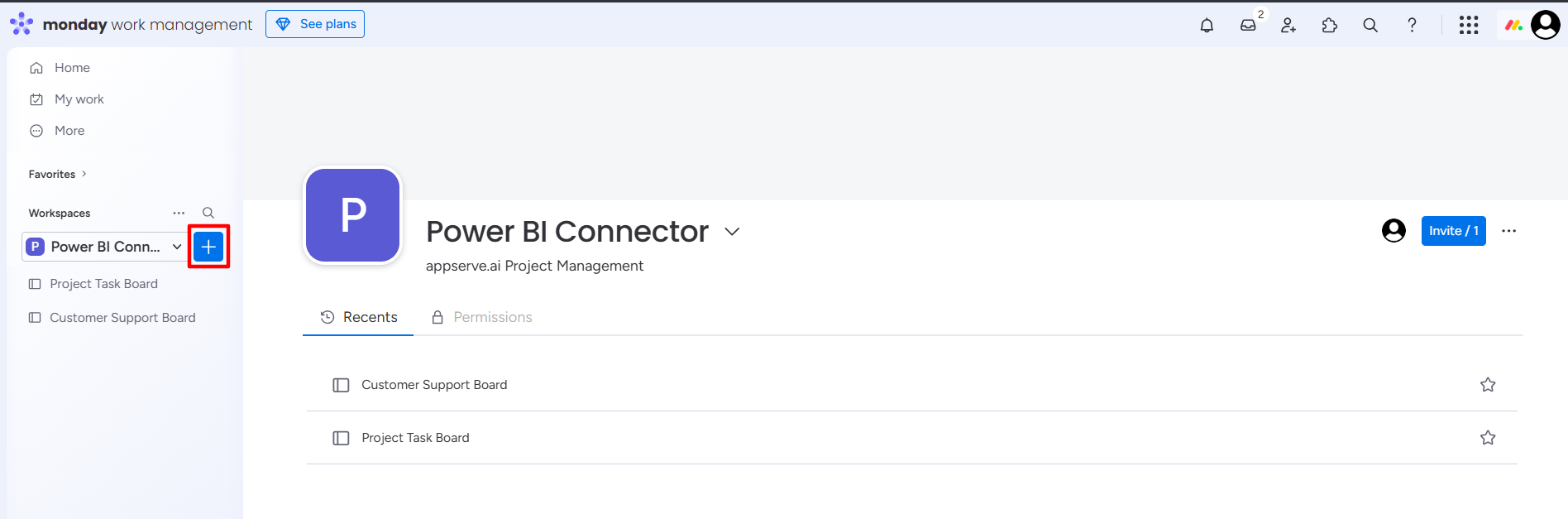
Step 1: Go to the workspace and click on the “+“ button.
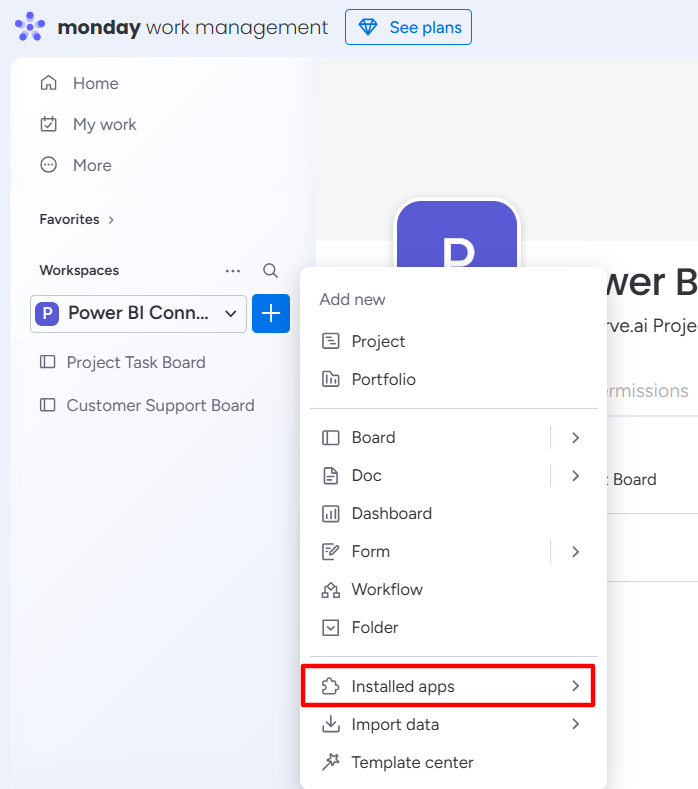
Step 2: Click on Installed apps.
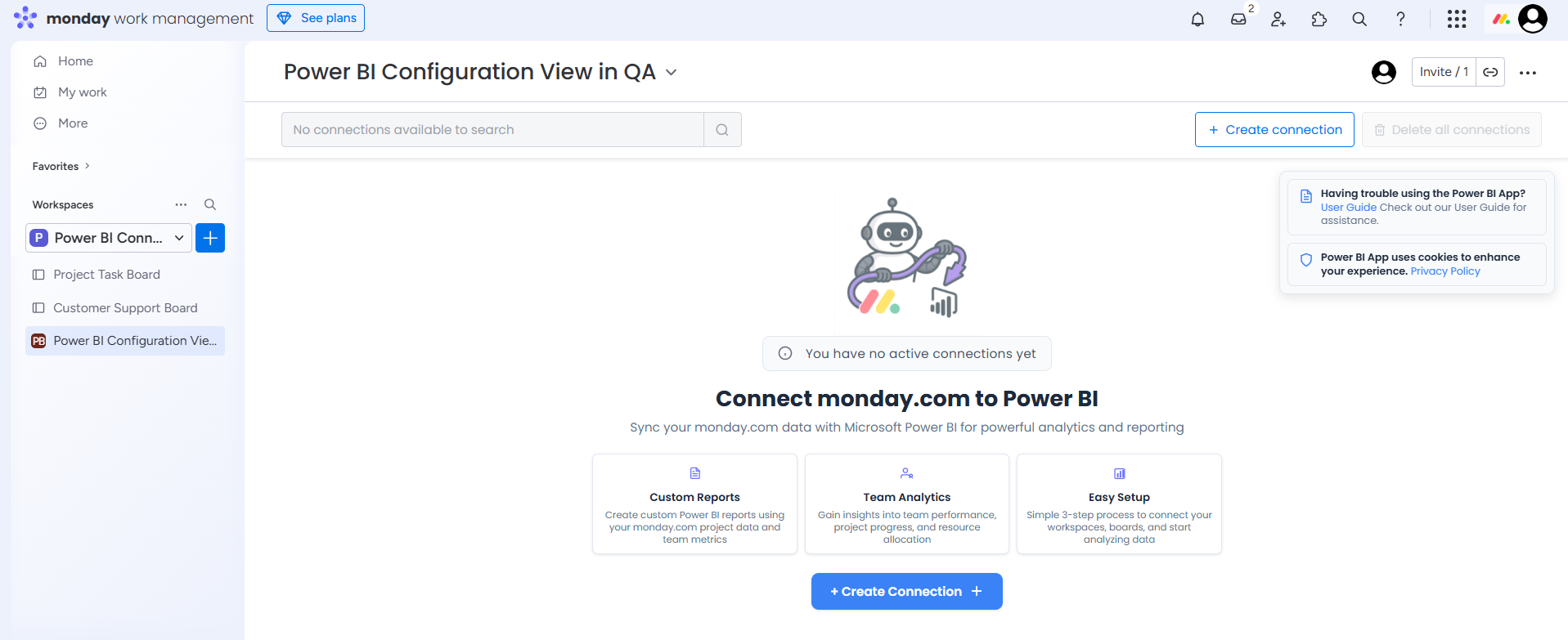
Step 3: Click on the Power BI Configuration.
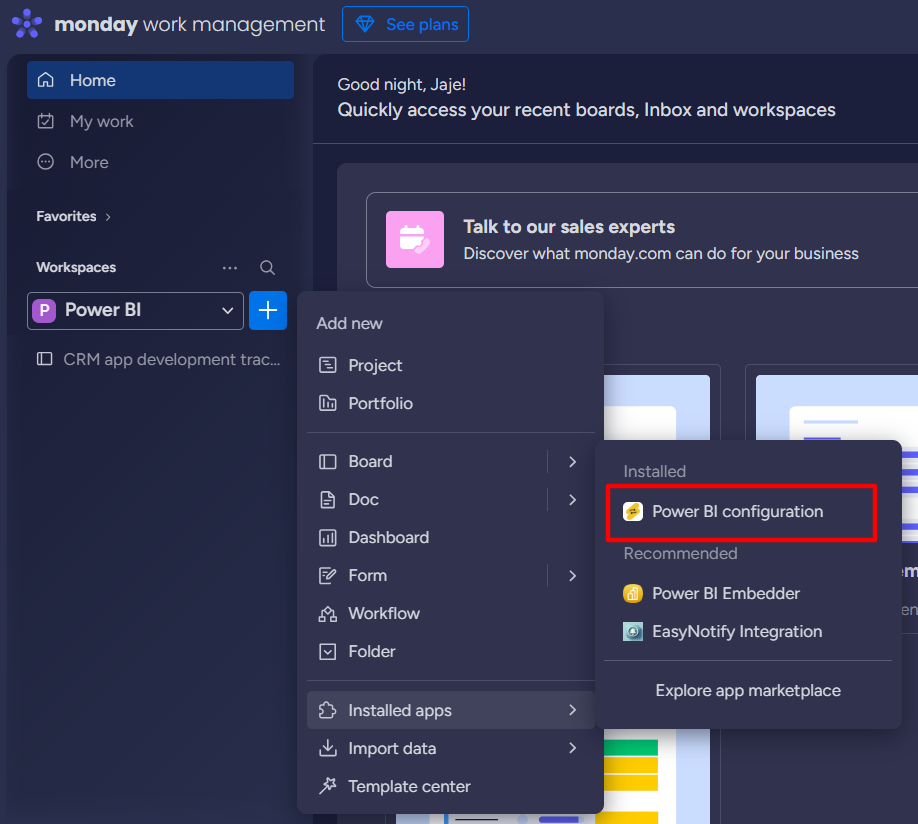
The Power BI app will be added to the workspace.
Step 4: Click on the Authorize button.
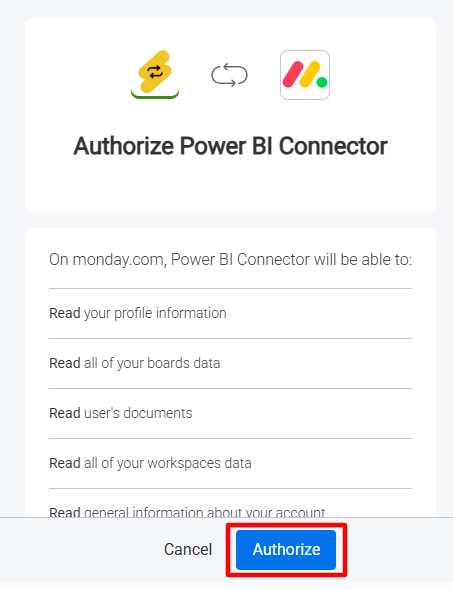
Power BI Connector app will be successfully added to the selected workspaces.
Powe BI Embedder Configuration
After completing the app setup, add the Power BI Embedder view to your monday.com board. This view is necessary to embed and display Power BI reports directly within the board.
Step 1: Go to your monday.com board.
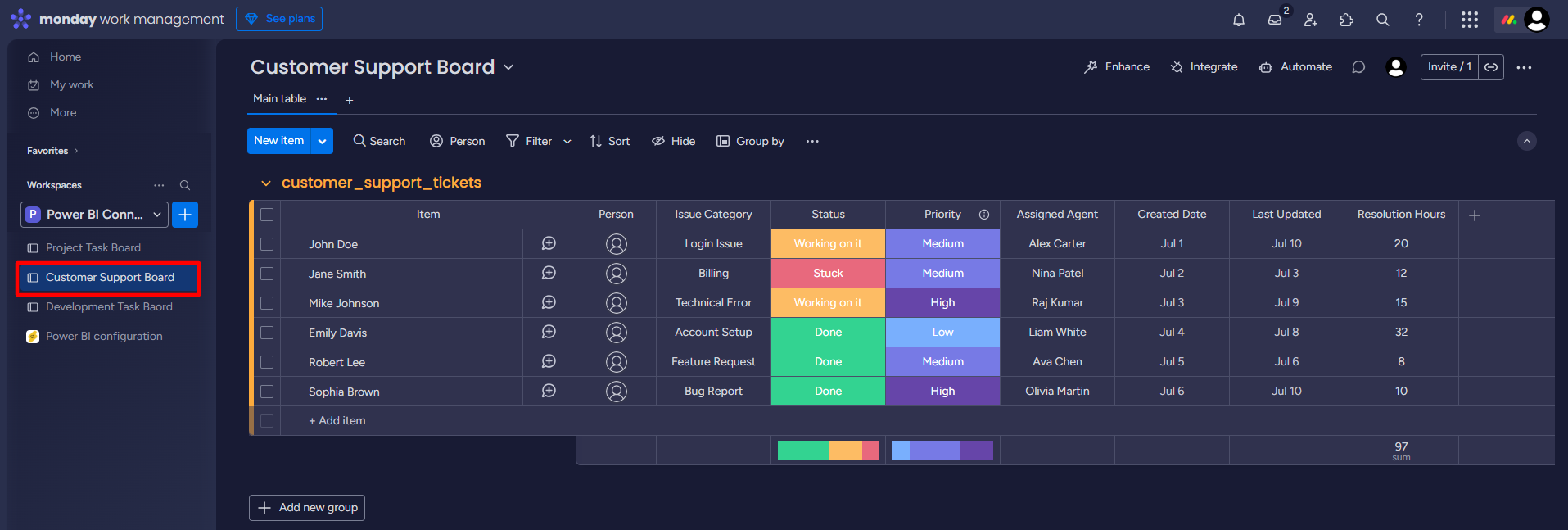
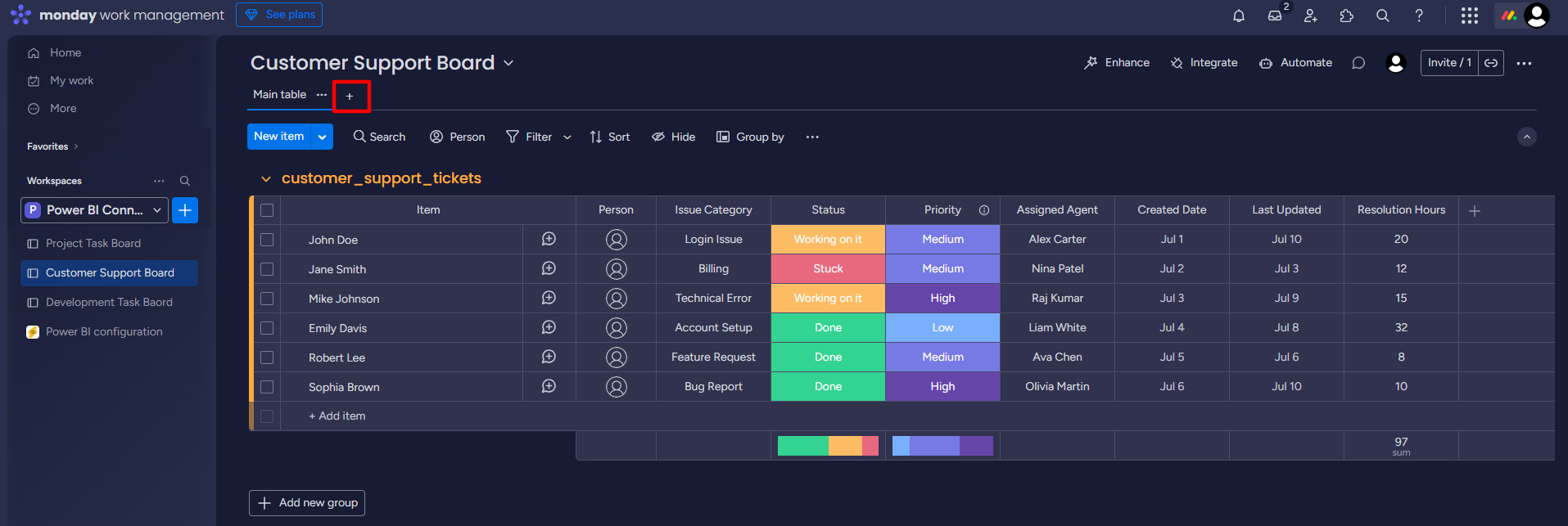
Step 2: Click on Add view.
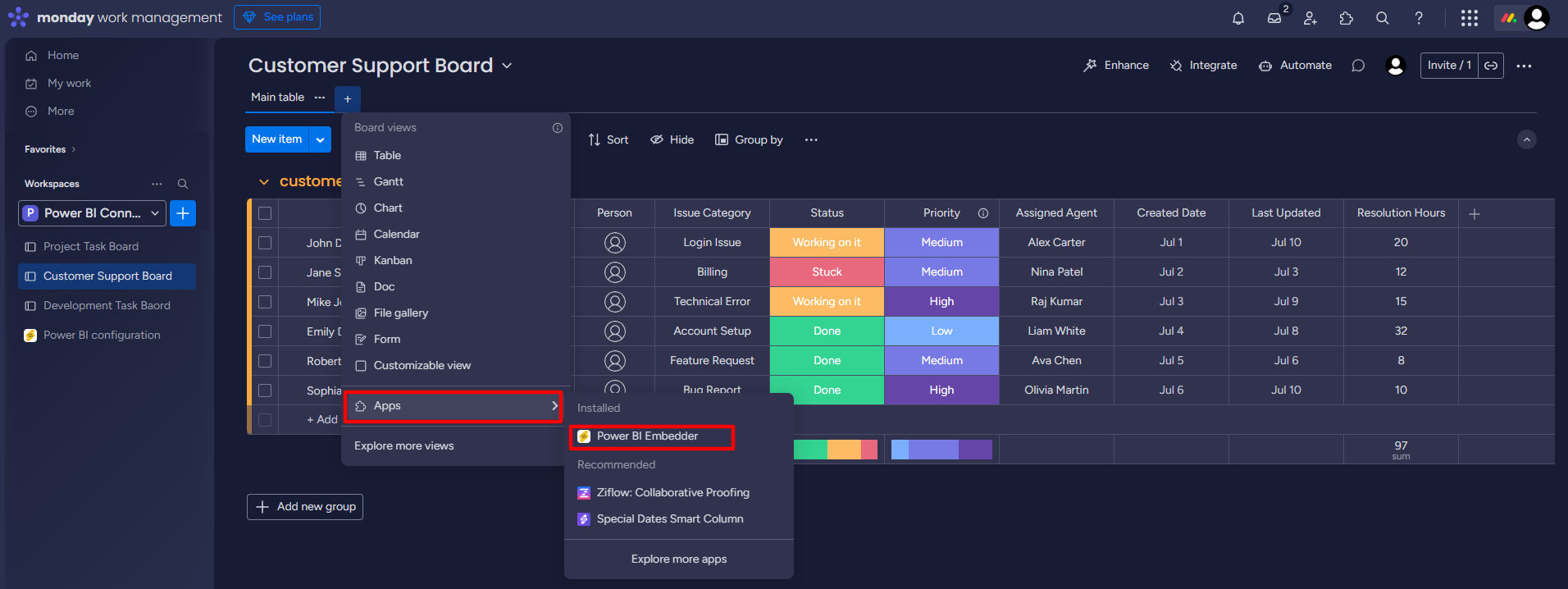
Step 3: Click on Apps, and select Power BI embedder.
Power BI Embedder view will be added to your monday board.