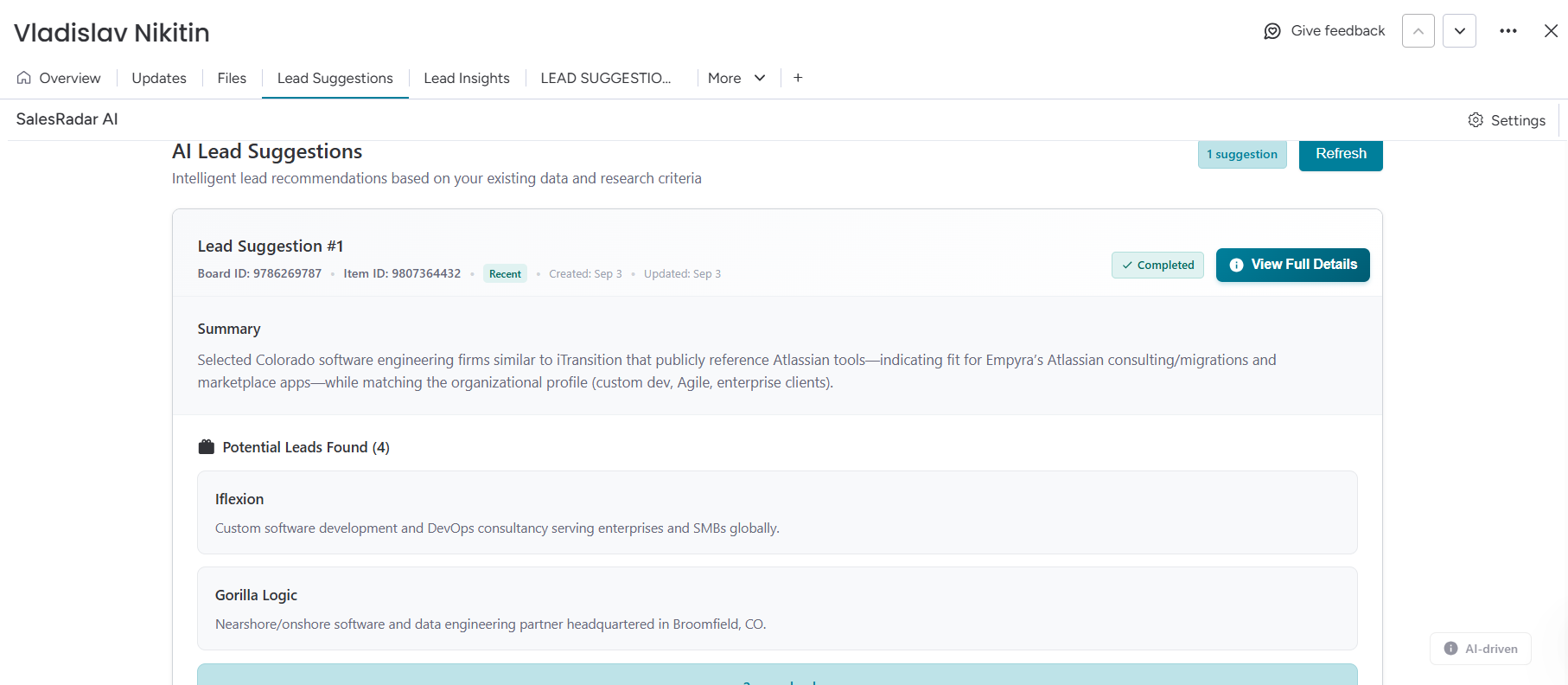

The AI Lead Suggestion feature helps you quickly identify new prospects similar to an existing lead. When you enter details such as the company name, industry, region, or website, the AI uses this information to find businesses with matching profiles. It then provides five similar high-potential leads along with a brief context on their relevance. This feature reduces manual research time and helps sales teams expand their outreach with more targeted and consistent lead discovery.
Only administrators can create, modify, or delete configurations and settings. Non-admin users have view-only access to existing configurations and can use the Competitor Monitoring feature with the settings that have already been configured.
Non-admin users cannot create, update, or delete a setting.
Follow the steps below to generate the lead suggestions:
Step 1: Go to the Leads board on the CRM workspace.
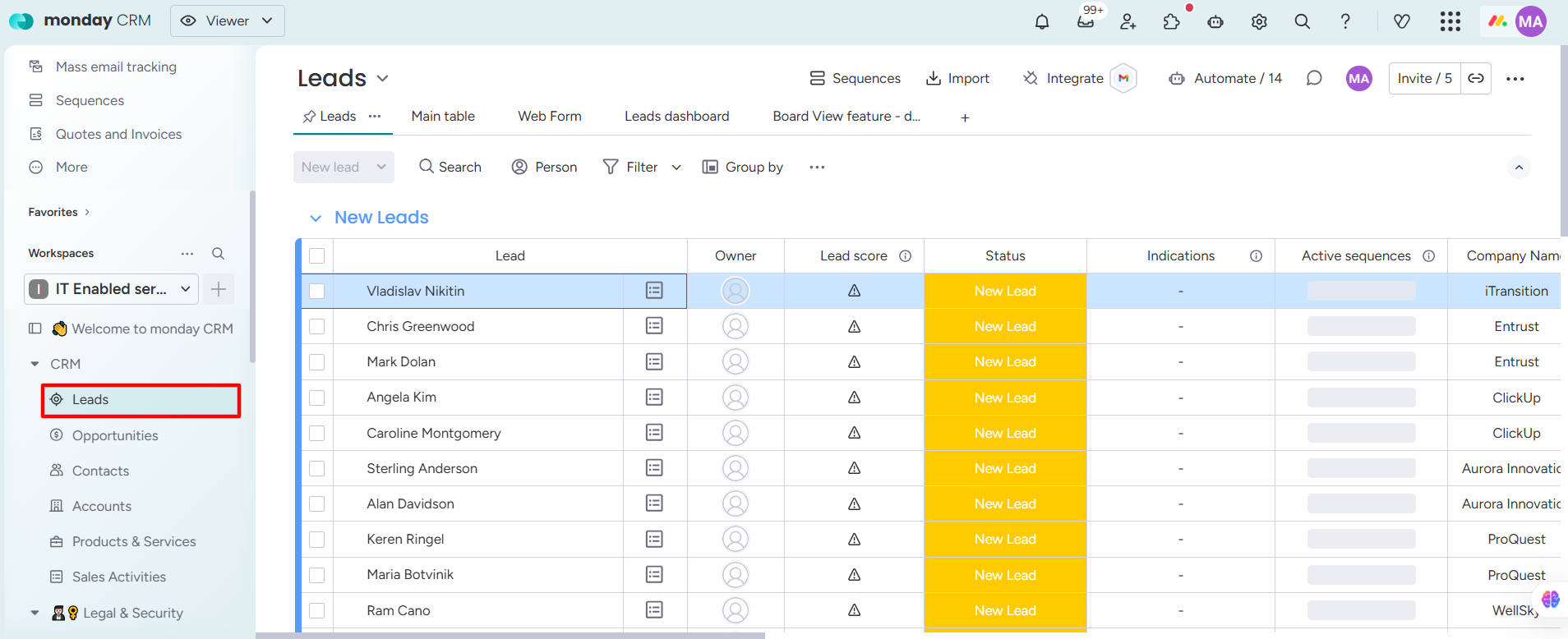
Step 2: Open any lead item page.
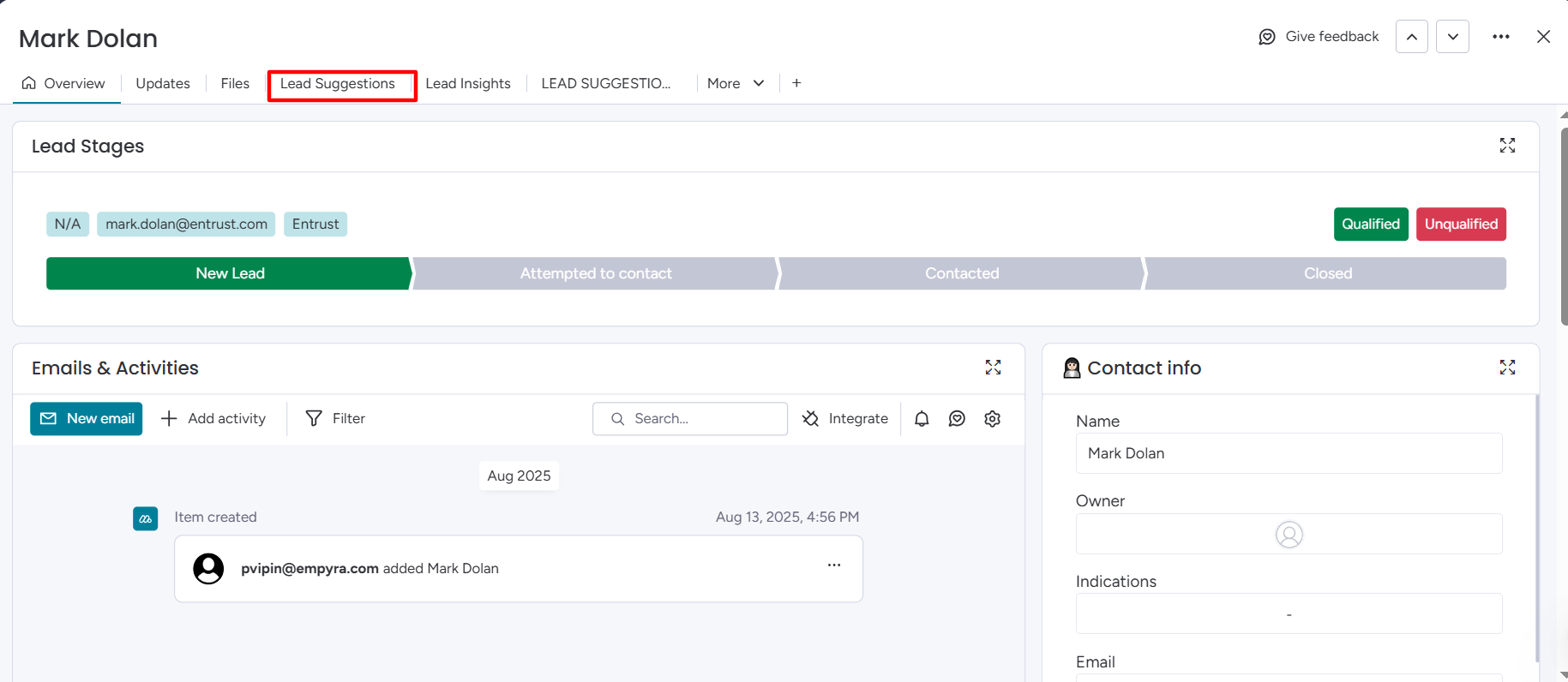
Step 3: Go to the Lead Suggestions tab.
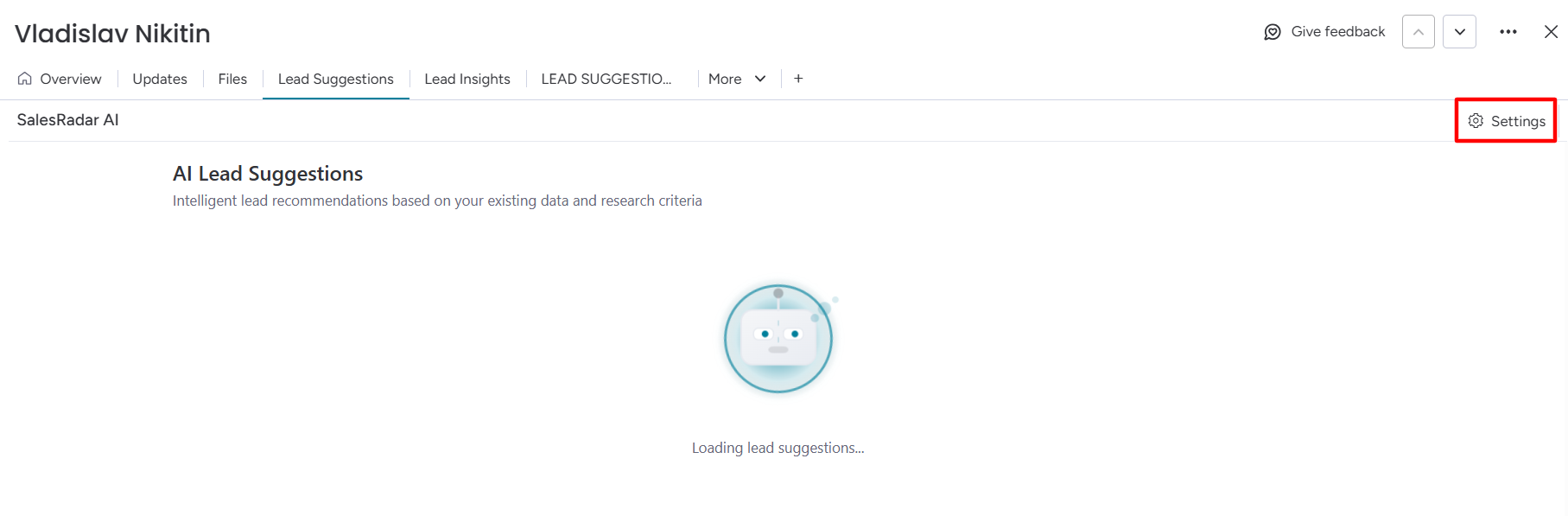
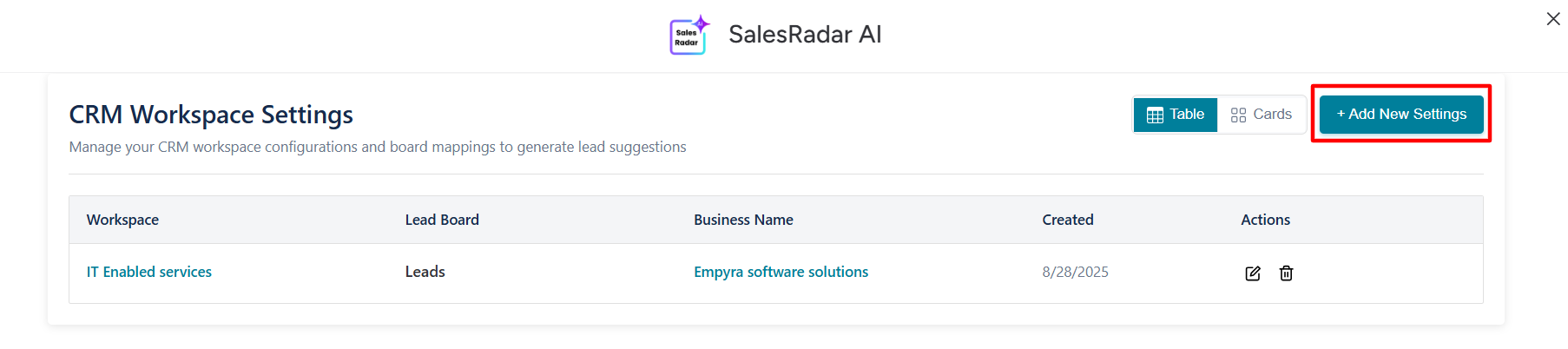
Step 4: Click on the Settings button.
Step 5: Click on Add New Settings.
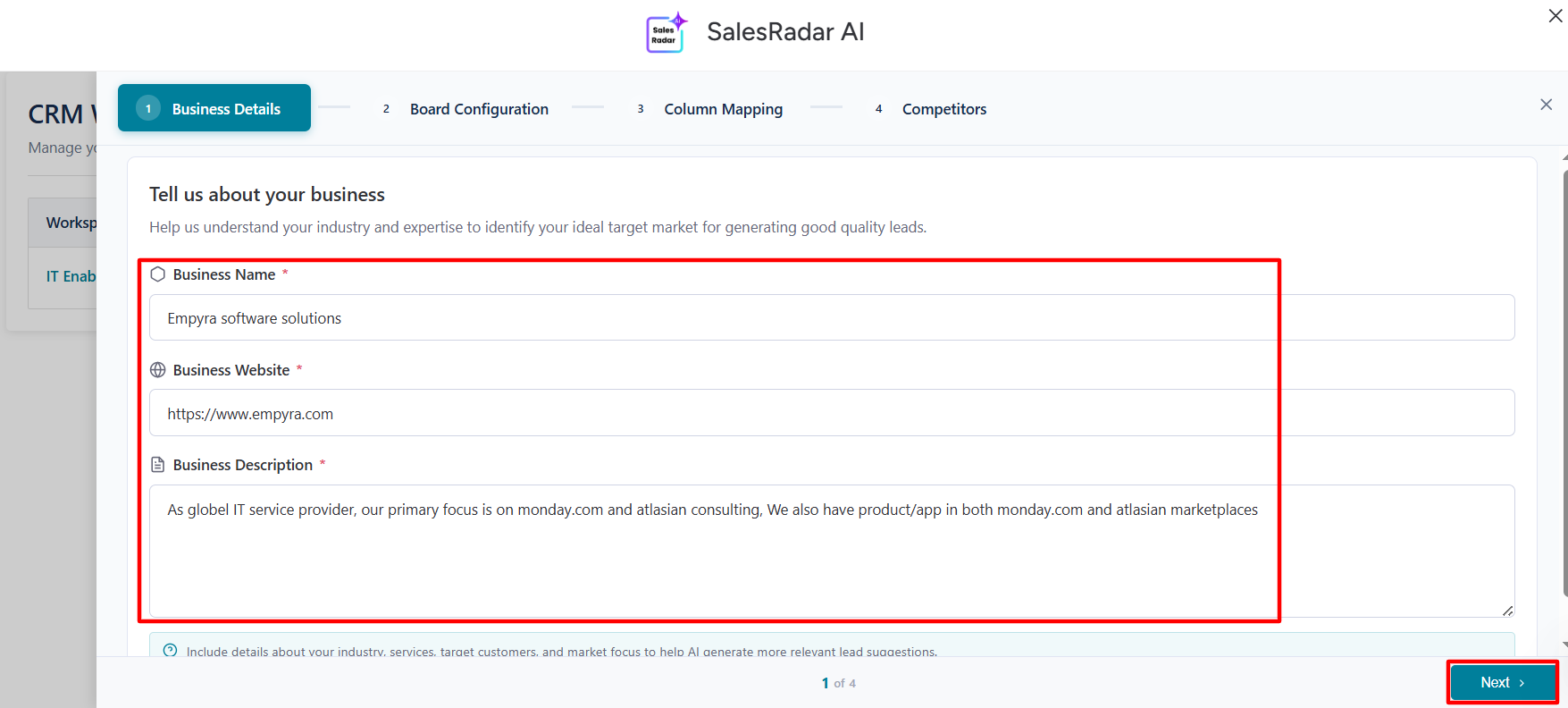
Step 6: Add Business Details.
-
Add Business Name
-
Enter Business Website
-
Add Business Description
-
Click on the Next button
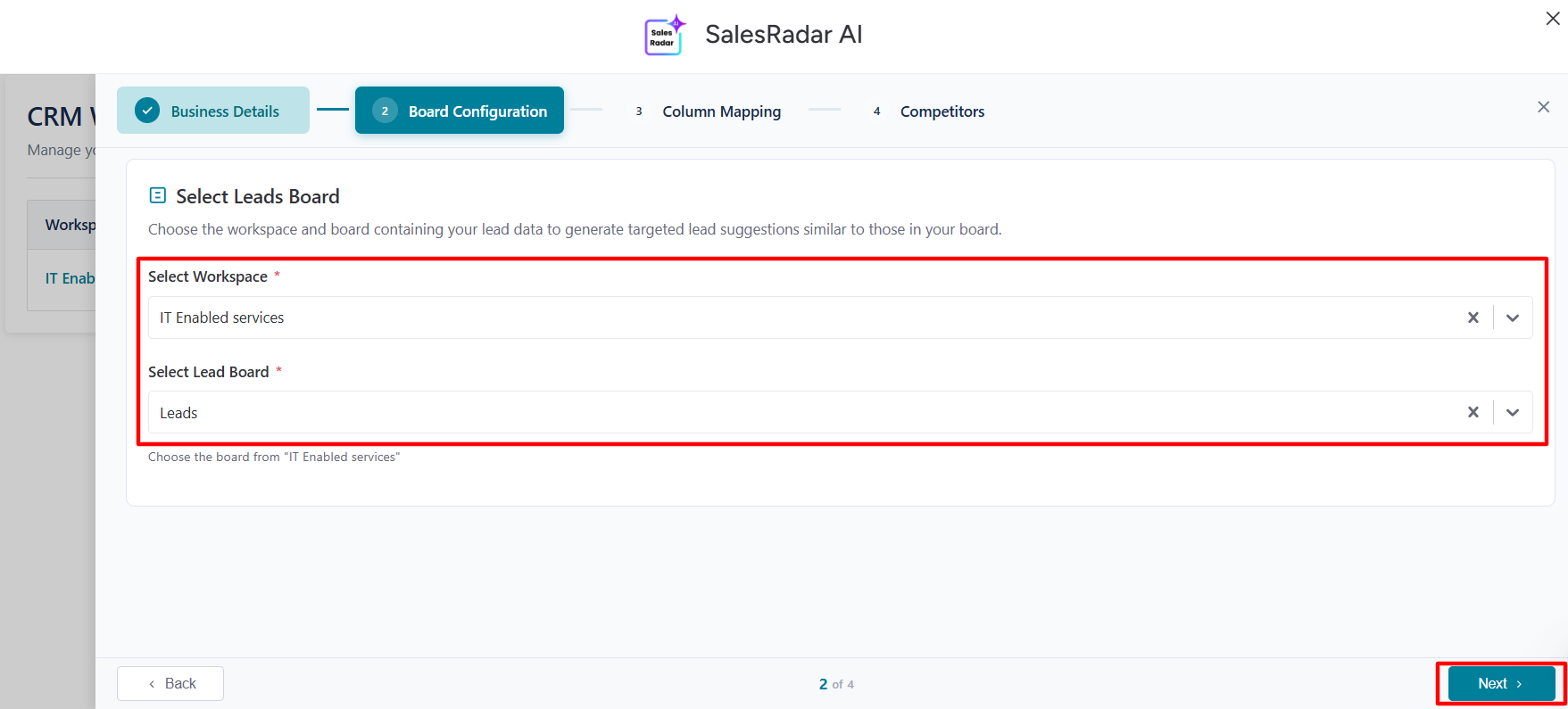
Step 7: Configure Board details.
-
Select Workspace from the dropdown
-
Select Lead Board from the dropdown
-
Click on the Next button
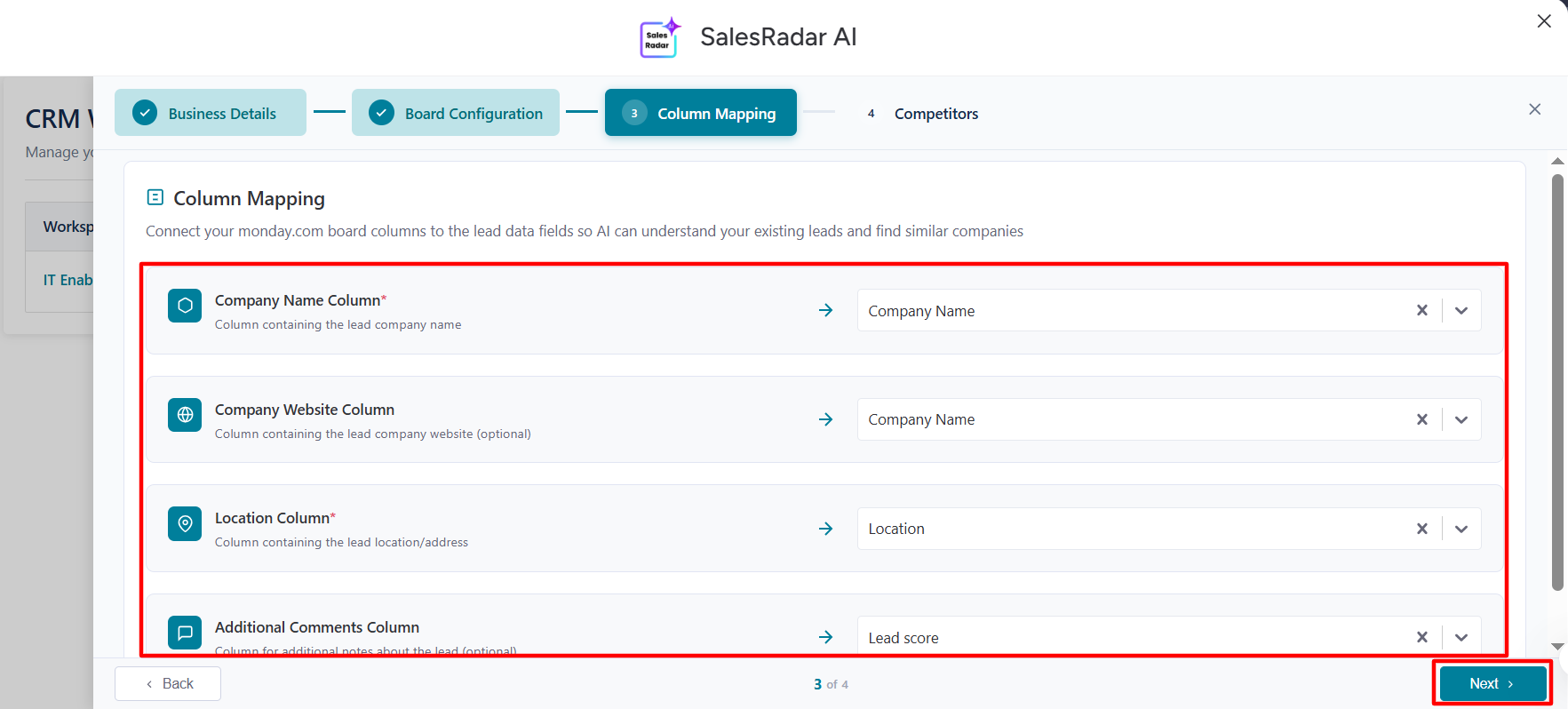
Step 8: Map the monday board columns to the lead data fields.
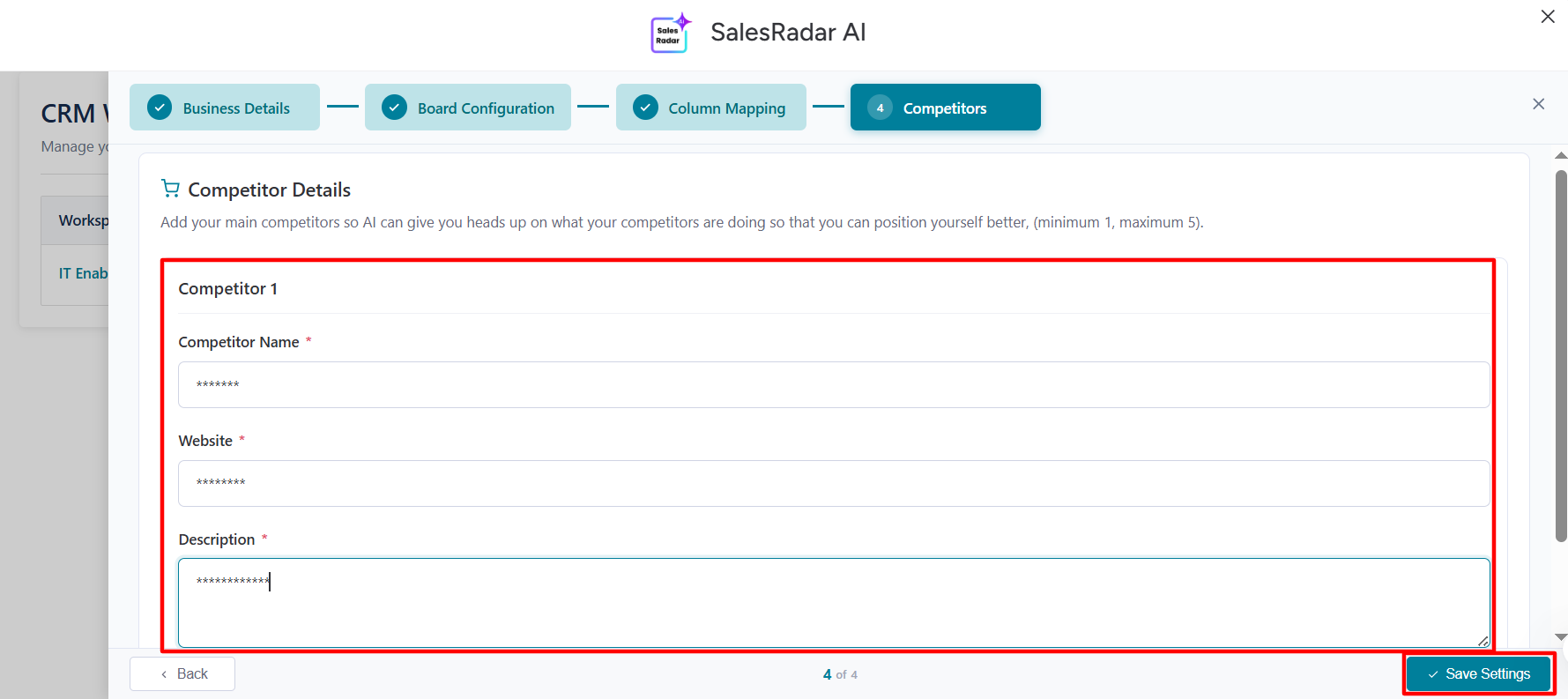
Step 9: Add the competitor details.
-
Add Competitor Name.
-
Add Competitor Website
-
Add description
-
Click on the Save Settings button
The AI analyzes the information you’ve entered and automatically suggests potential leads that closely match your input criteria.