The user has to configure the monday workspace by adding boards and columns to match the ServiceNow entities and related fields. This configuration helps to sync the data between the monday items and ServiceNow fields after adding the recipe.
-
Create a monday Board: Set up a dedicated board where work items from ServiceNow will be synced.
-
Define Columns: Ensure that columns on the monday board reflect the fields you want to synchronize from ServiceNow, such as:
-
Status
-
Urgency
-
Impact
-
Description
-
Files
-
Any Custom Field
-
Integration ID and Incident Number or Task Number columns are automatically added to the board after completing the configuration settings.
Follow the steps below to add a board and columns to monday workspace:
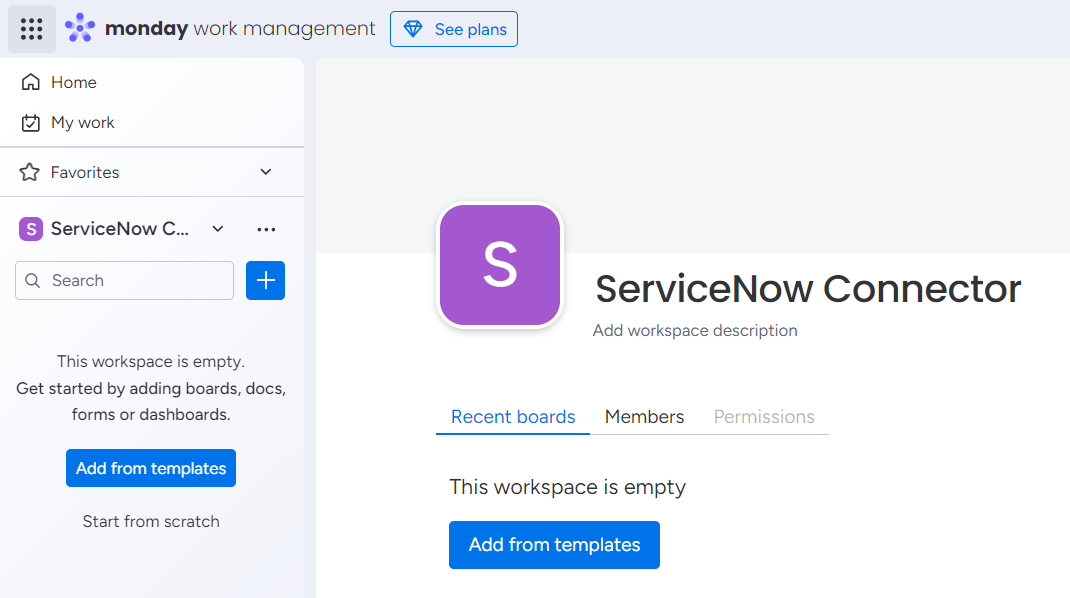
Step 1: Go to the ServiceNow Connector workspace.
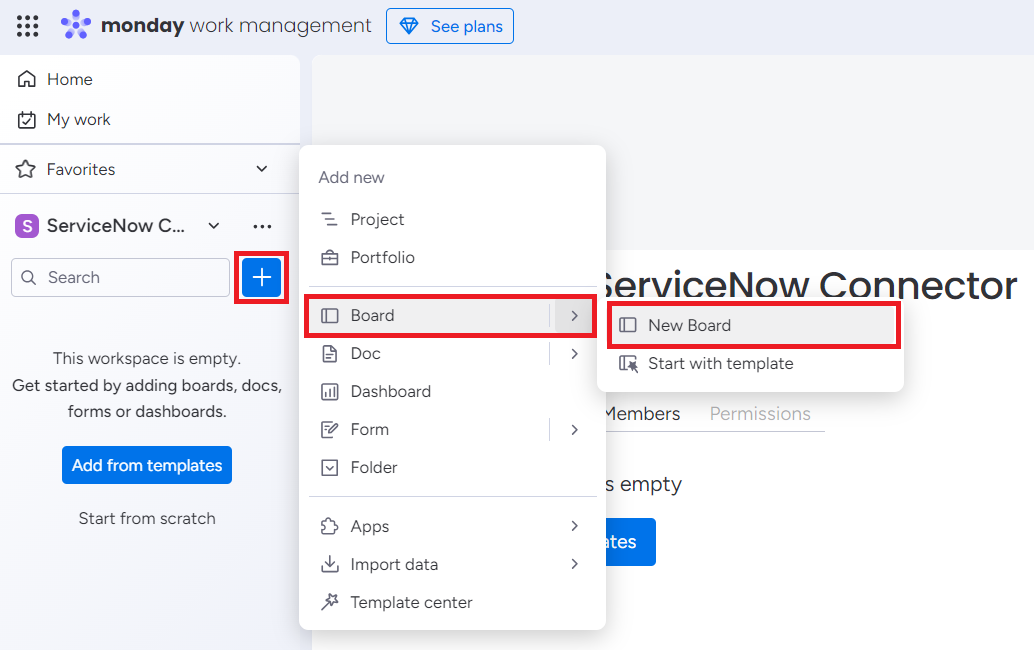
Step 2: Click on the '+' button. Select Board and click on New Board.
Step 3: Add the Board name and click on Create Board.
-
Select the Privacy options based on requirements.
-
The items option will be selected under Select what you’re managing in this board section by default.
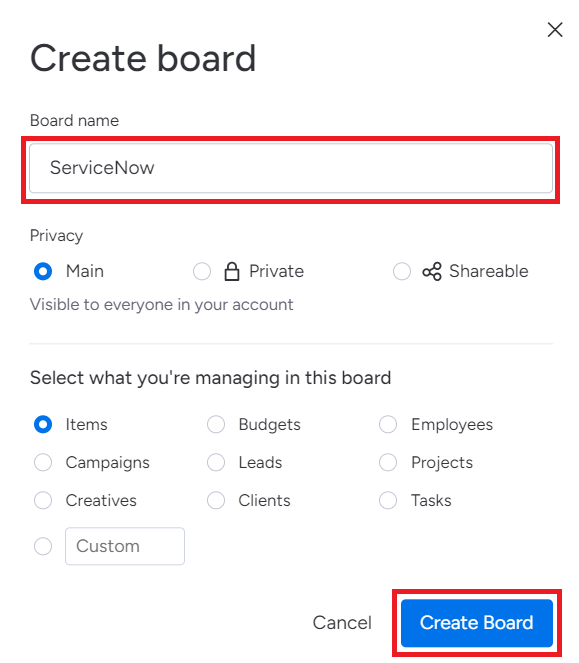
New Board will be created for the ServiceNow Connector workspace.
Create separate boards for each type of entity if you are syncing multiple entities between monady.com and the ServiceNow platform.
Step 4: Add required columns to the monday board.
Add columns and status labels to Incident board
-
Click on the '+' button on the board and add required columns to match ServiceNow fields.
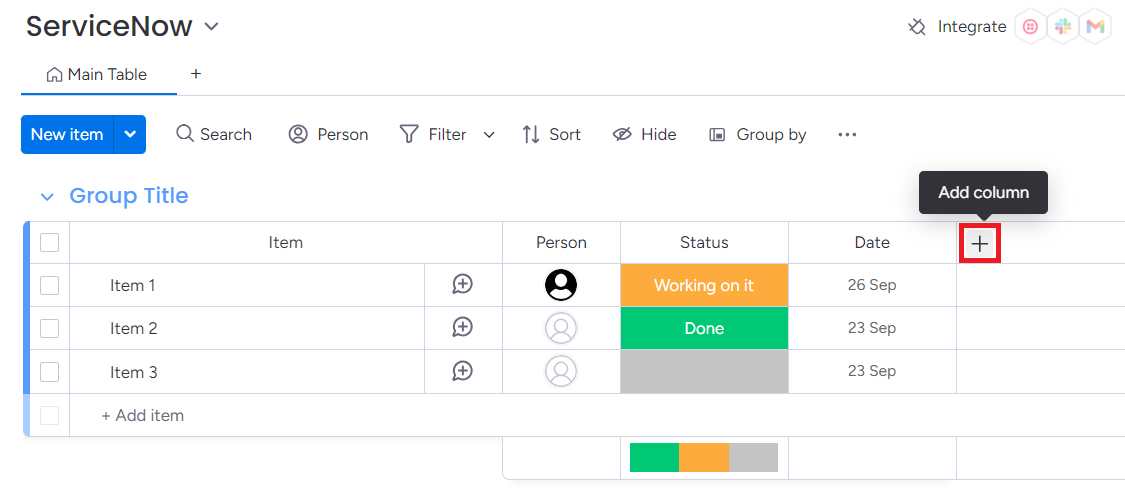
-
Add three status columns for Status, Impact, and Urgency columns, and rename the columns accordingly.
-
Column names for Status, Impact, and Urgency are case-sensitive, so be sure to enter them correctly.
-
Add the labels to the Status, Impact, Urgency, or any other field columns as per ServiceNow fields.
Choose the status label colors based on your preference.
|
Status |
Impact |
Urgency |
|---|---|---|
|
New |
High |
High |
|
In Progress |
Medium |
Medium |
|
On Hold |
Low |
Low |
|
Resolved |
|
|
|
Closed |
|
|
|
Cancelled |
|
|
-
Click on the label box and click on Edit labels.
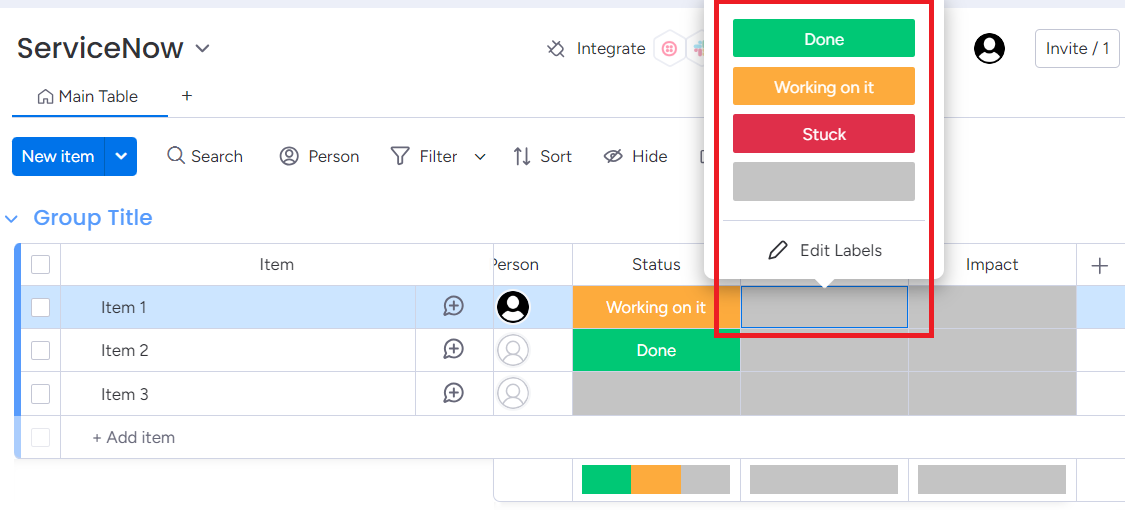
-
After adding all the labels click on Apply.
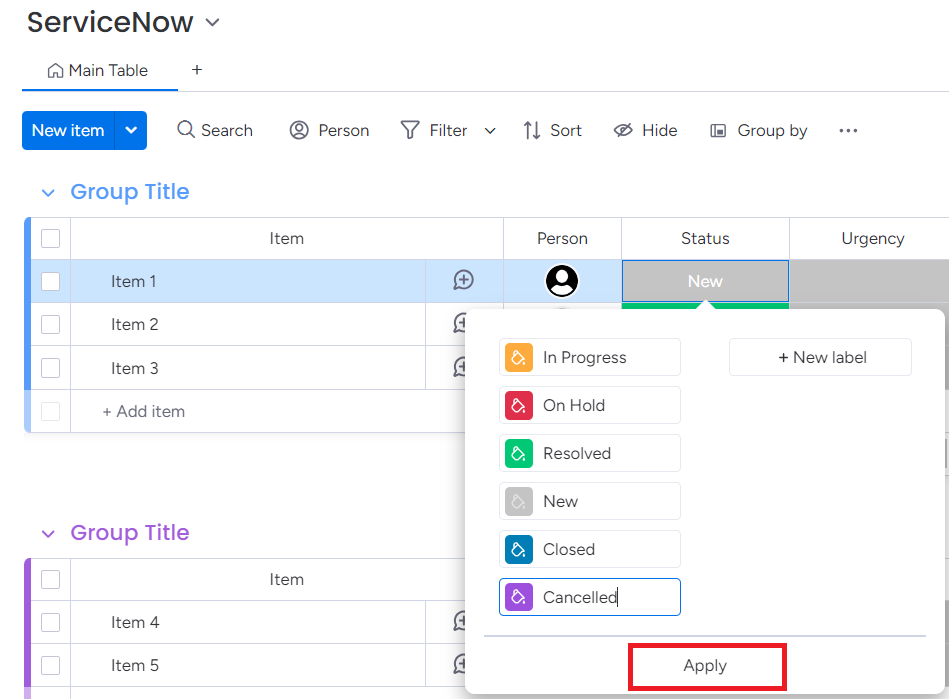
Now your monday board is set to sync the data from the ServiceNow platform.
If you need our help, you can reach out to us for professional services (appsupport@empyra.com).