

The Asset Management app enables you to seamlessly import existing data from your Excel file directly into boards. This feature helps streamline the importing data process, reducing manual effort and ensuring data accuracy by preventing duplication.
Follow the below steps to import Vendor details from Excel file to monday boards.
Follow the same process to import Physical assets, Non-physical assets and Inventory assets data from Excel file to monday boards.
You need to go to the respective boards in Step 1 to start the import process to that specific board.
Example: To import Non-physical asset data from excel file follow:
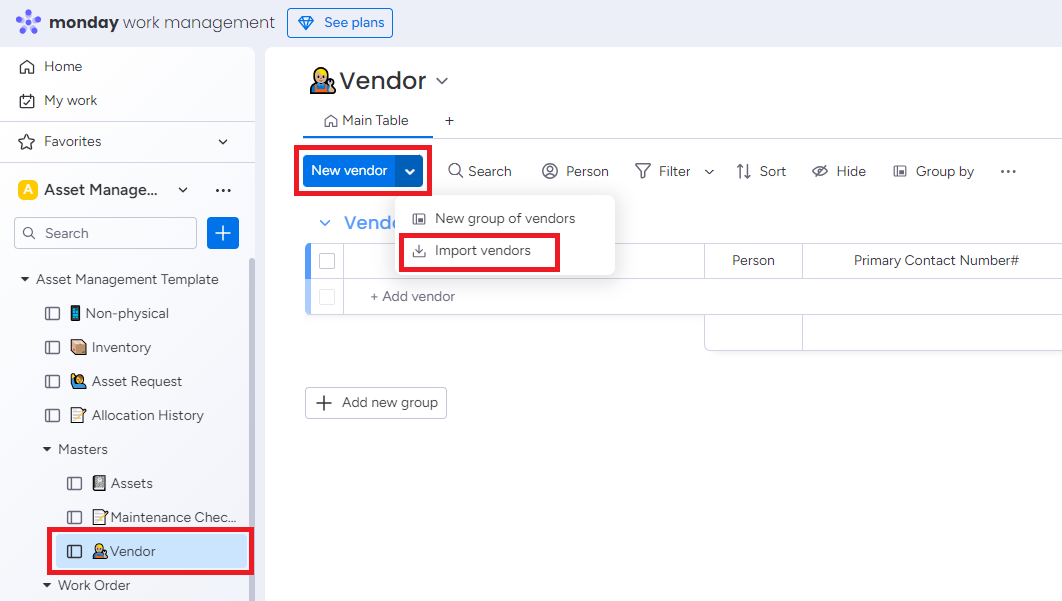
Step 1: Go to Non-physical board > Click on New name dropdown > Select Import names.
Step 1: Go to Vendor board > Click on New vendor dropdown > Select Import vendors.
OR
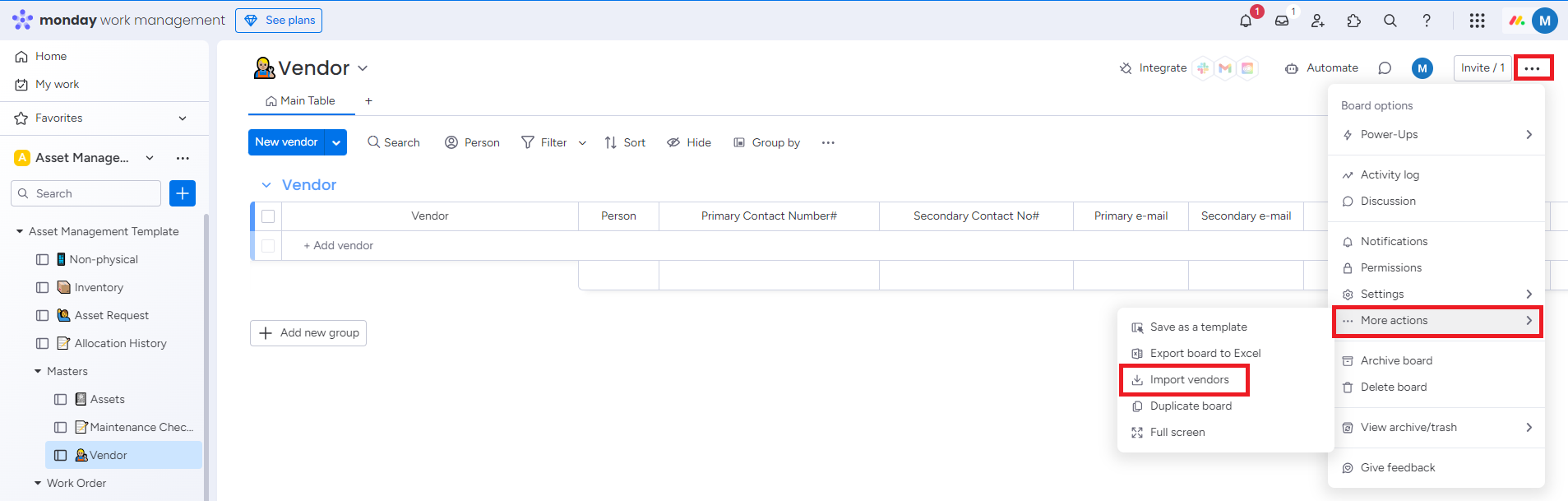
Click on dropdown from right side of the window > Click on More actions > Click on Import vendors.
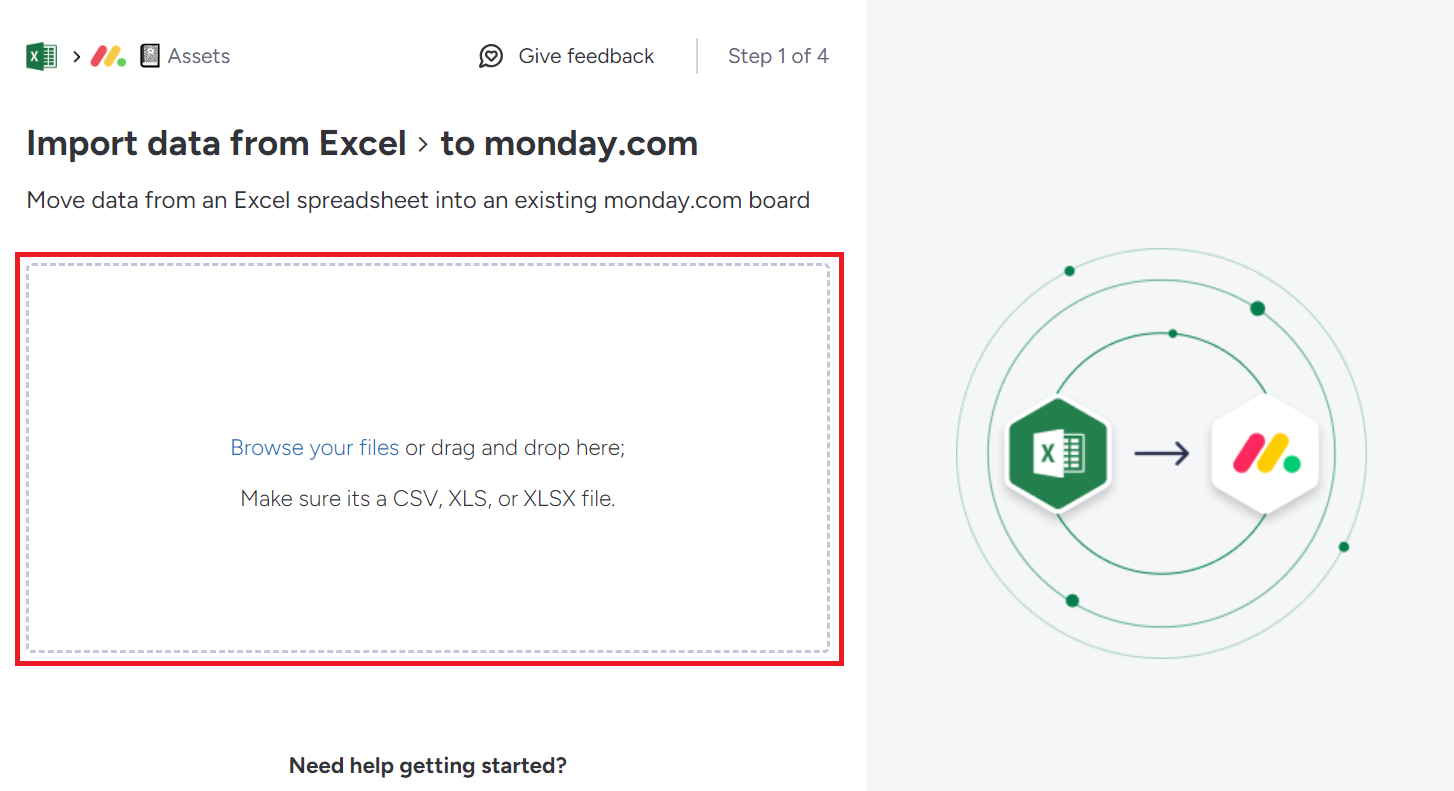
Step 2: Import Data from Excel to monday.com window will appear. Drag and drop or browse the Excel file from your computer.
You can upload only CSV, XSL, or XLSX files. Other file formats will not be allowed.
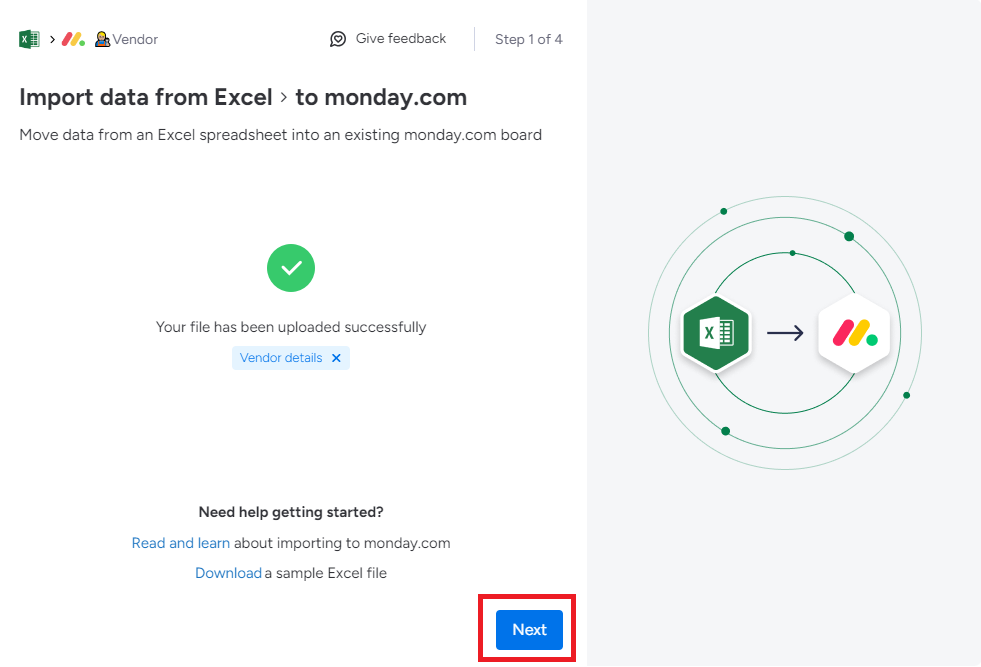
Success message will appear with the file name.
Step 3: Click on Next.
Map Your Data Window will appear.
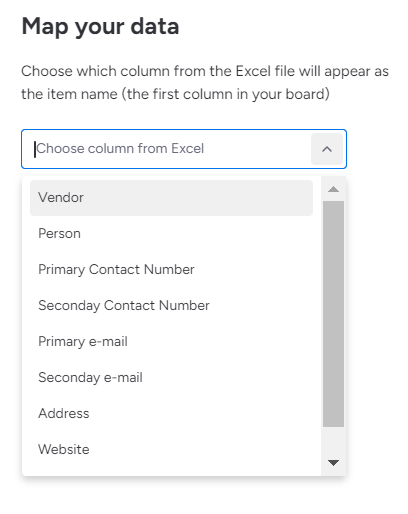
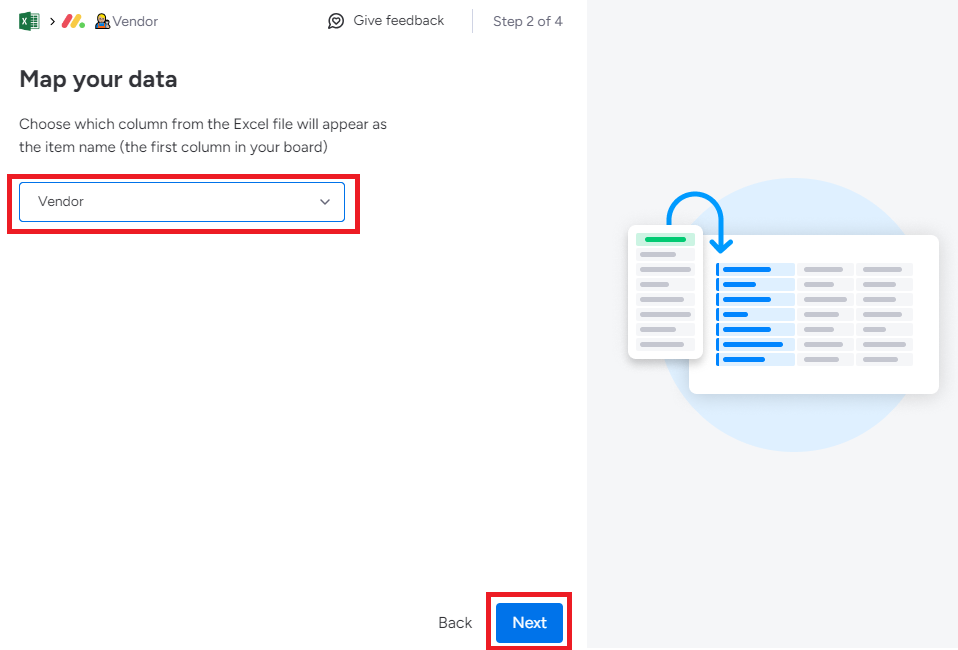
Step 4: Choose the first column name from the Excel file to appear as an Item name. Then, click on Next.
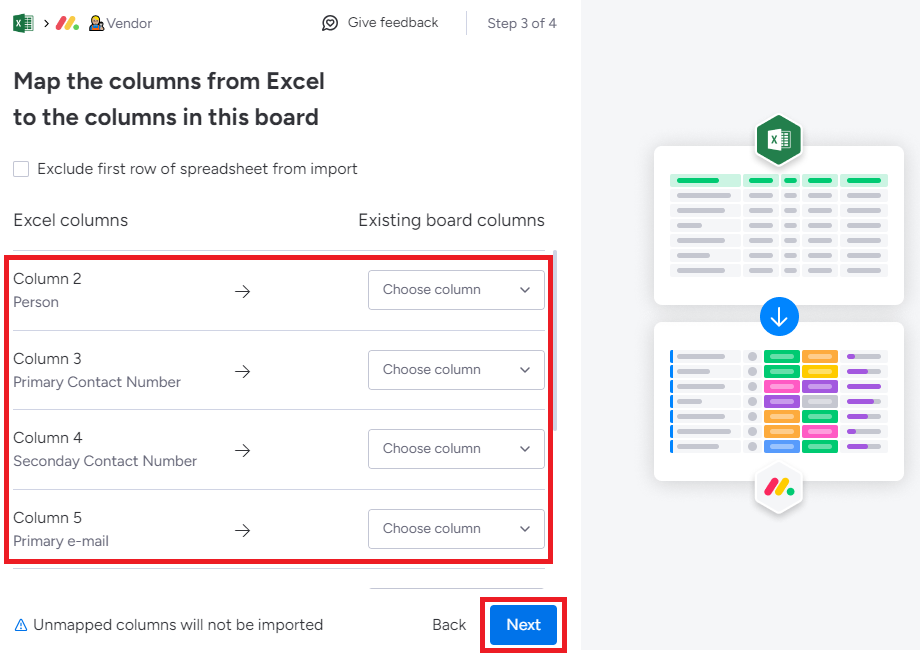
Step 5: Map the other column from Excel file to this board. Click on Next.
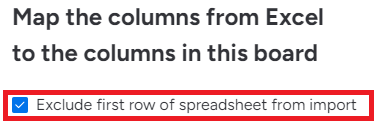
Click the checkbox to exclude first row from the Excel file during import.
Step 6: After mapping your items, you will be asked how you want to manage duplicate items. You have to choose any one option.
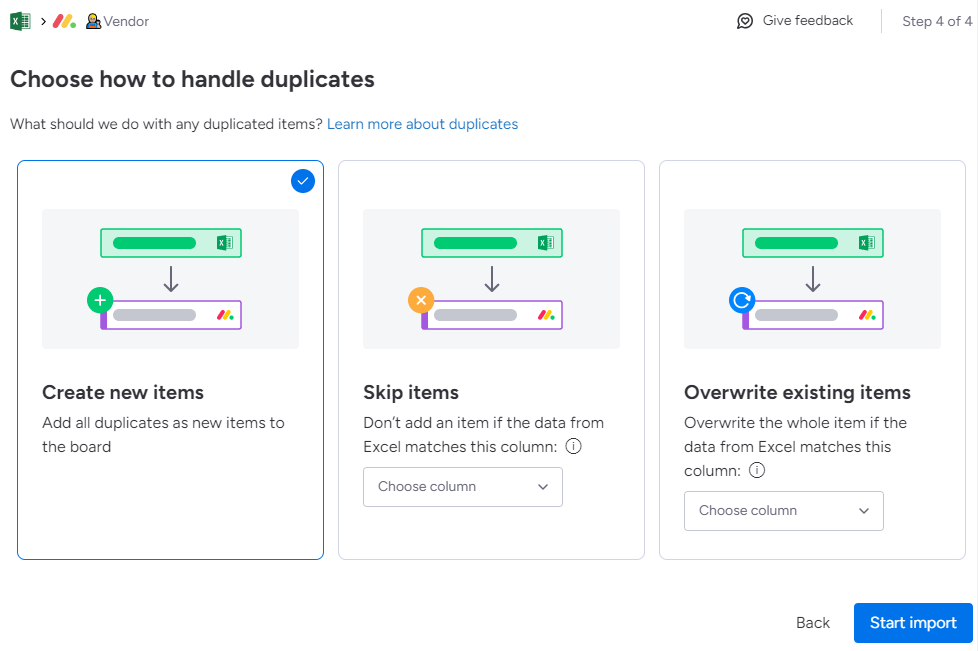
Create new items
-
Choose Create new items to add the data as new items to the board. Click on Start Import.
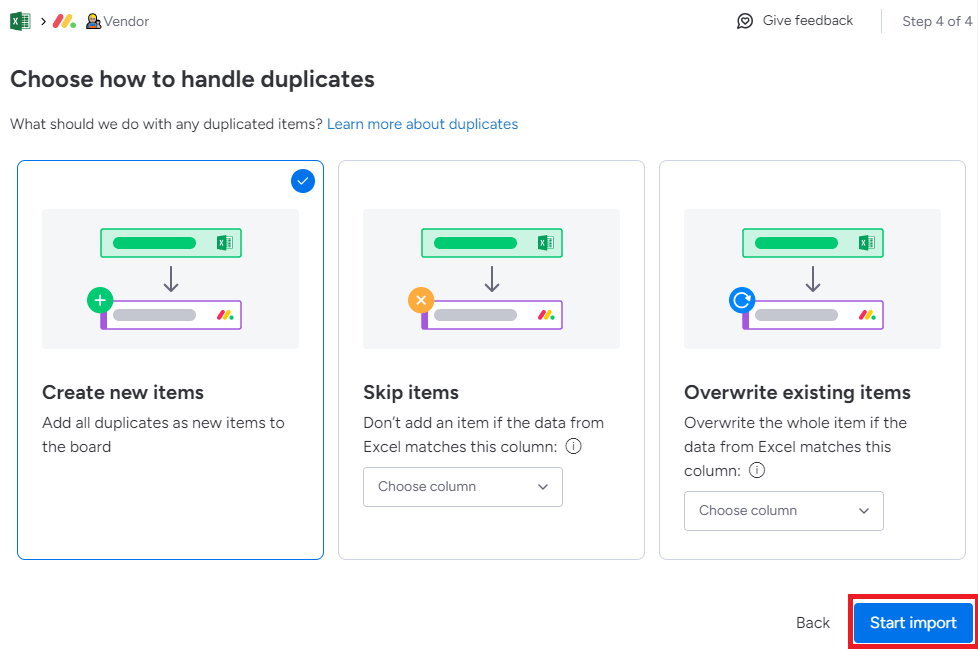
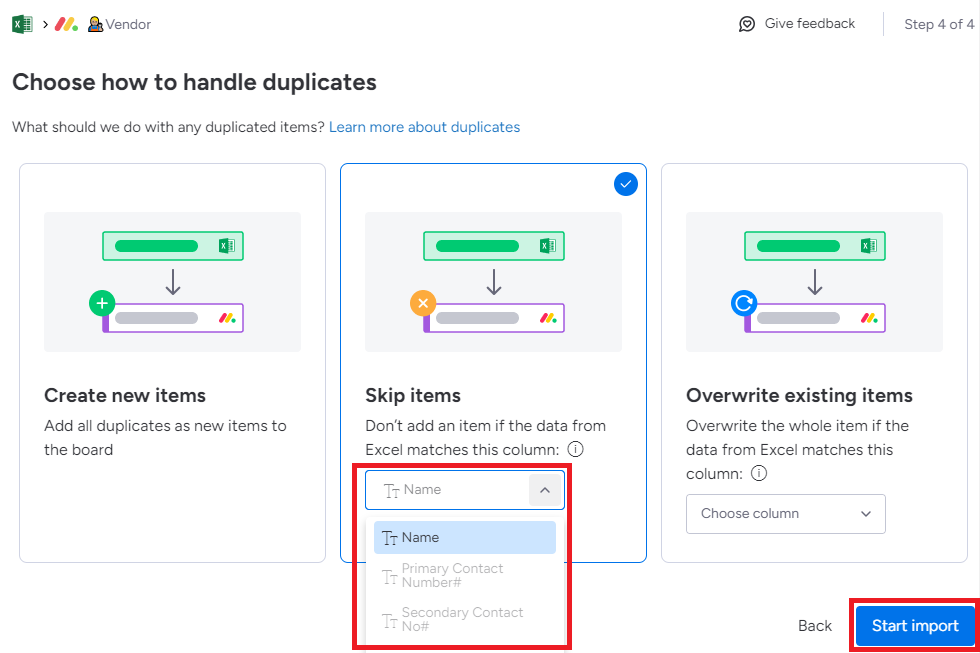
Skip items
If you choose this option will skip any duplicated data based on a column you've chosen, including identical spelling. However, this option does not recognize upper/lower case letters and will not skip an item with identical spelling but variying upper/lower case letters. Be sure to choose a column with unique values in your data (i.e. email, phone number, address) to determine whether this item already exists in your monday board. The rest of the data will be added to a new group on your monday board.
-
Choose Skip items option > select duplicated columns from the dropdown and click on Start Import.
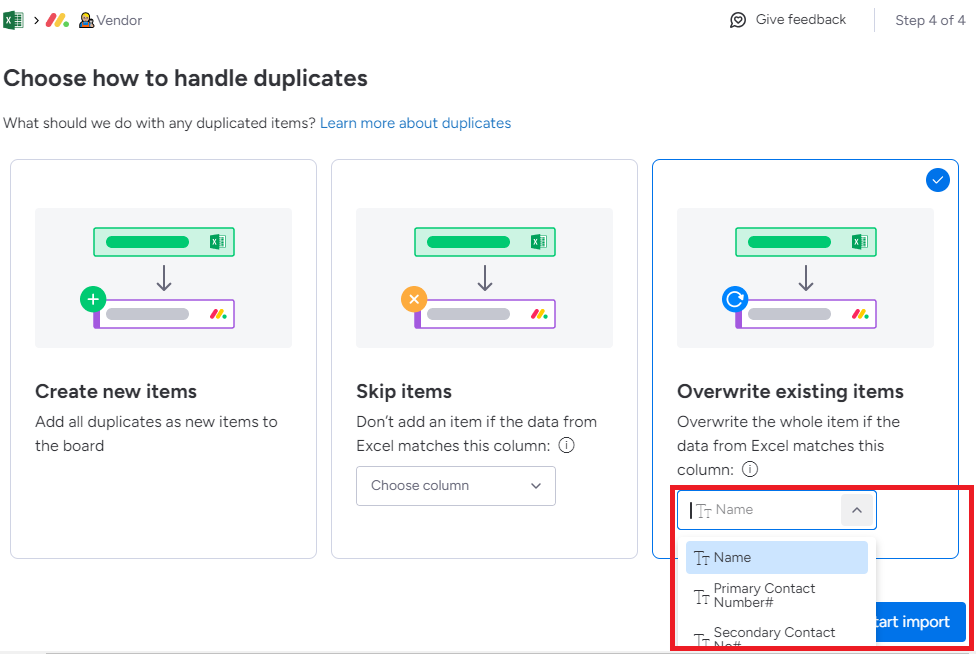
Overwrite existing items
If you choose this option you will have the option to overwrite existing items based on the data in a specific column. Be sure to choose a column with unique values in your data (i.e. email, phone number, address) to help us determine whether this item already exists in your monday board. The new data will be added to a new group on your monday board.
-
Choose Overwrite existing items option > select the columns from the dropdown and click on Start Import.
A new board will be created with all the data available in an Excel file.