To integrate with monday.com, users need an Azure DevOps account with an active workspace, projects, and work items. Before using the Azure DevOps Connector app and its features, users must first configure the Azure DevOps account.
Follow the below steps to configure Azure DevOps workspace.
1. Enable Third-Party Access
Step 1: Login to your Azure DevOps account.
Step 2: Click on Organization Settings.
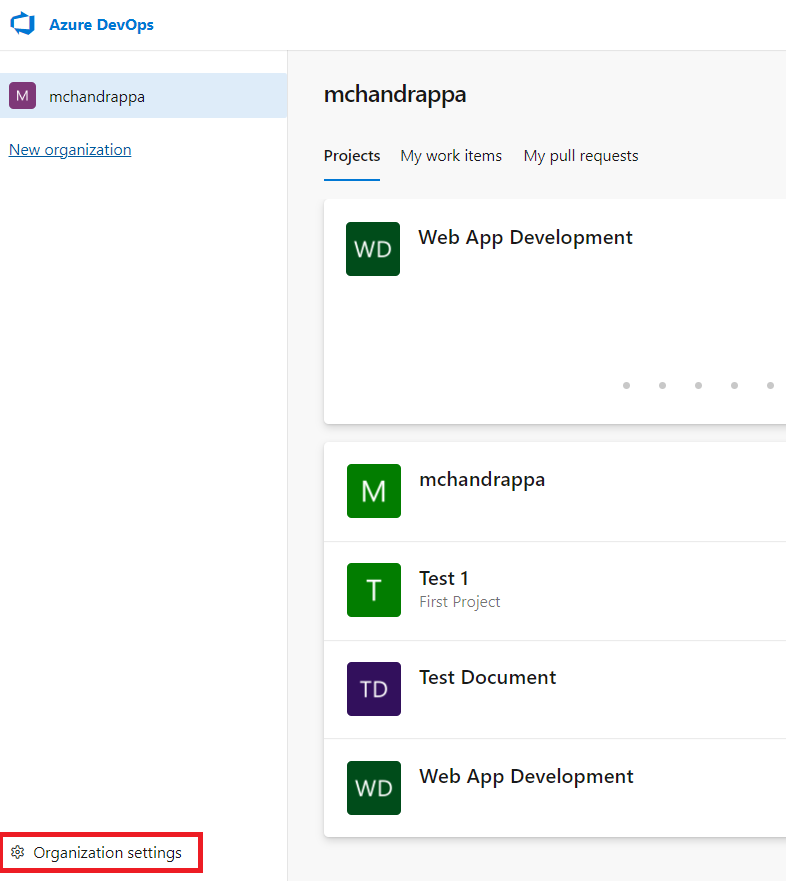
Step 3: Click on Policies under the Security section. Enable Third-party application access via OAuth.
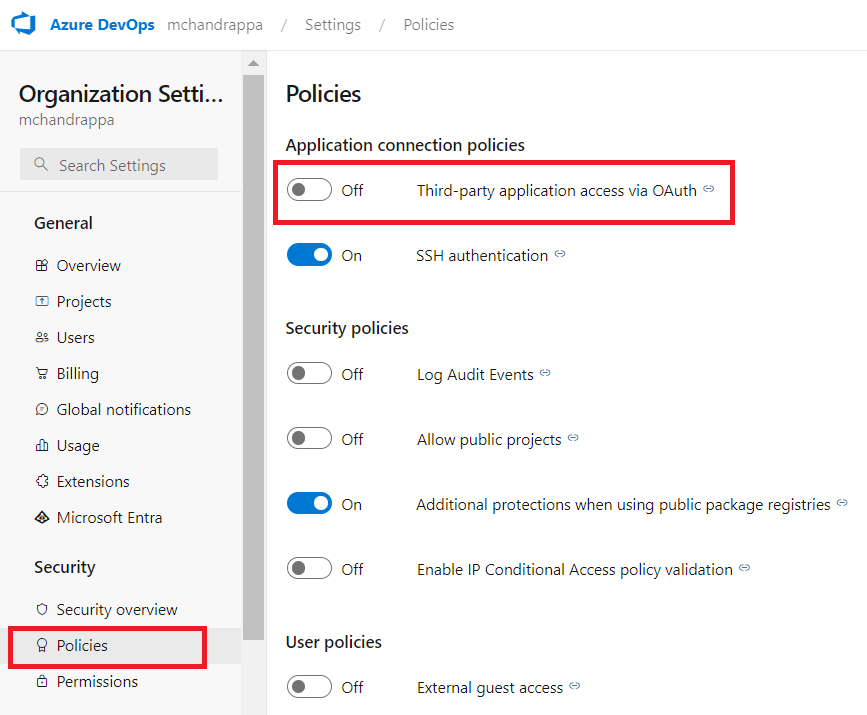
Third-party application access via OAuth is enabled.
2. Add GroupBelongTo Field
This is an optional configuration. Setup GroupBelongTo field only if you are managing permissions and access levels by assigning different rights to specific groups, effectively controlling who can perform certain actions within a project based on their group membership.
Step 1: Login to your Azure DevOps account.
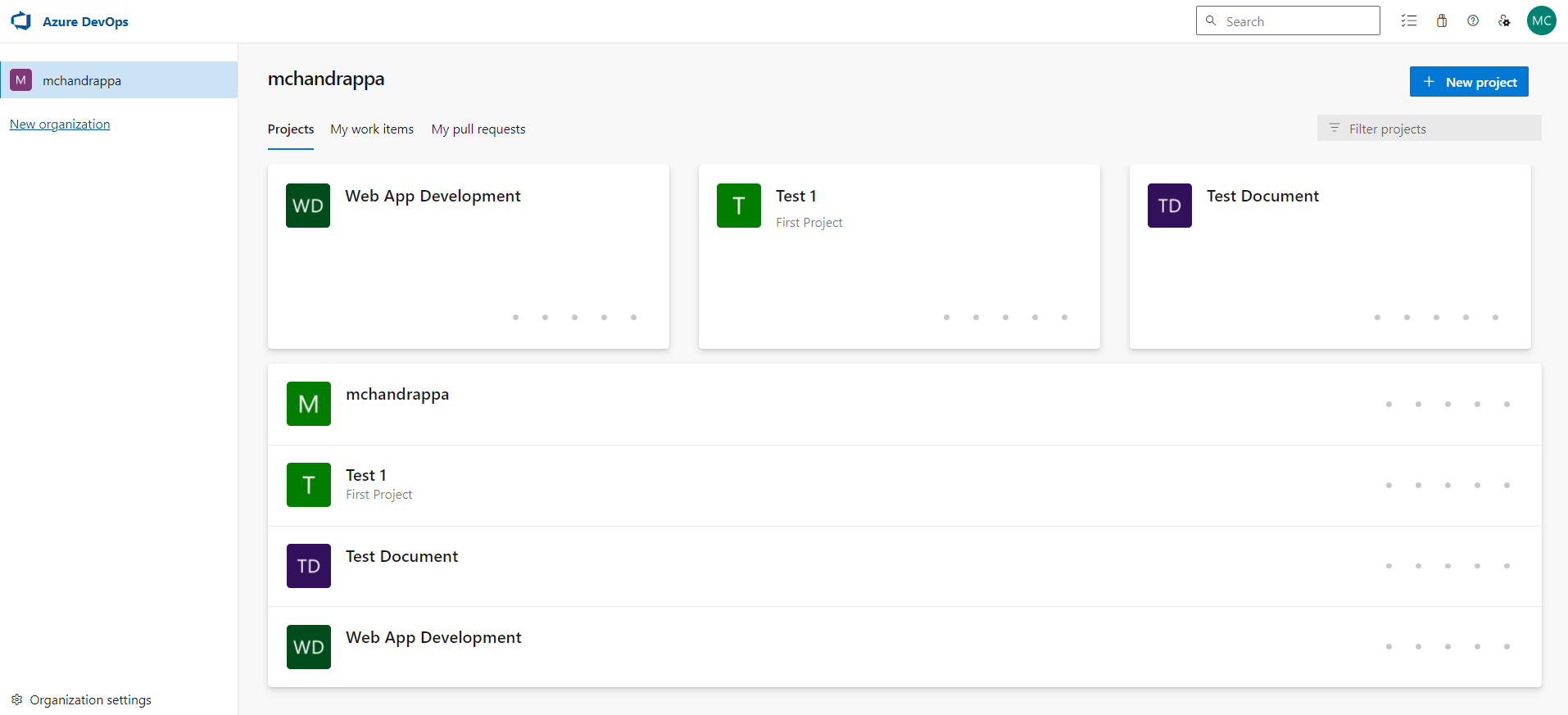
Step 2: Select any project to sync the data with monday boards.
Add GroupBelongTo field for your existing projects or new projects.
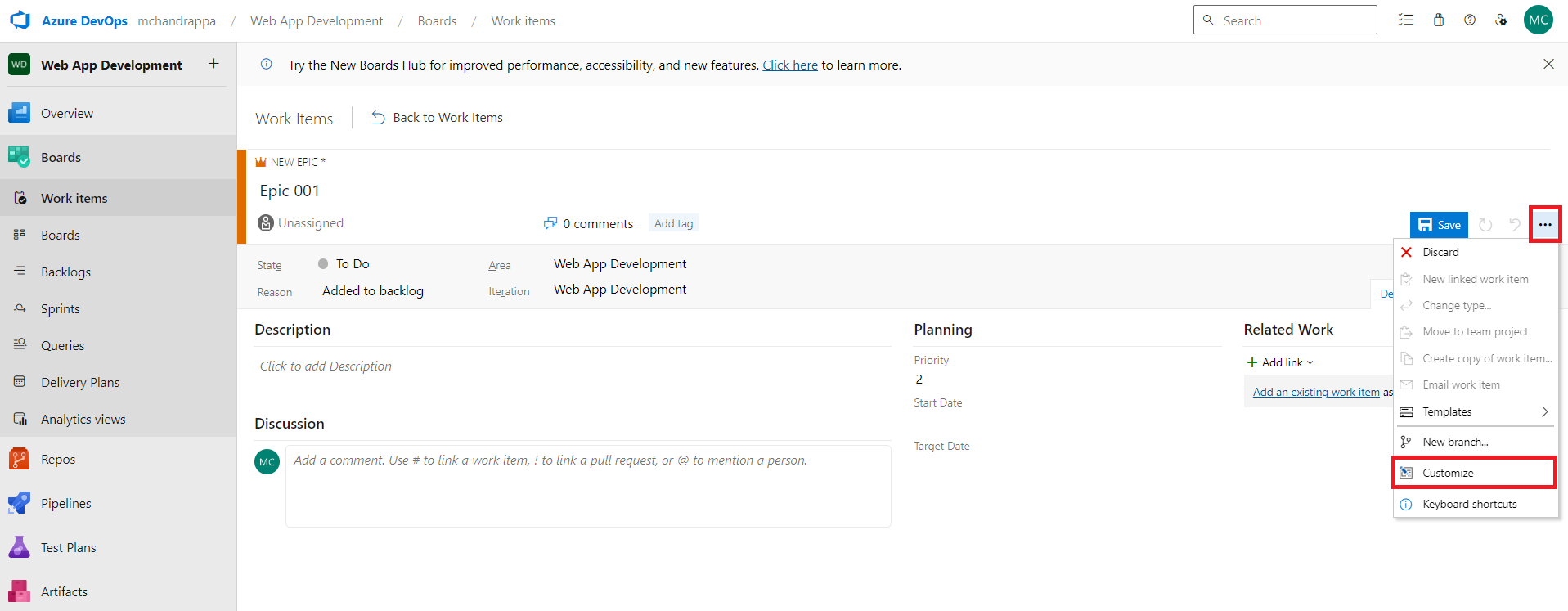
Step 3: Go to Work Item. Click on dropdown and select Customize option.
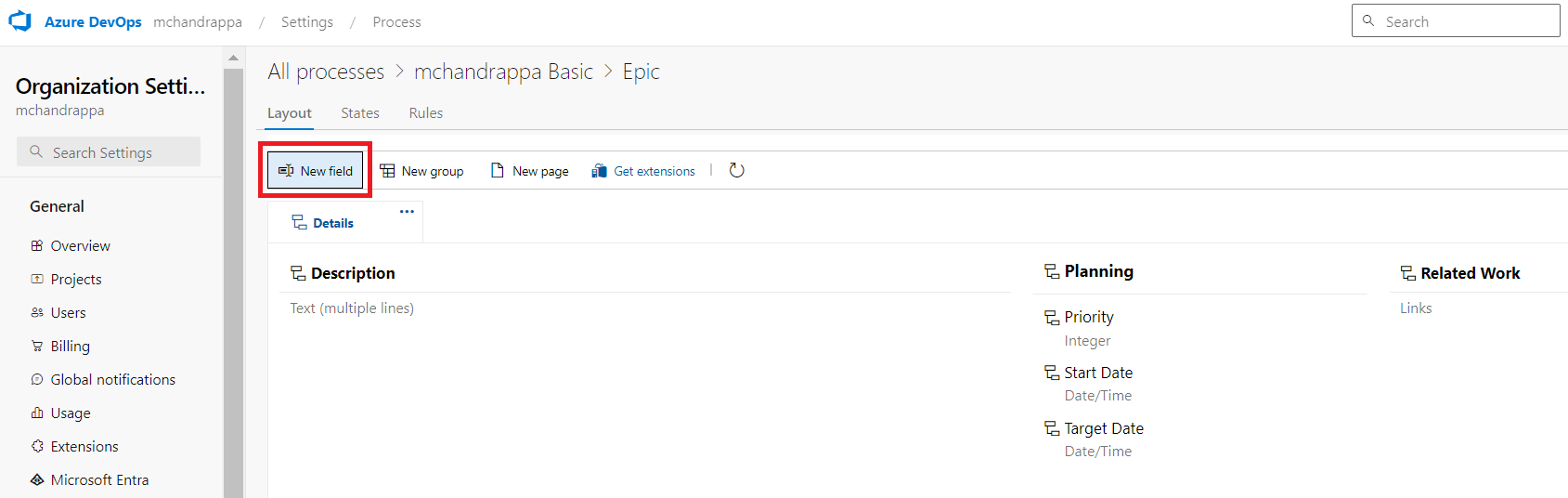
Step 4: Click on New field.
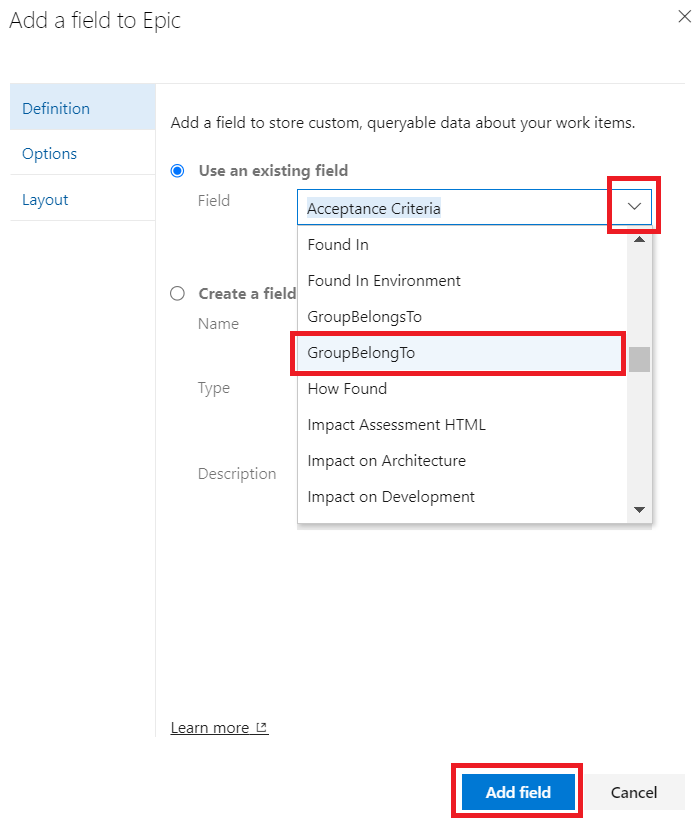
Add a field window will open.
Step 5: Choose the option to add new field or existing field.
Use an existing field
-
Click on the dropdown.
-
Select GroupBelongTo field.
-
Click on Add field.
Create a field
-
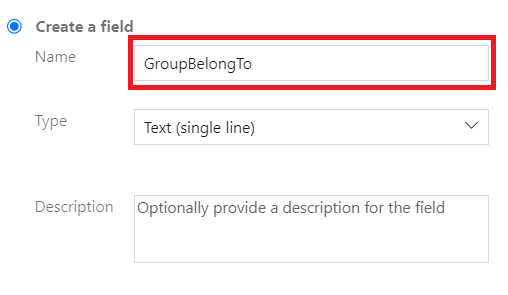
Add Name as GroupBelongTo.
-
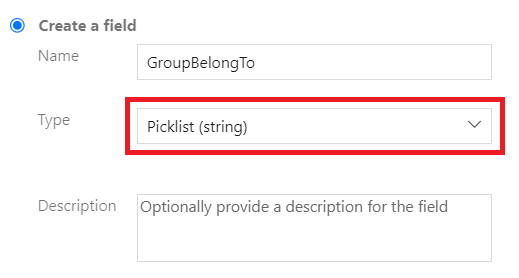
Select Type as Picklist String.
-
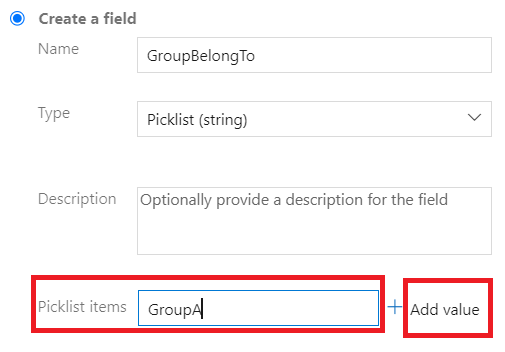
Enter Value and click on Add Value.
Add Picklist Items based on your requirements.
-
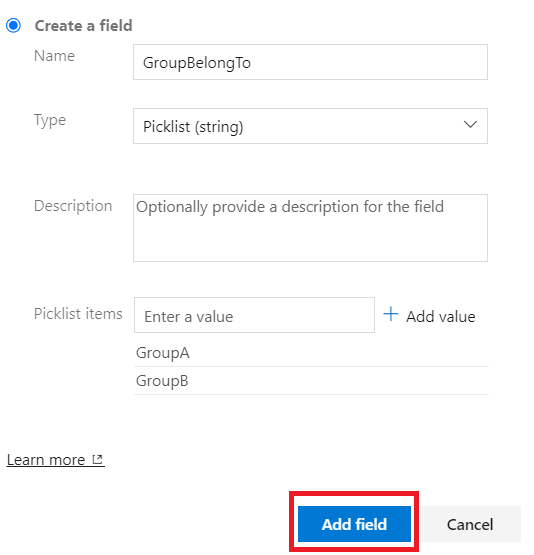
Click on Add field.
Complete the configuration settings for your Azure DevOps workspace, and begin using the Azure DevOps Connector app to manage all work items seamlessly within the monday.com boards.