

The Compliance Snapshot app is designed to help you seamlessly back up your monday.com board data to your preferred cloud storage. This user guide will walk you through the steps to schedule and manage snapshots effectively.
Follow the below steps to schedule the snapshots and back up the board data:
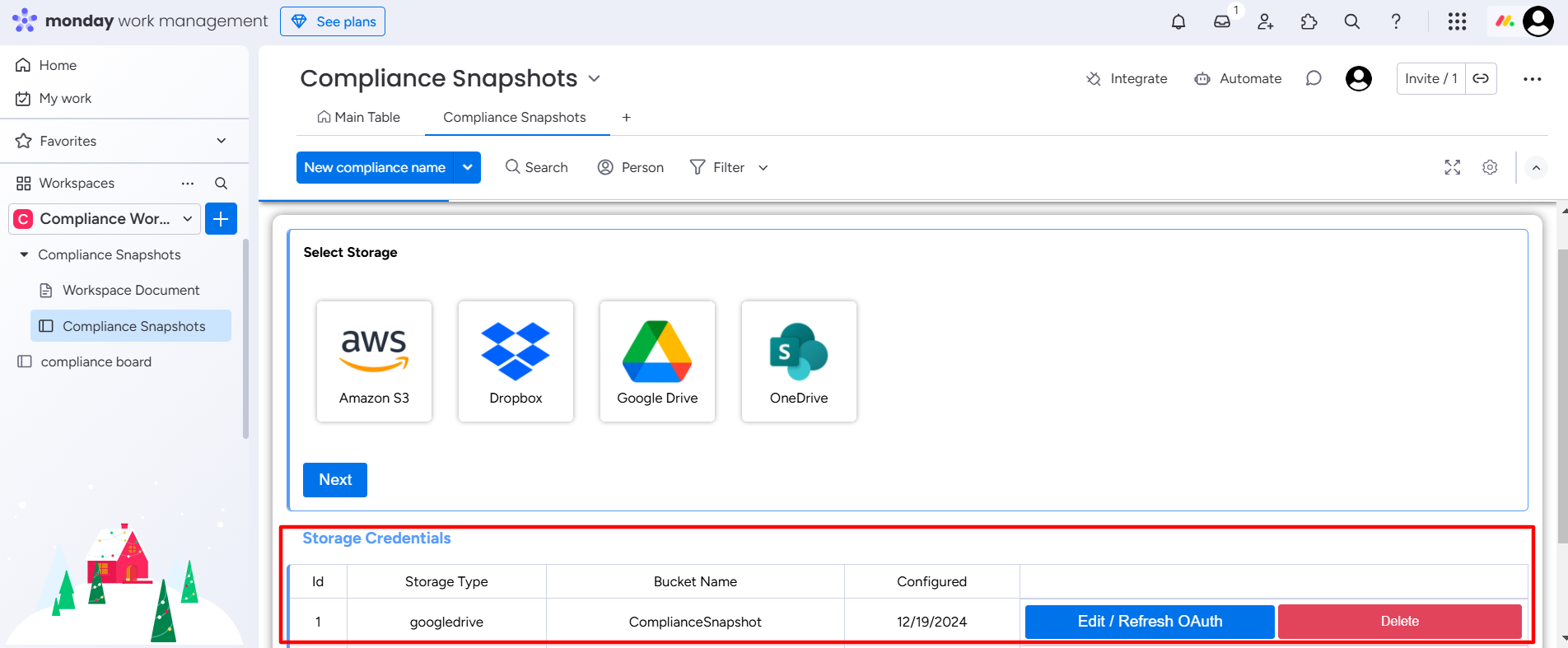
Step 1: Go to your monday.com Compliance Snapshot workspace.
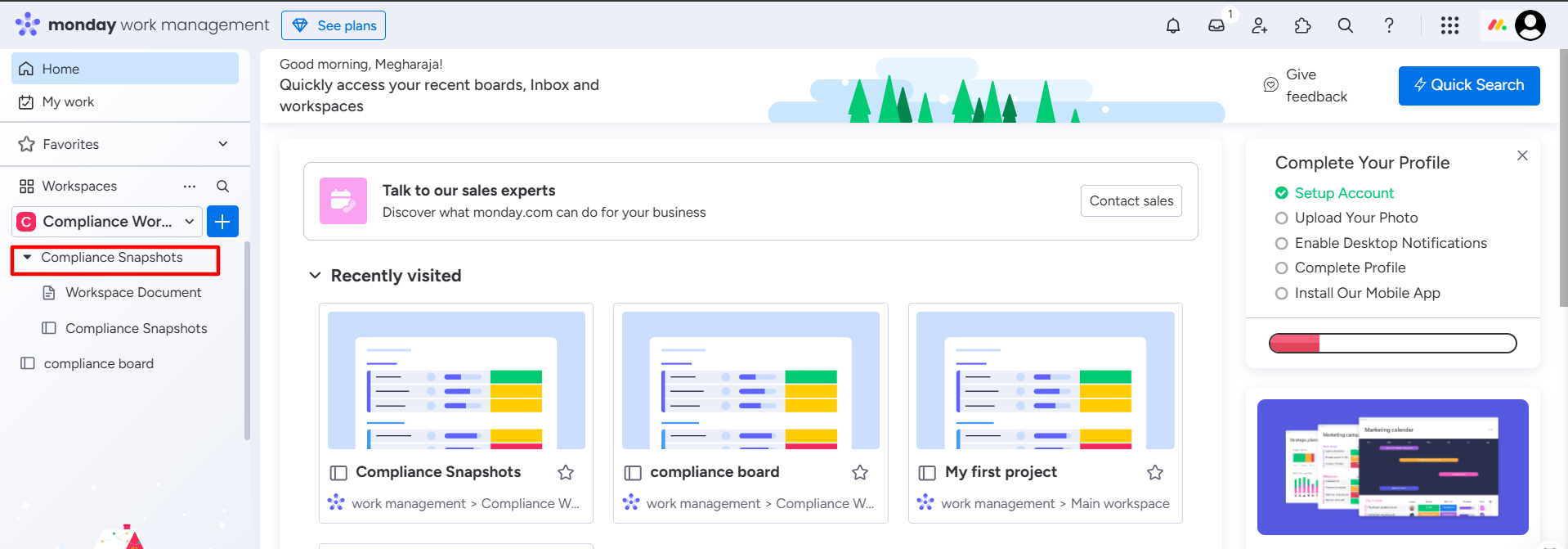
Step 2: Click on the Compliance Snapshot board.
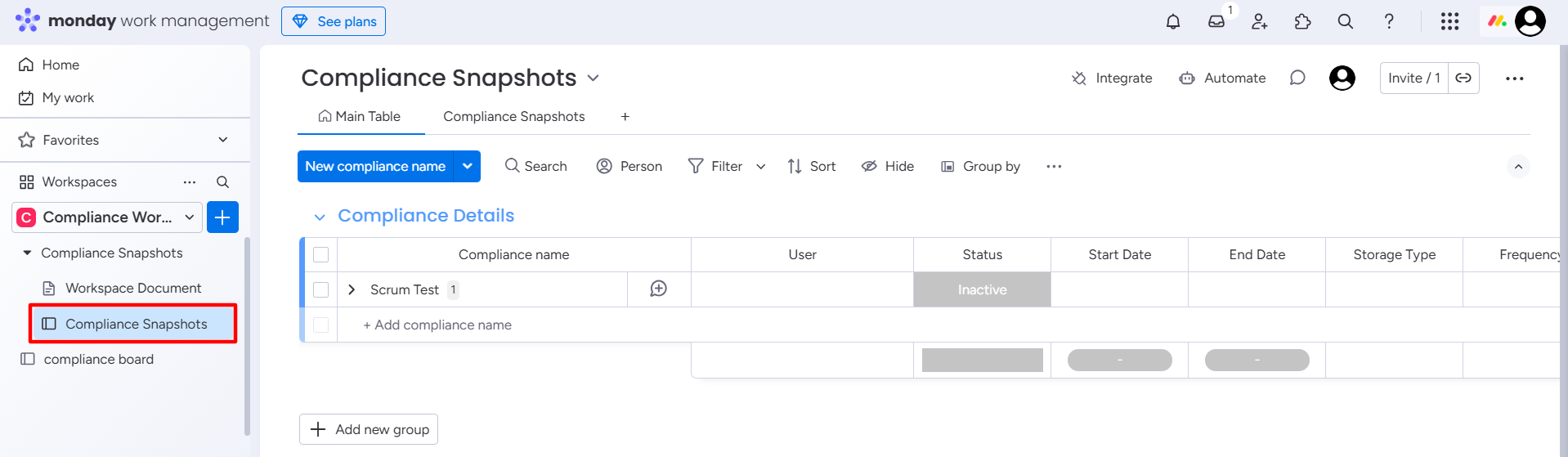
Step 3: Click on the Compliance Snapshots tab.
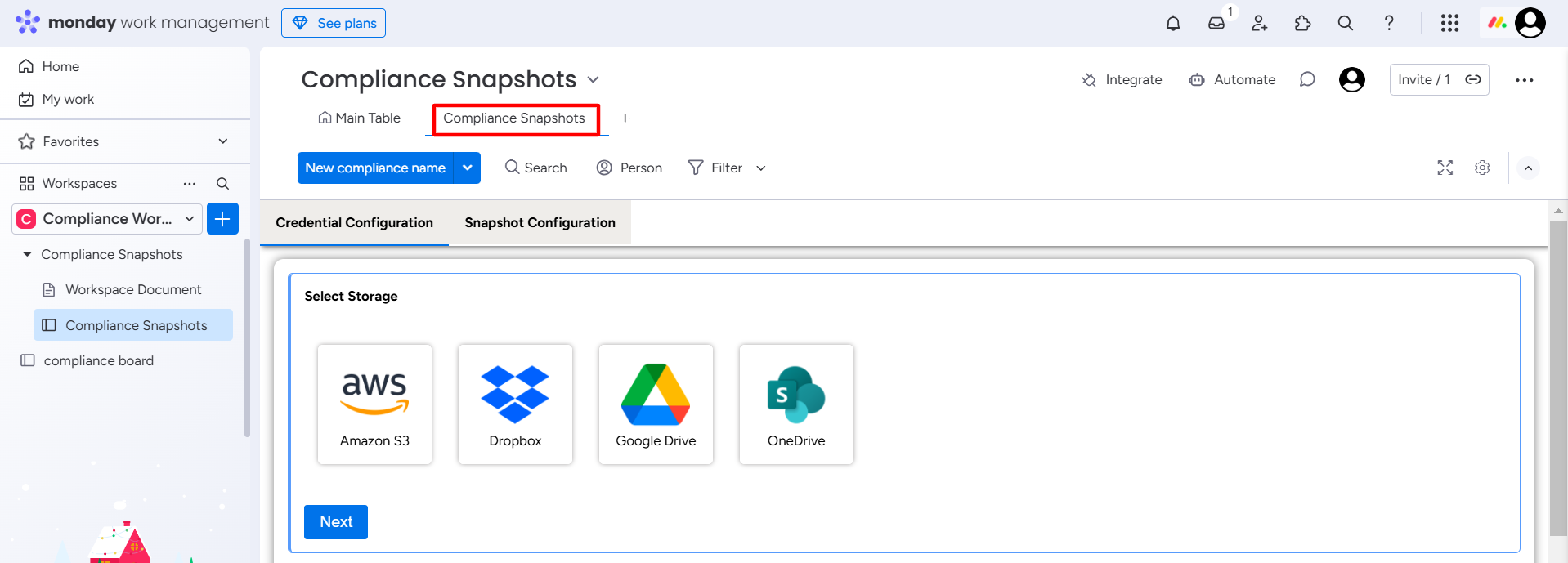
The Credentials Configuration window will appear.
Step 4: Select the desired Storage type and click Next.
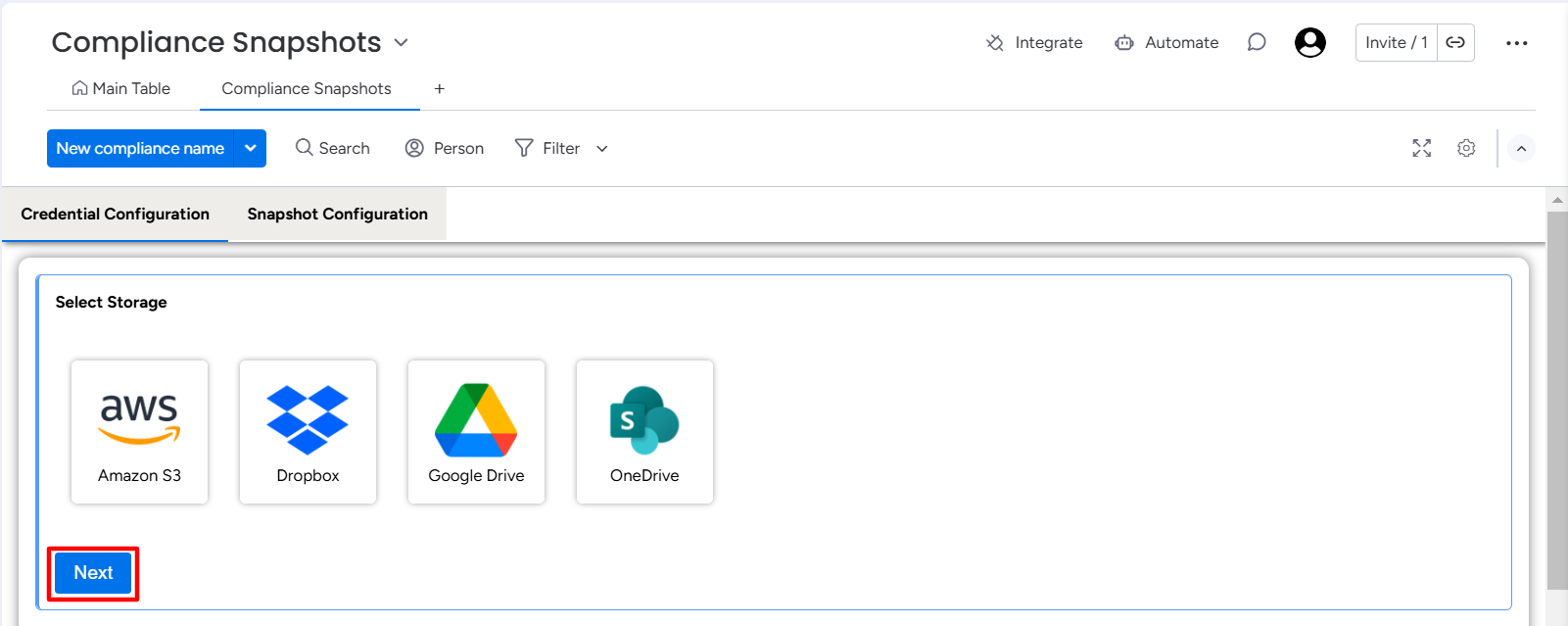
Step 5: Enter the required credentials to access the selected storage type.
Each storage type access credentials differ based on the storage providers.
After providing the access, the selected storage type will be added to the Storage Credentials table.
Step 6: Click on the Snapshot Configuration tab to schedule a snapshot.
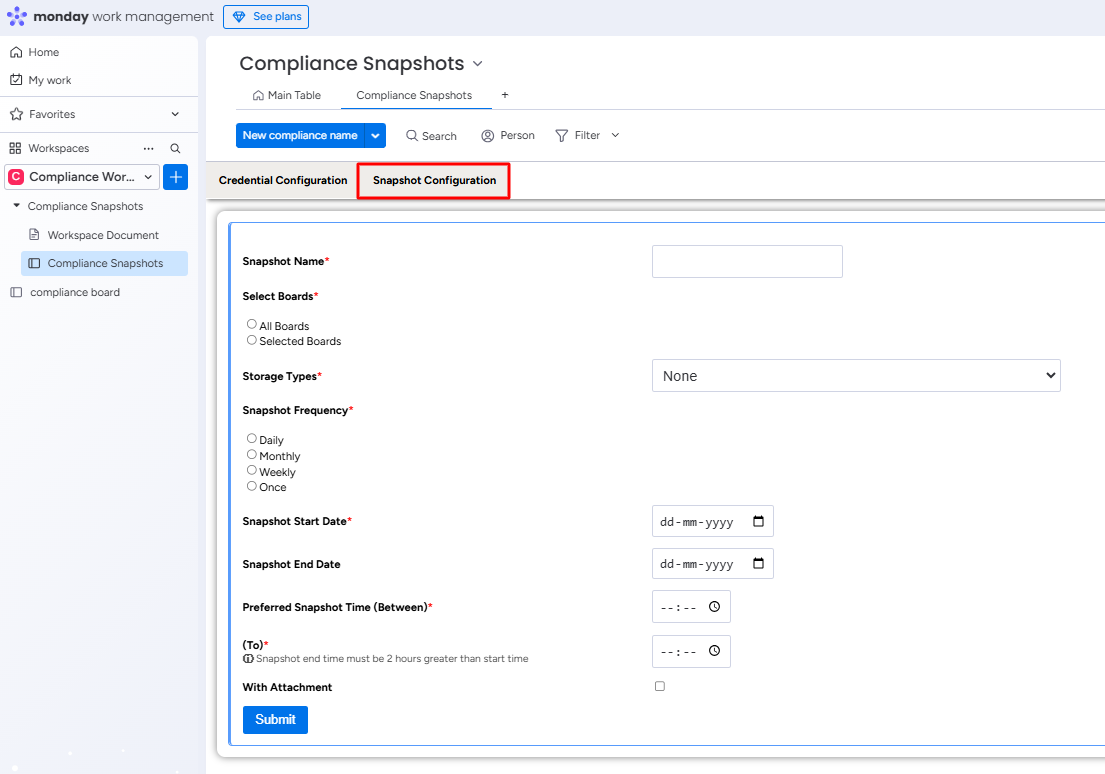
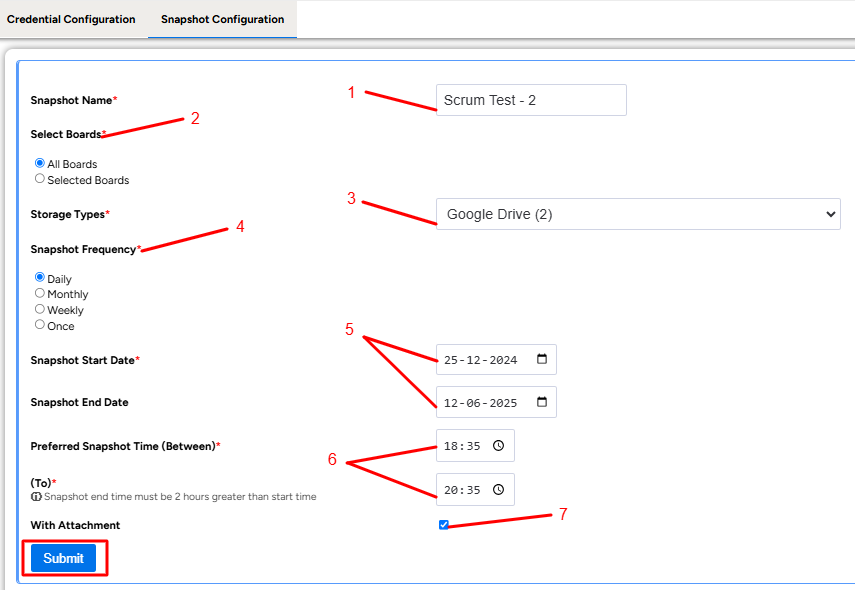
Step 7: Add the following snapshot details:
-
Enter the Snapshot Name.
-
Select the boards.
Select Boards
-
Choose the All Boards option to schedule a snapshot for all the existing boards in the workspace.
-
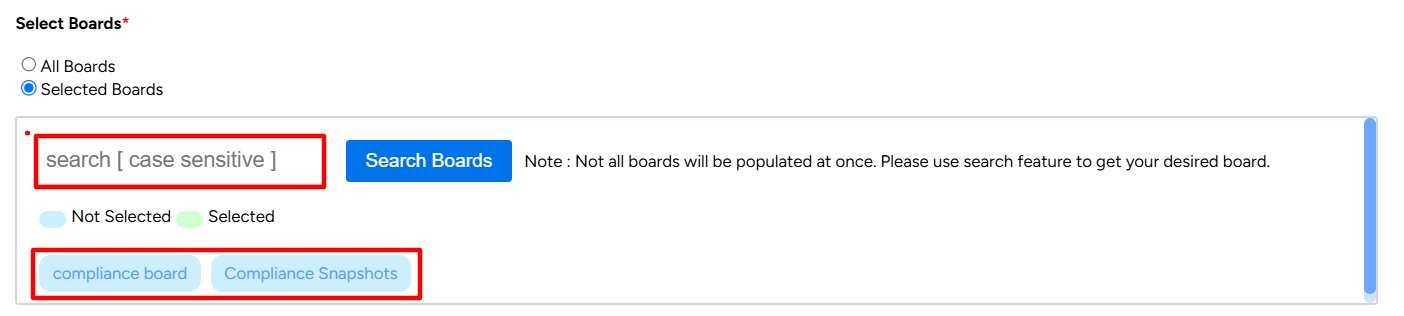
Choose the Selected Boards option to schedule a snapshot for a specific board.
If you choose the Selected Boards option, select the boards from the list or search the specific board using Search Boards feature.
-
Select the Storage Types from the dropdown.
-
Choose the Snapshot Frequency.
Snapshot Frequency will define how often the snapshot should occur (e.g., daily, weekly, monthly, or once).
-
Add the Snapshot Start Date and Snapshot End Date.
-
Choose the Preferred Snapshot Time.
-
Check the box to back up attachments along with board data or leave it unchecked.
-
Click on the Submit button.
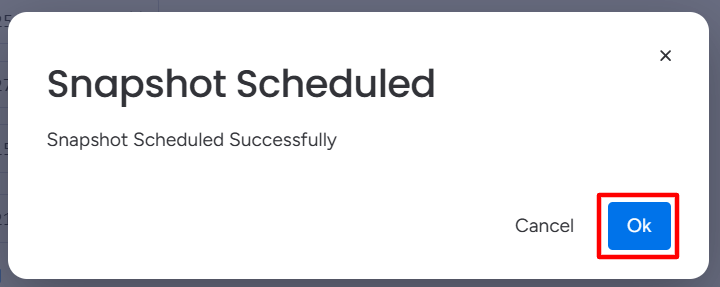
Step 8: A confirmation popup will appear. Click OK to complete the process.
View or Manage Scheduled Snapshots
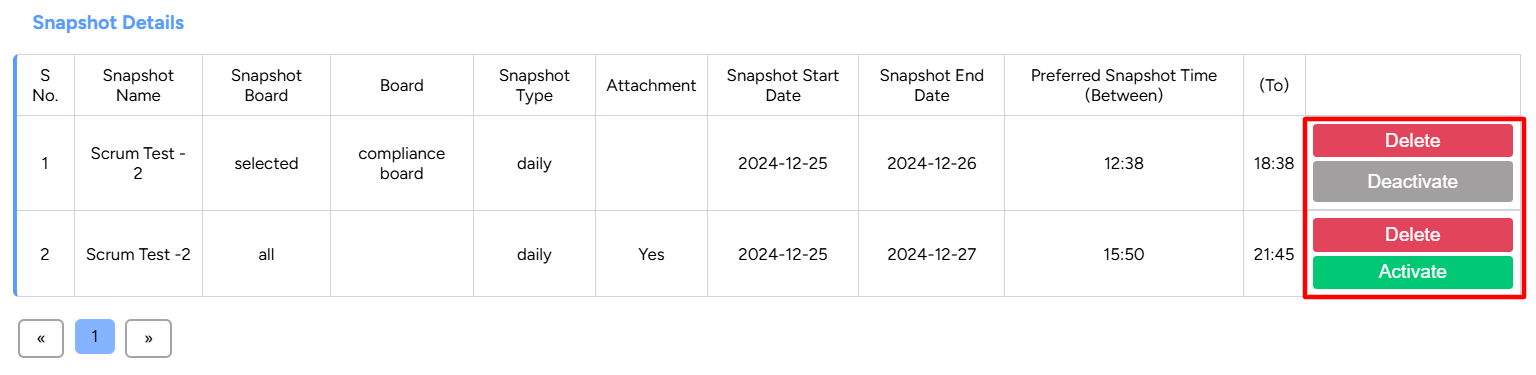
Scheduled snapshots are available in the Snapshot Details table.
-
Click on the Delete button to remove the scheduled snapshot from the list.
-
Click on the Deactivate button to deactivate the scheduled snapshot.
-
Click on the Activate button to reactivate the schedule snapshot.
Step 9: Click on Main Table to view the details of scheduled compliance snapshots listed in the Compliance Details table.
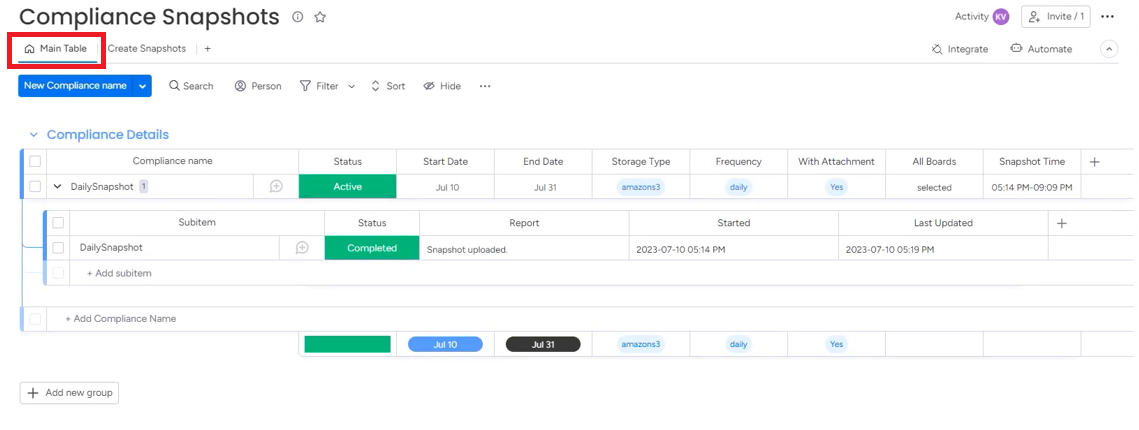
For each scheduled snapshot, a corresponding subitem will be created automatically, displaying the status of the backup process in real-time.
After the Subitem status changes to Completed, the backup process is successful and the user can access the backed-up files from the selected storage platform.