

The Assign Users feature allows you to manually build and manage your Org Tree by selecting employees from the user list and assigning key attributes such as Department, Designation, and Manager. Additionally, you can create and configure custom fields to capture any extra employee information needed for your organization’s structure.
1. Generate Org Tree
Follow the steps below to build an Org Tree using the Assign Users Tab:
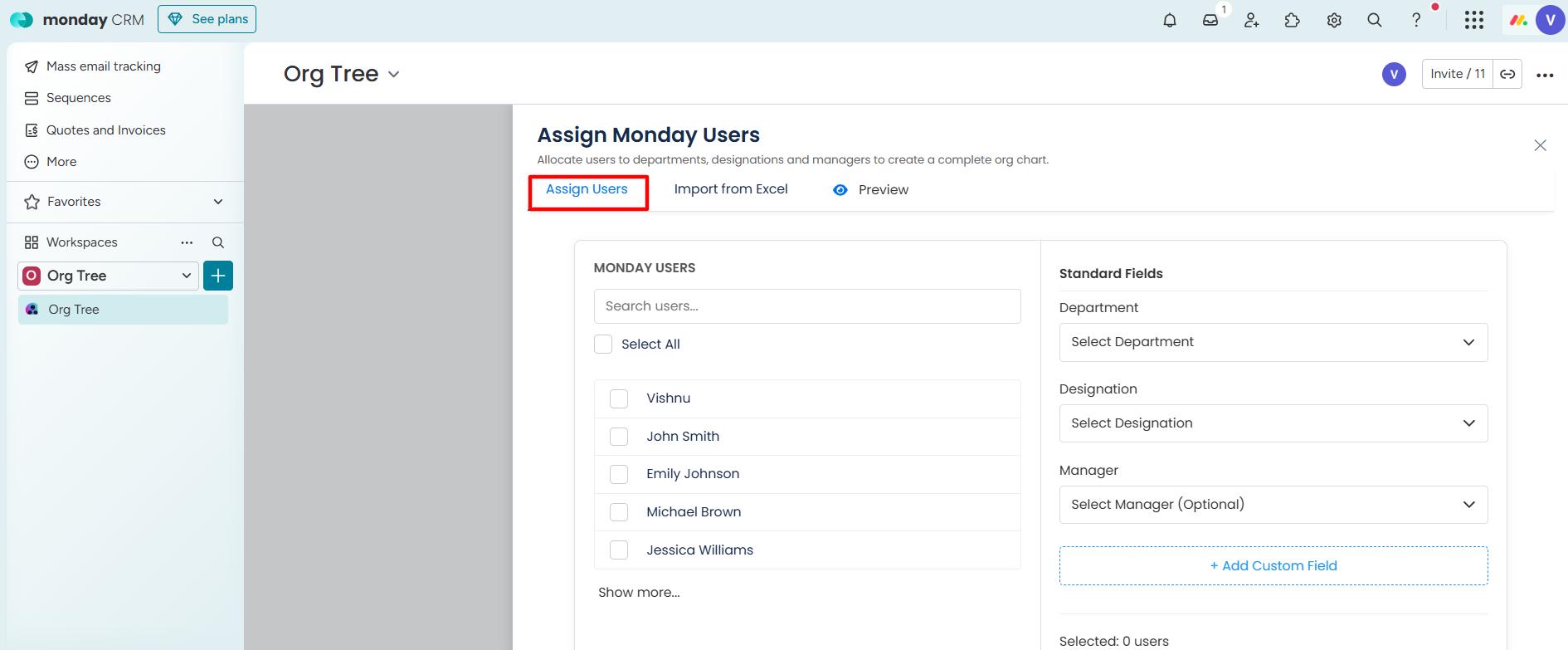
Step 1: Go to the Assign Users Tab.
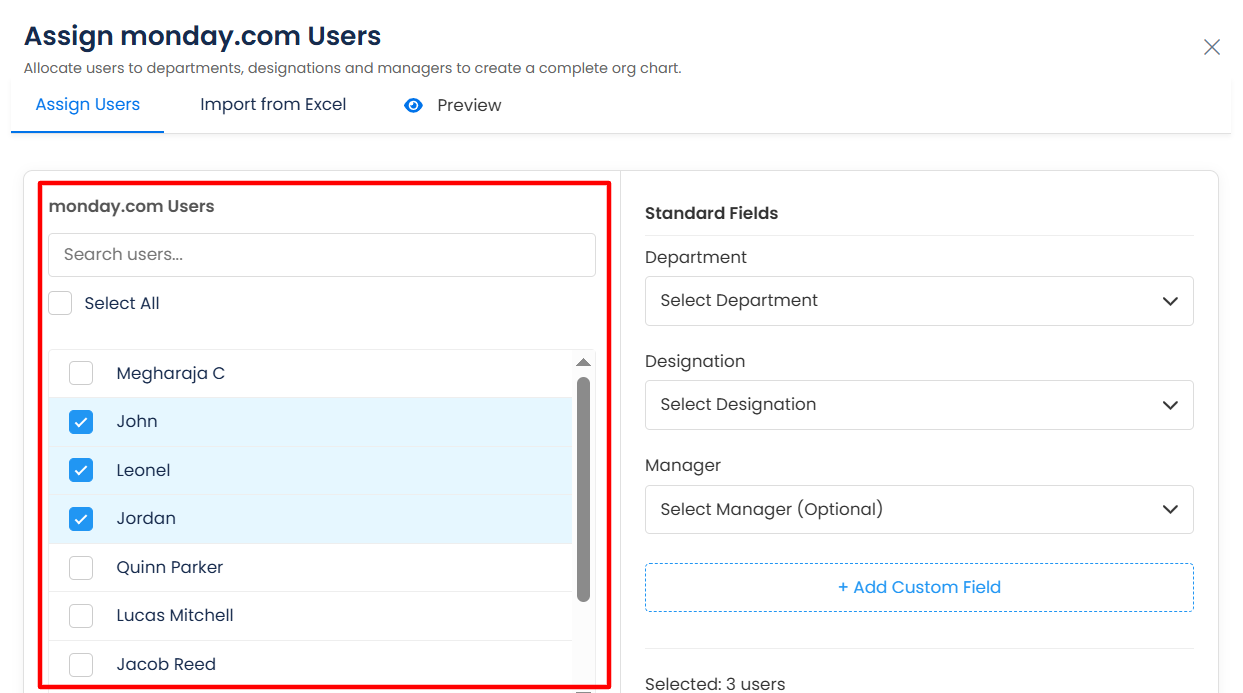
Step 2: Search and select the users from the monday.com users list.
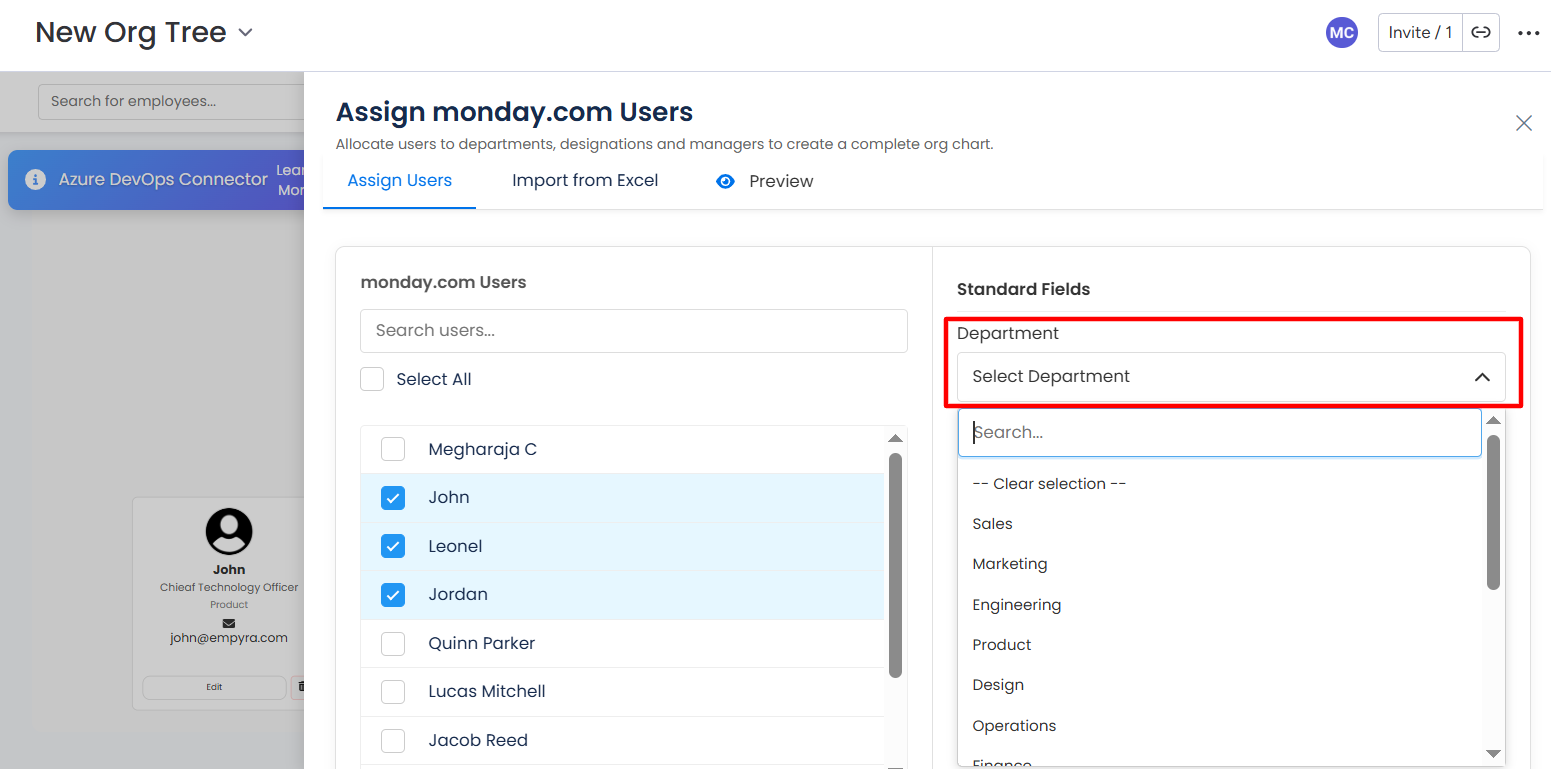
Step 3: Select the department from the Department dropdown.
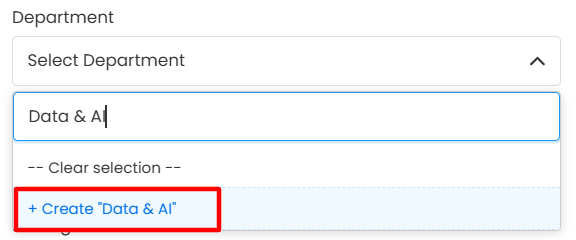
How to add a new department
-
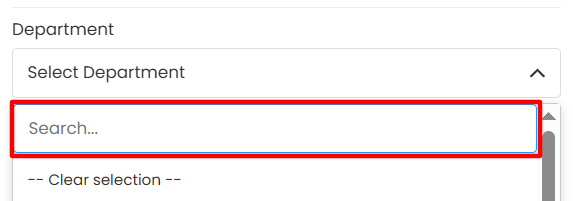
Add a new department keyword in the search box.
-
Click on the + Create button.
Step 4: Select the designation from the Designation dropdown.
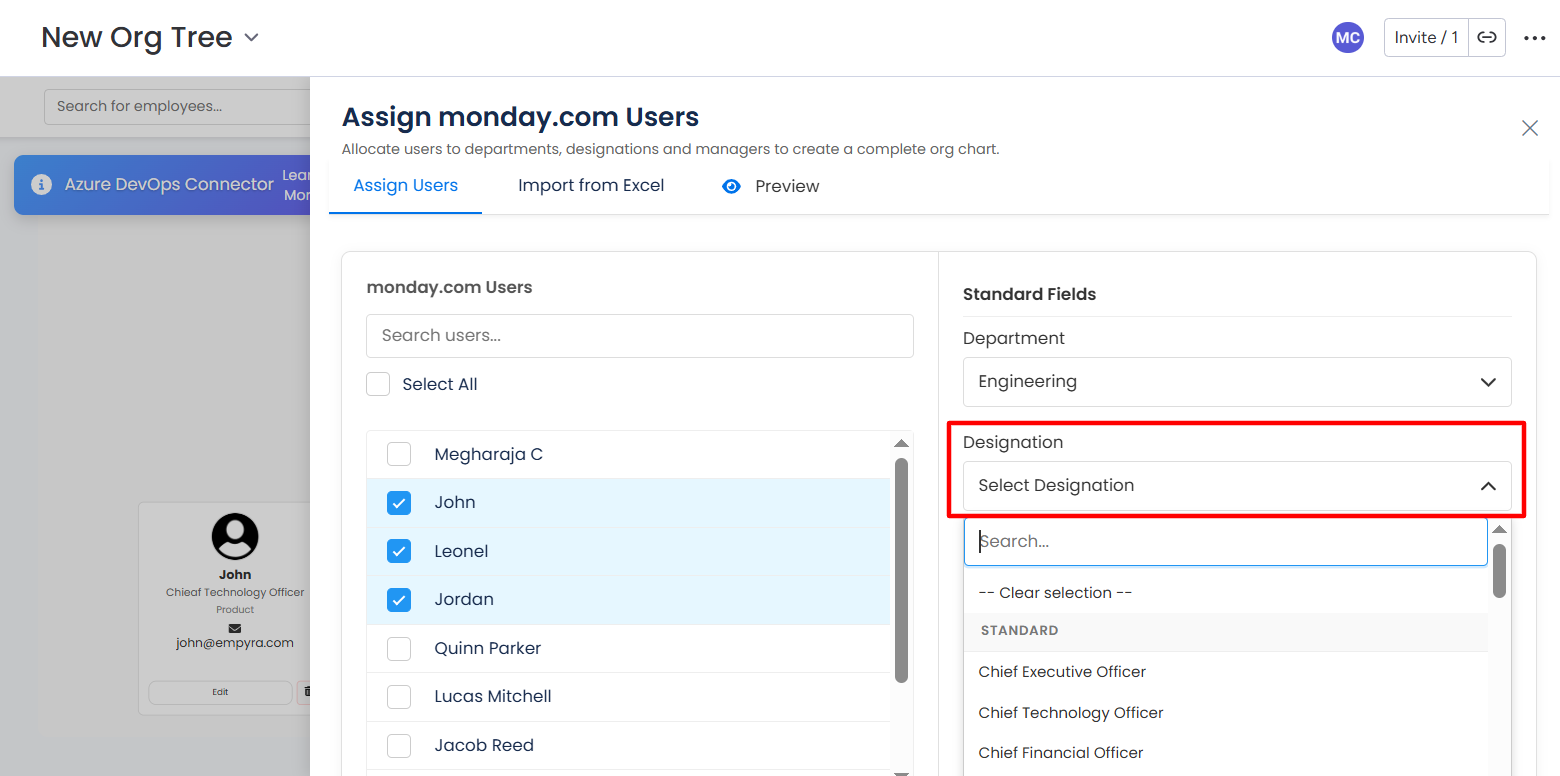
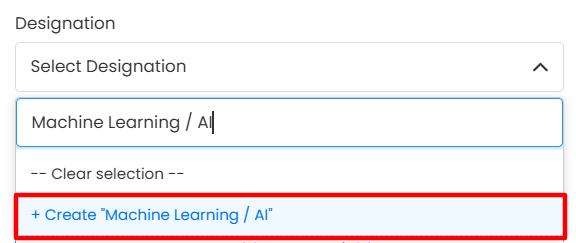
How to add a new designation
-
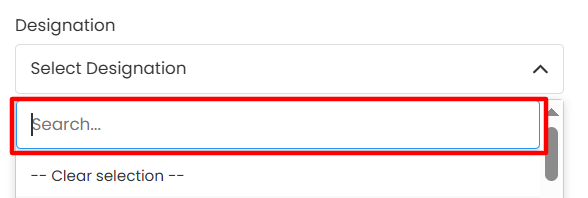
Add a new designation keyword in the search box.
-
Click on the + Create button.
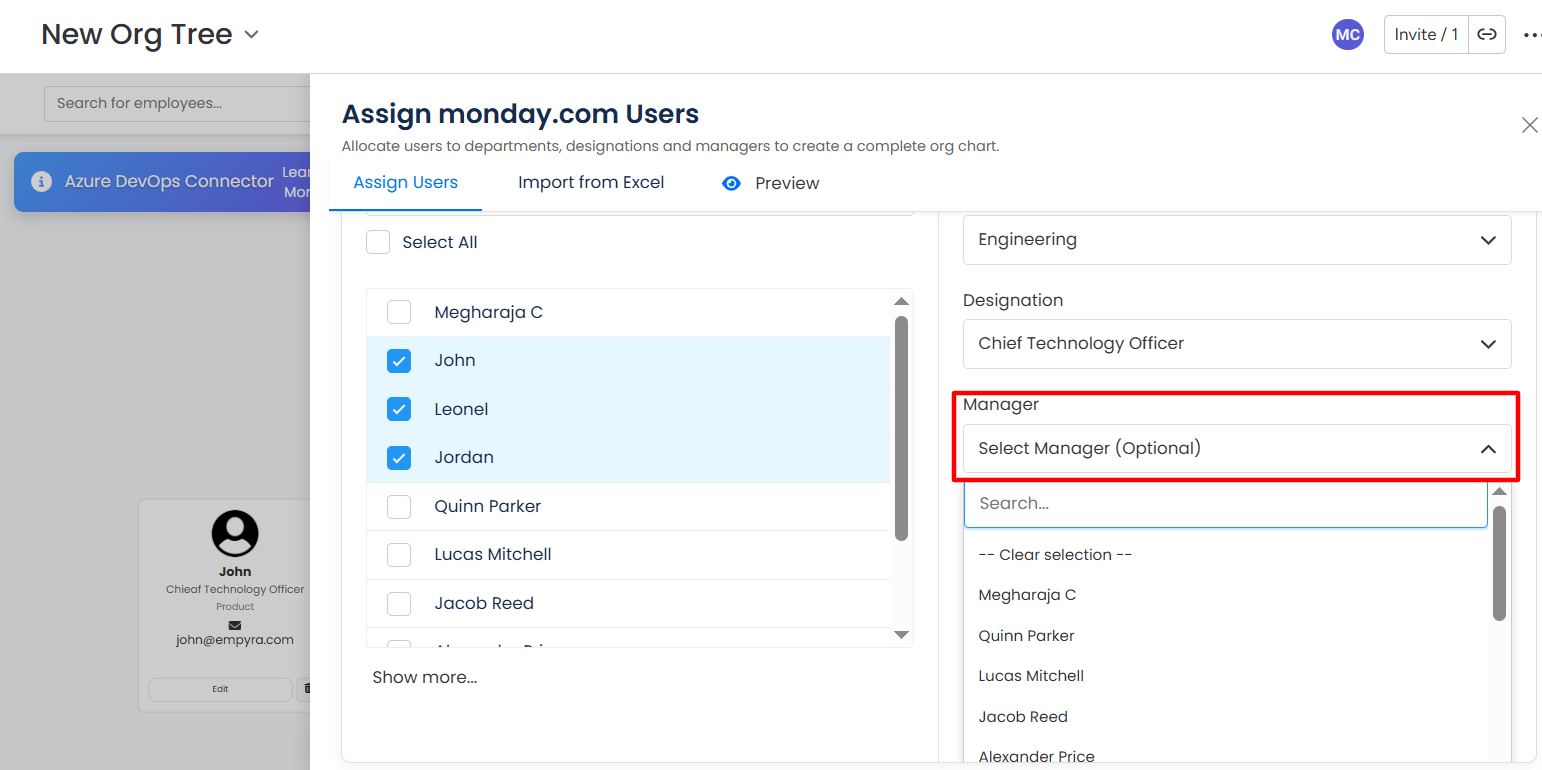
Step 5: Select Manager from the dropdown to assign the selected users.
If you do not select the manager, then users will be assigned to the top-level card by default.
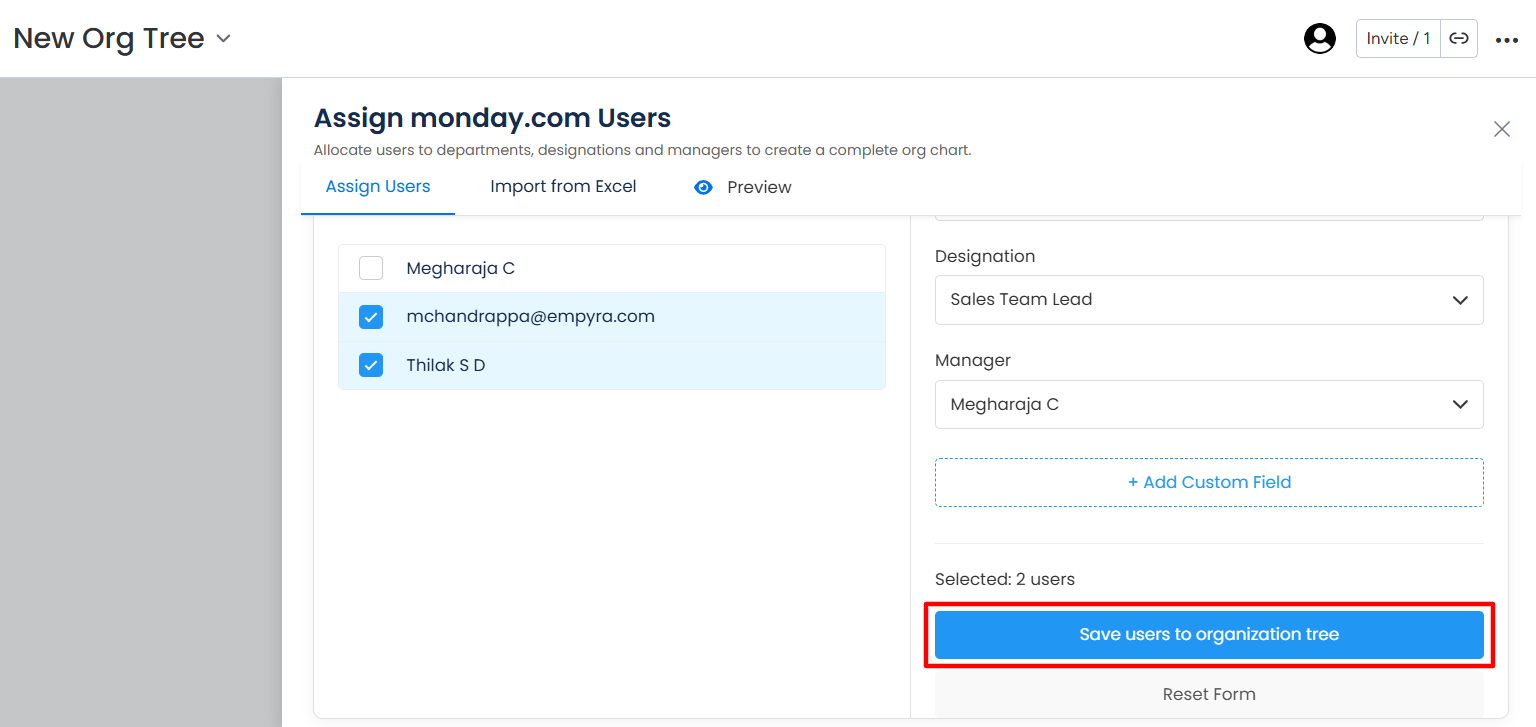
Step 6: Click on the Save users to organization tree button.
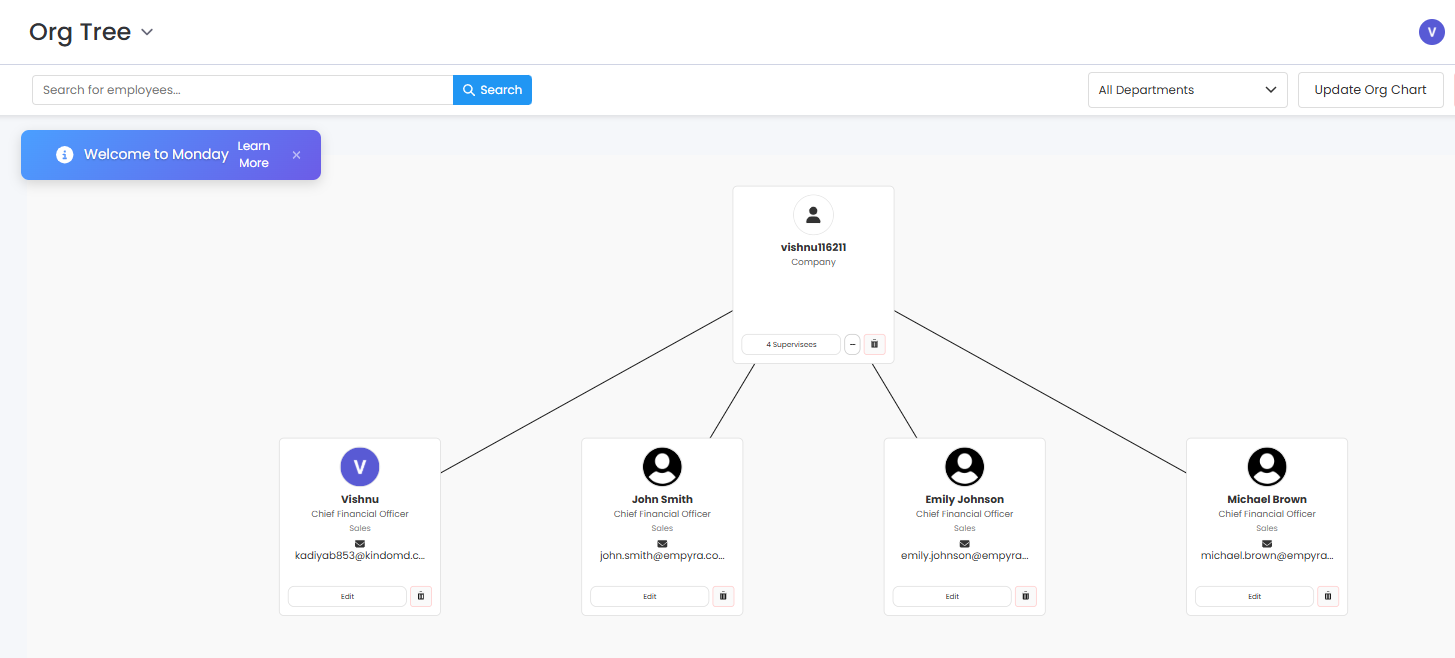
Org Tree will be generated for the selected users.
2. Update Org Tree
Add new users or update existing users to the Org Tree.
Step 1: Go to the existing Org Tree.
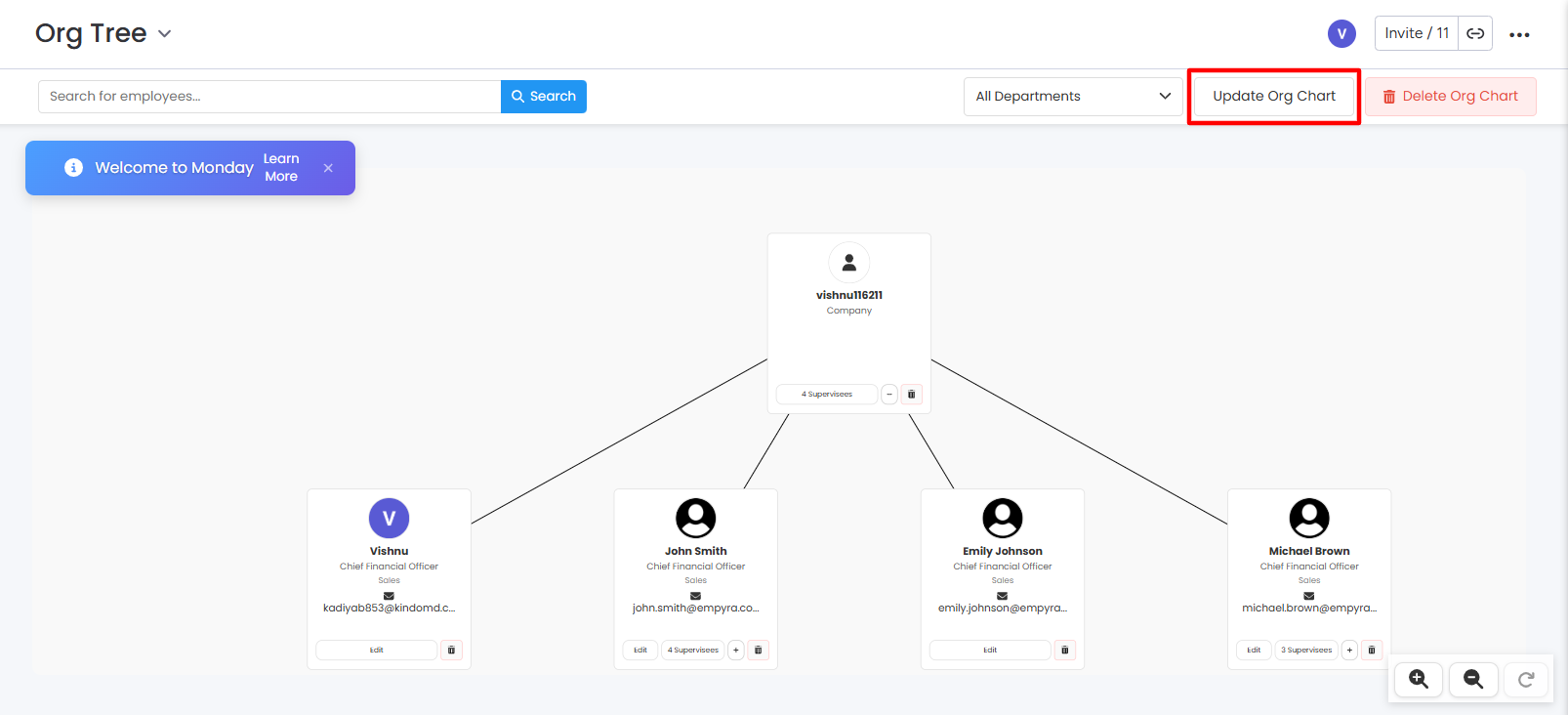
Step 2: Click on the Update Org Chart button.
Step 3: Select users from the monday.com users list.
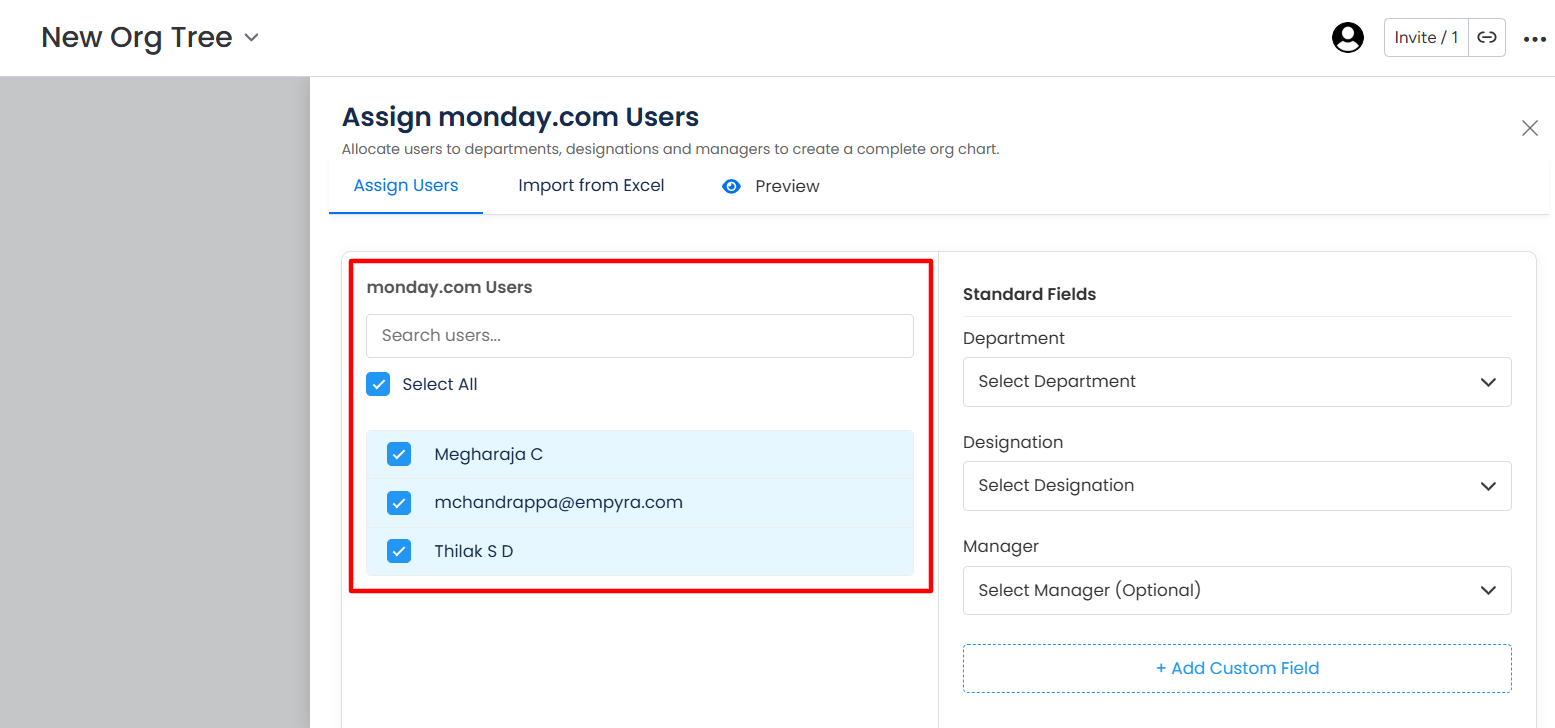
Step 4: Select the department from the Department dropdown for newly selected users or update fields for the existing users from the dropdown.
Step 5: Select the designation from the Designation dropdown for newly selected users or update fields for the existing users from the dropdown.
Step 6: Select Manager from the dropdown to assign the selected users.
If you do not select the manager, then users will be assigned to the top-level manager by default.
Step 7: Click on Save users to the organization tree button.
A successful message will pop up, and Org Tree will be updated.
3. Add Custom Field
Step 1: Click on the Add Custom Field Button.
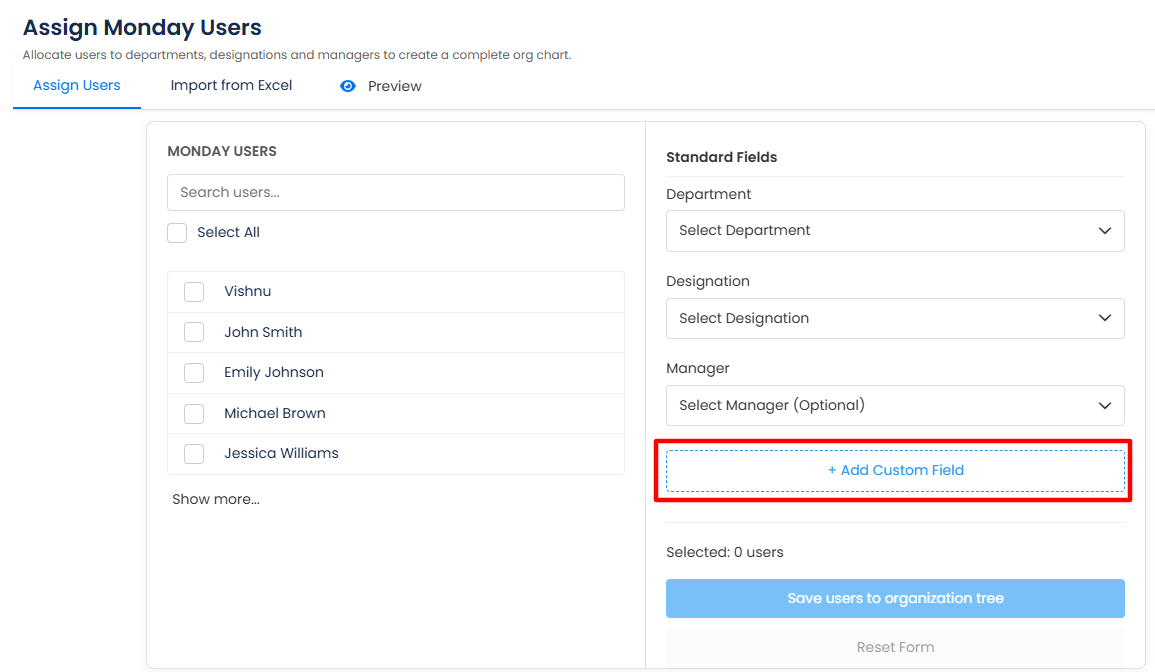
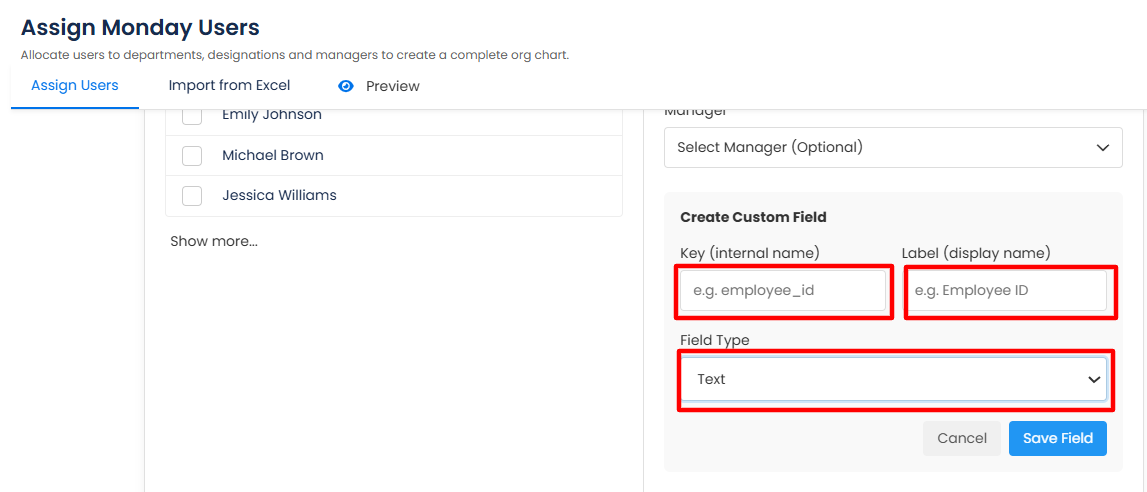
Create Custom Field window will appear.
Step 2: Enter the Key name and Label Name, and select the Field Type from the dropdown
Step 3: Click on the Save Field button.
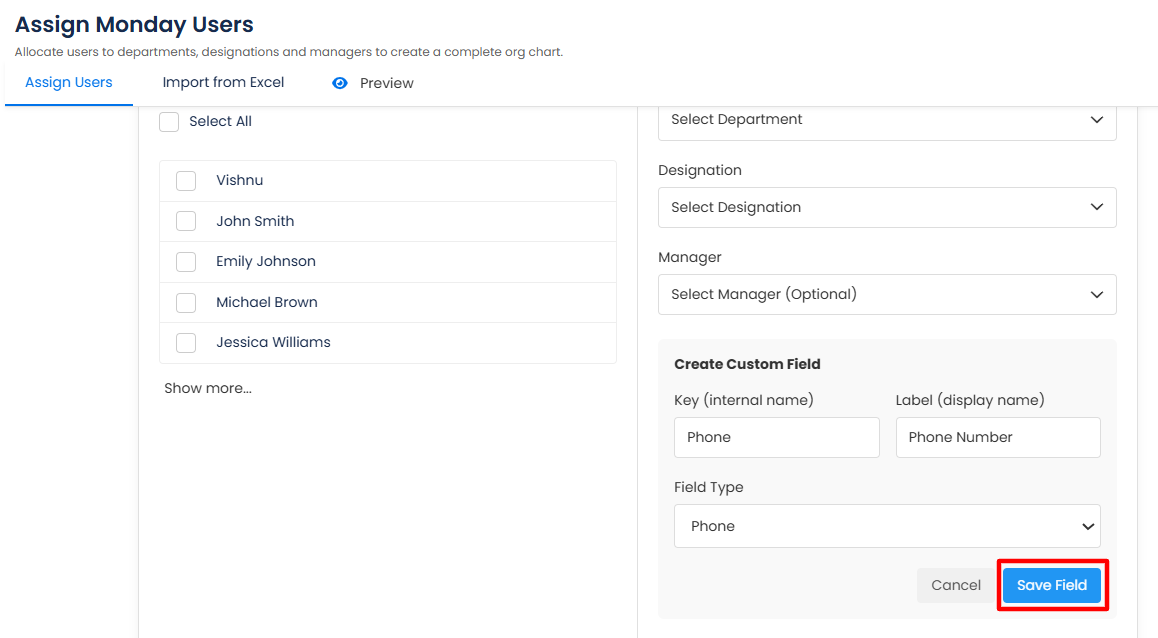
Custom Fields will be added below the Standard Fields.