
The Workflow feature is an advanced automation tool that lets users visualize and manage complex, multi-step processes across boards and workspaces. It supports triggers, conditions, sequential actions (e.g., status changes, assignments, notifications), and unique features like timeline adjustments on boards.
Follow the steps below to add workflows:
Step 1: Go to the ServiceNow Connector workspace.
Step 2: Click the plus button on the monday board.
Step 3: Go to Apps and select the ServiceNow Connector app view.
Step 4: Before adding the recipe, you have to connect your ServiceNow account to the monday account.
-
Click on Integrate with your account.
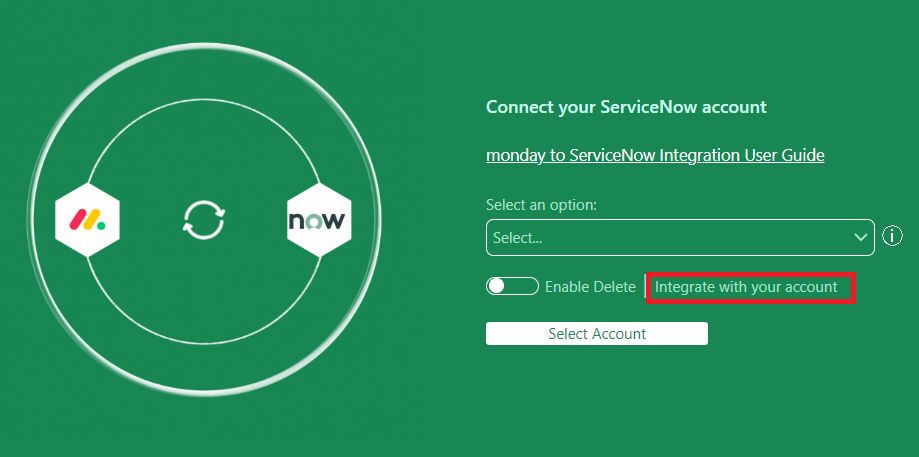
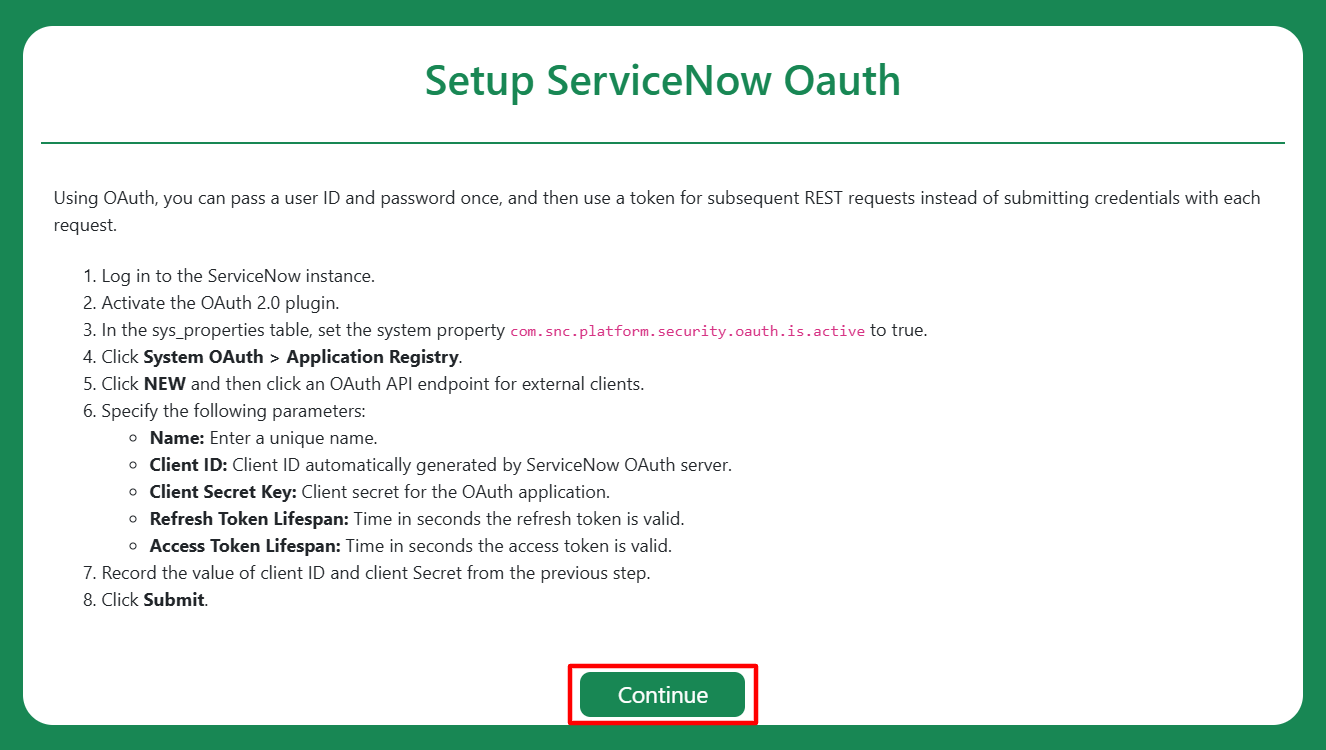
Setup ServiceNow Oauth window will appear.
-
Click on Continue.
-
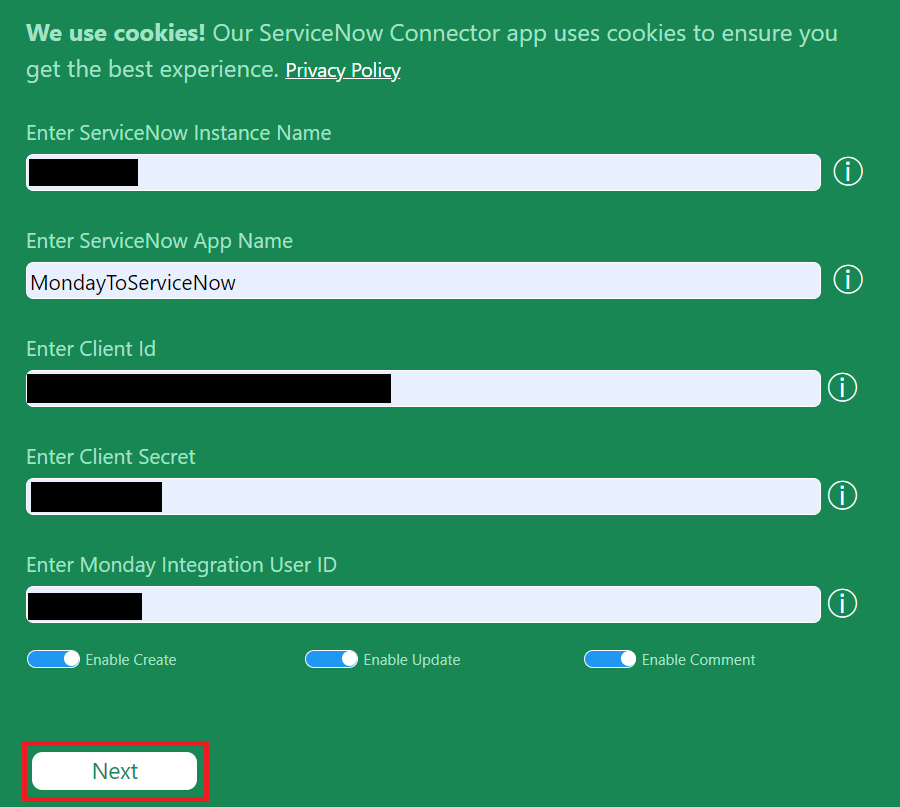
Enter the details below and click on Next.
-
Enter ServiceNow Instance Name.
-
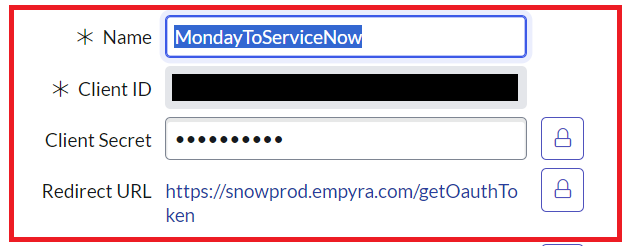
Enter ServiceNow App Name.
Enter the same name you used during the Application Registry in your ServiceNow app.
-
Enter Client Id.
-
Enter Client Secret.
-
Enter monday Integration User Id.
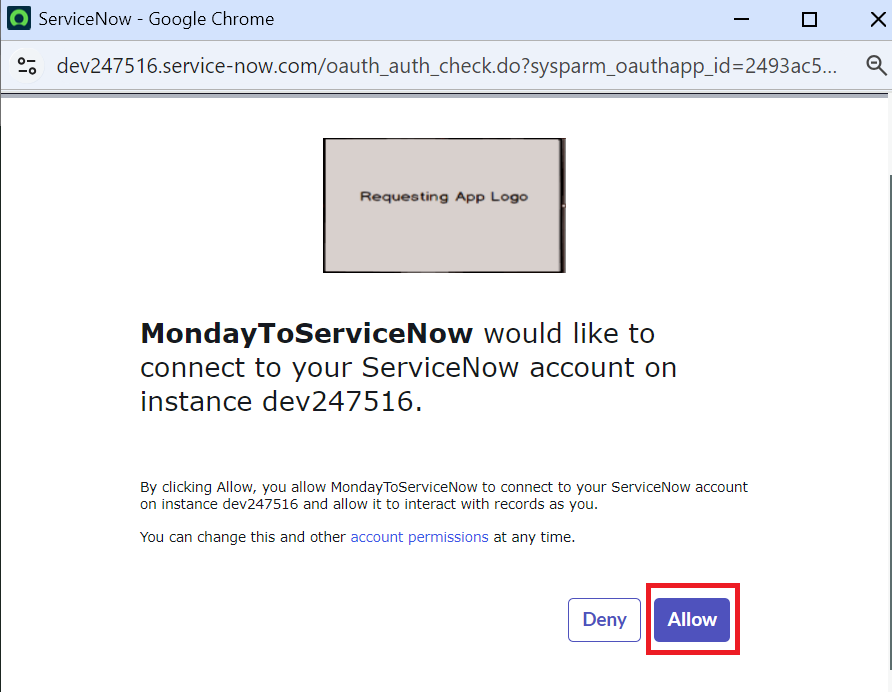
A pop-up window will appear from the ServiceNow app to approve the request.
-
Click on Allow.
Authentication successful message will appear.
-
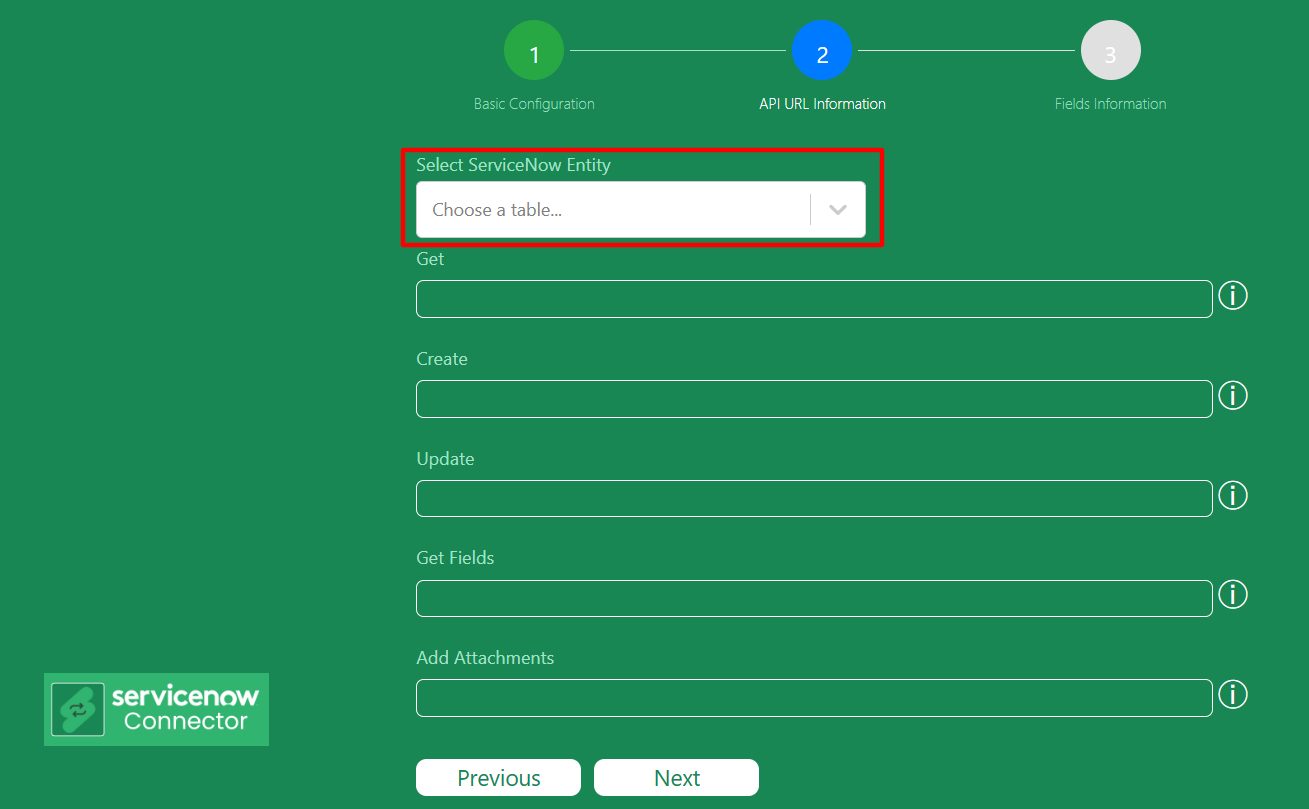
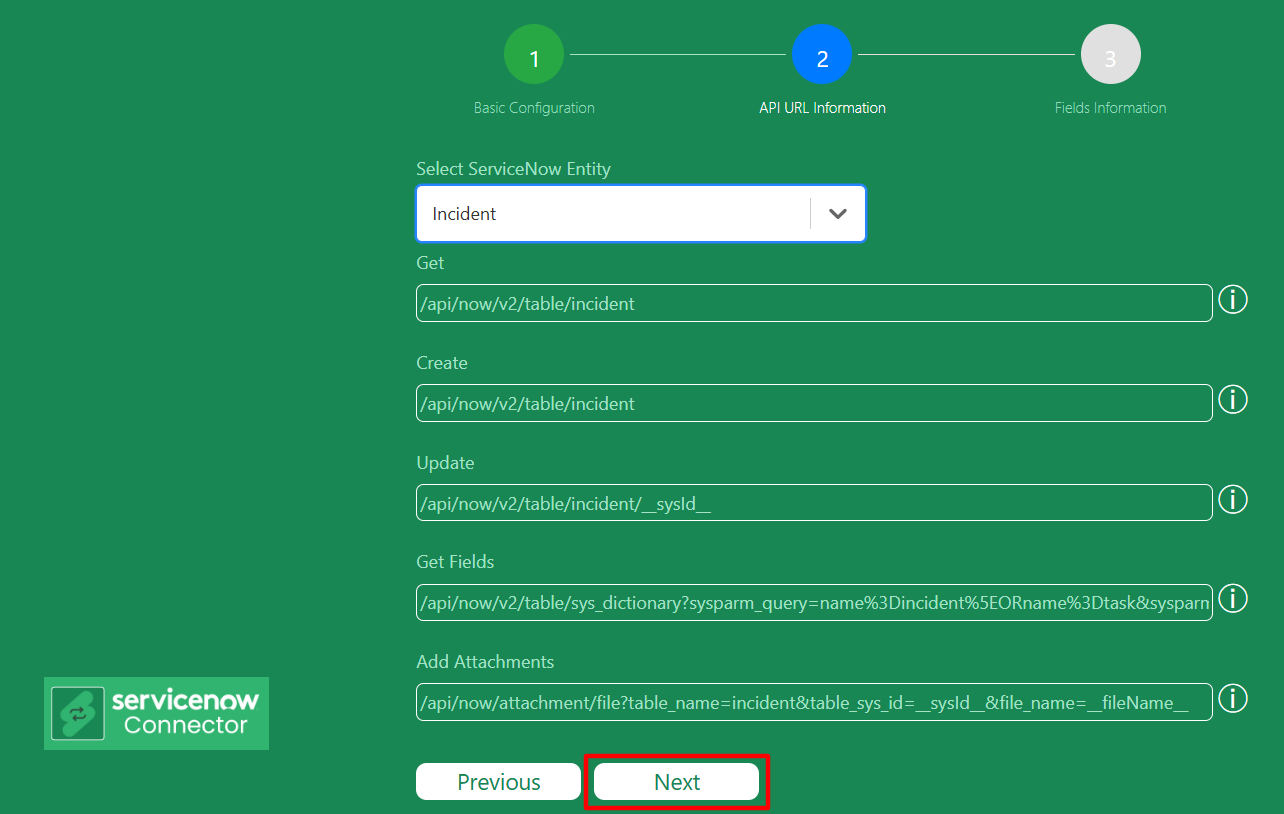
Select ServiceNow Entity from the dropdown.
Choose Entity based on the work item you want to sync.
-
Click on Next.
-
Then, click on Submit.
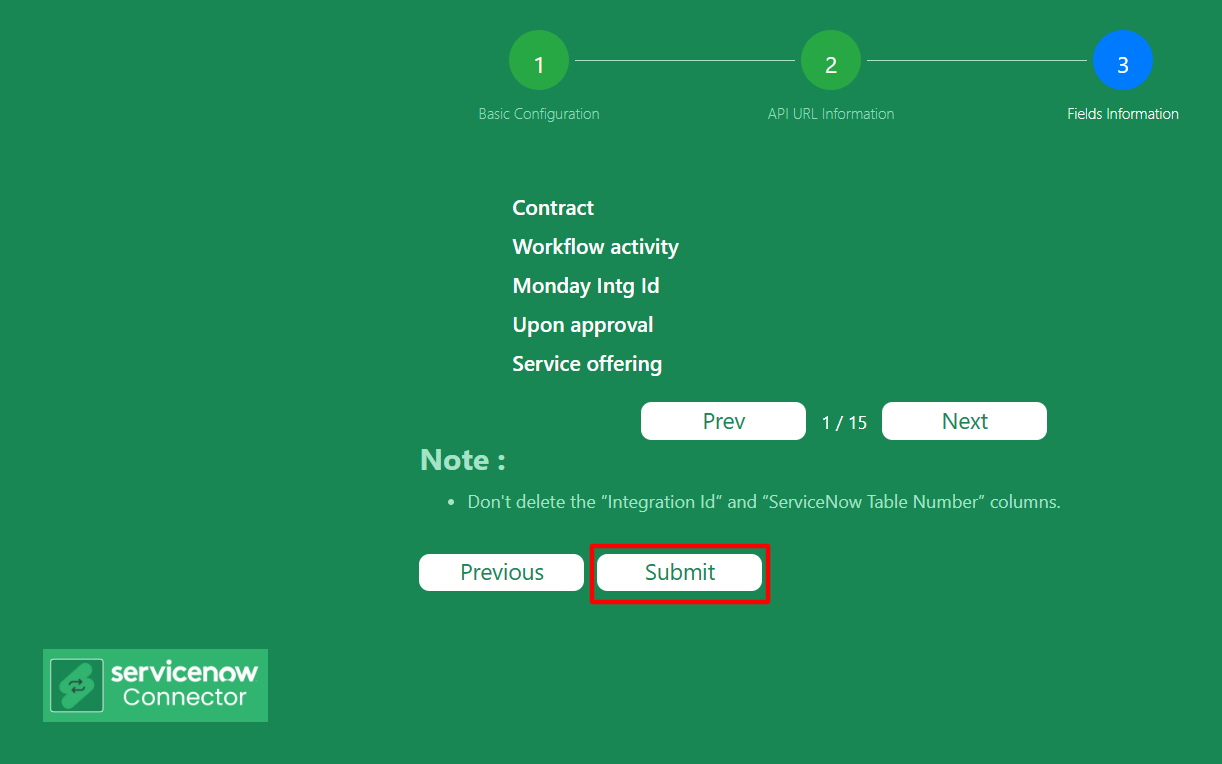
Follow the steps below to add new workflows:
Create Work Items
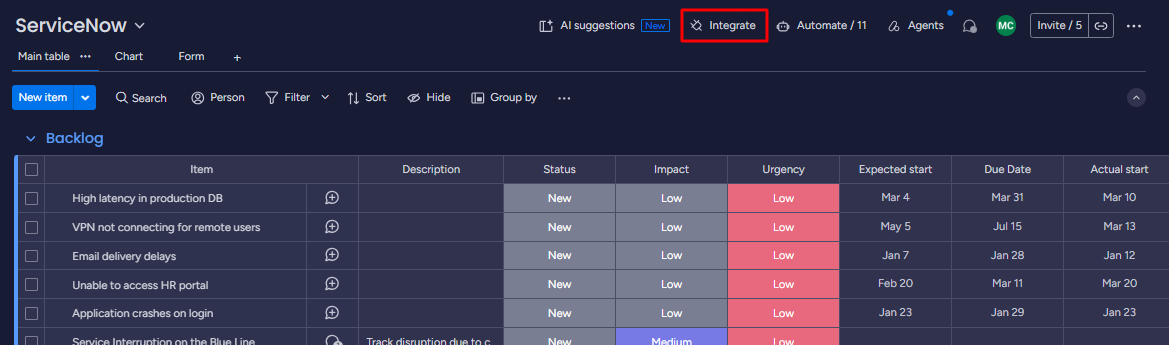
Step 1: Go to the integration section on the board.
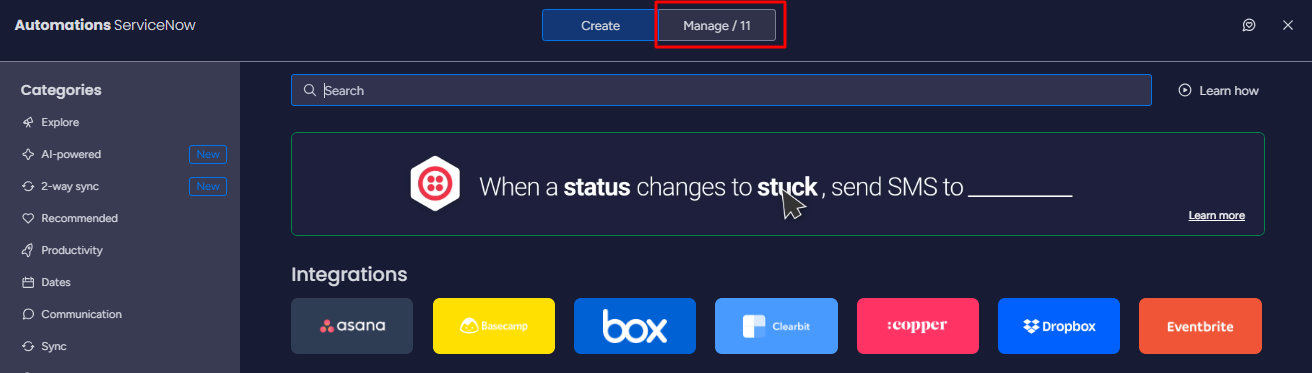
Step 2: Go to the Manage tab.
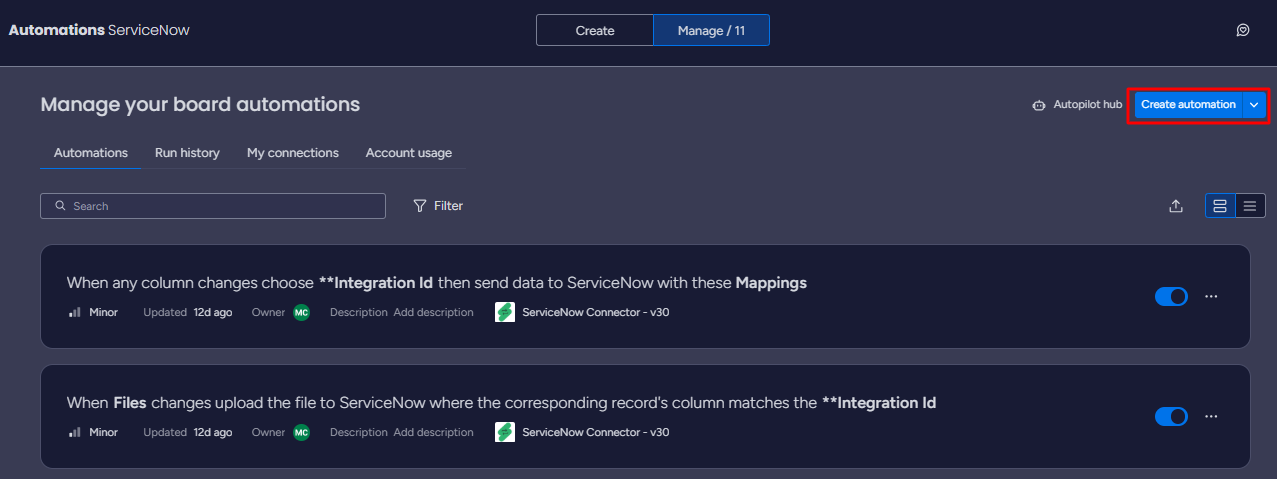
Step 3: Click on Create Automation.
Step 4: Add the below workflows
Workflow 1: Item Creation
-
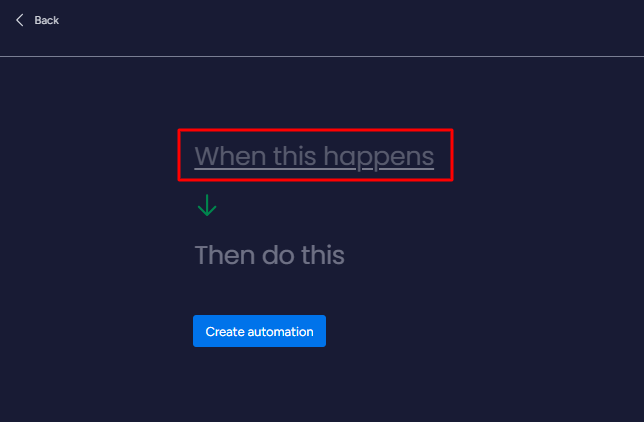
Select When this happens
-
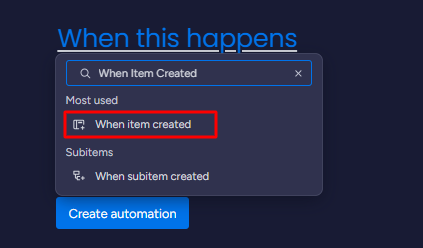
Search and Select for When Item Created.
-
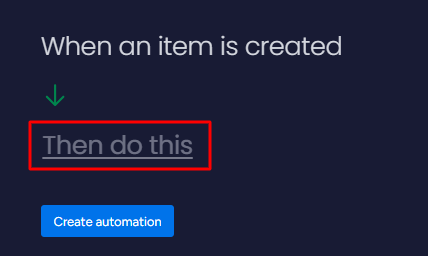
Select Then do this
-
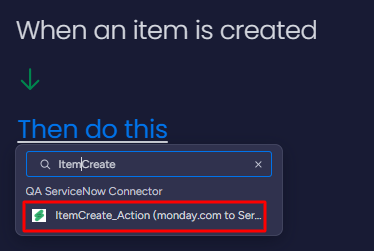
Search for ItemCreate and select ItemCreate action from ServiceNow
-
Click on Mappings and map the monday columns with ServiceNow fields.
-
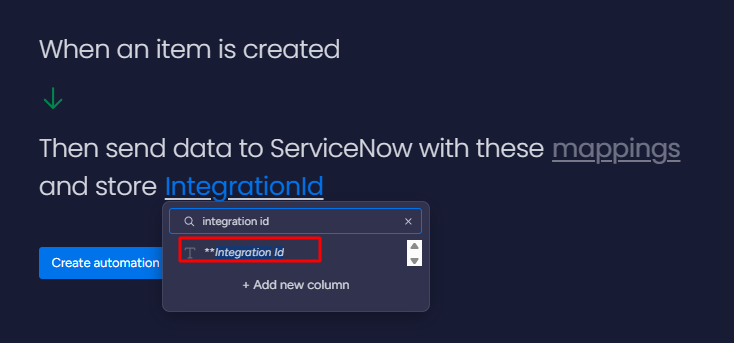
Click on IntegrationID and select IntegrationID
-
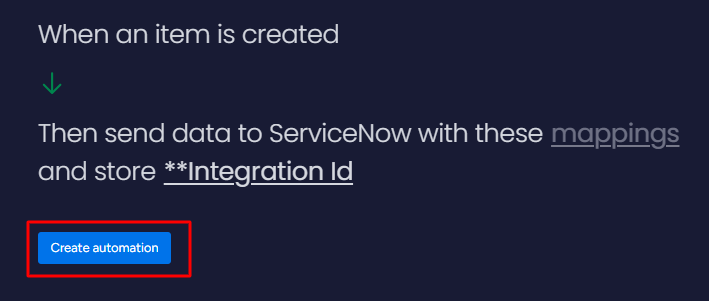
Click the Create automation button.
Update Work Items
Step 1: Go to the integration section on the board.
Step 2: Go to the Manage tab.
Step 3: Click on Create Automation.
Step 4: Add the below workflows
-
Select When this happens
-
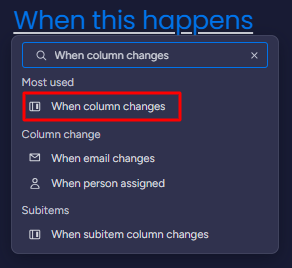
Search and Select for When column changes.