

Users can approve the asset return request either through a Form-Based method or a QR Code-Based method. For Form-Based return, complete the form with all required details and fill the Return Form. For QR Code-Based return, scan the asset QR code with your mobile device and fill the Return Form to approve return request.
Users can process the asset return request using below options:
1. Form Based Return
Follow the below steps to complete the asset return process using Form.
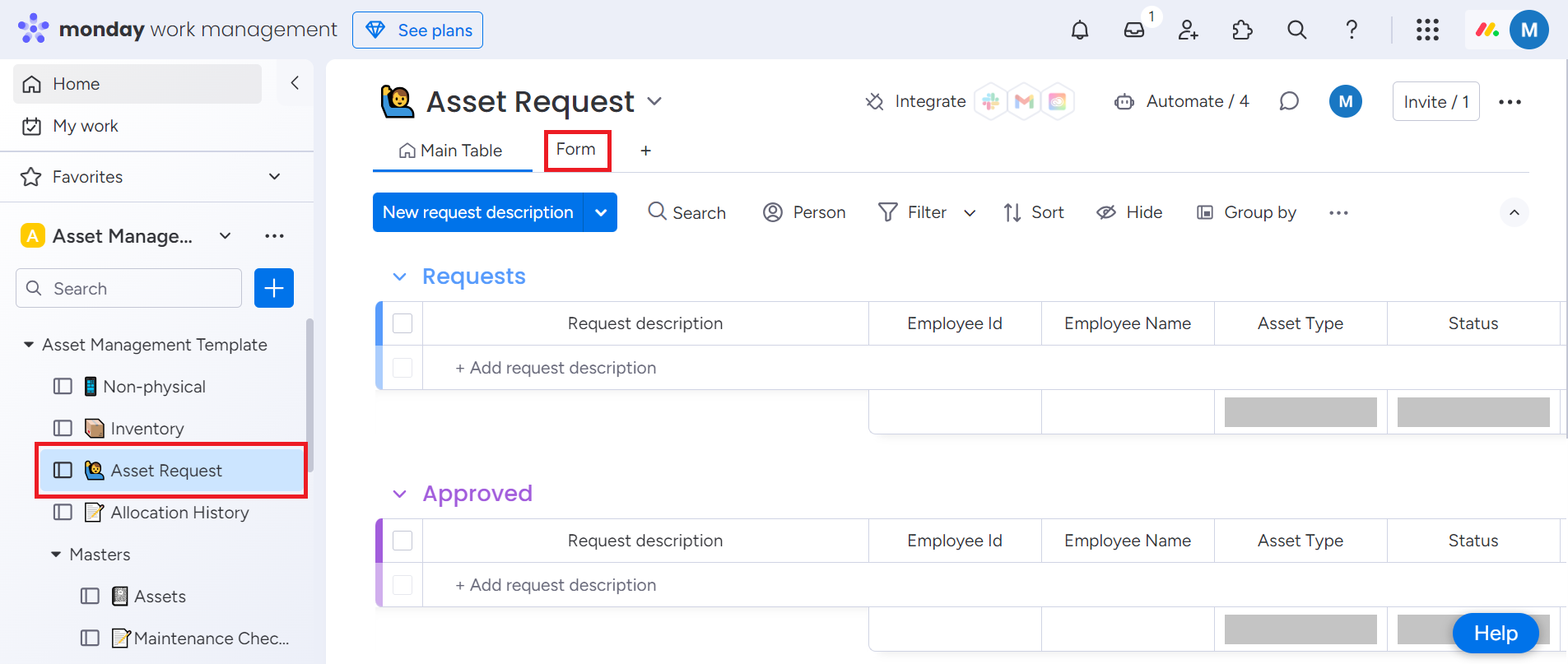
Step 1: Go to Asset Request. Click on Form.
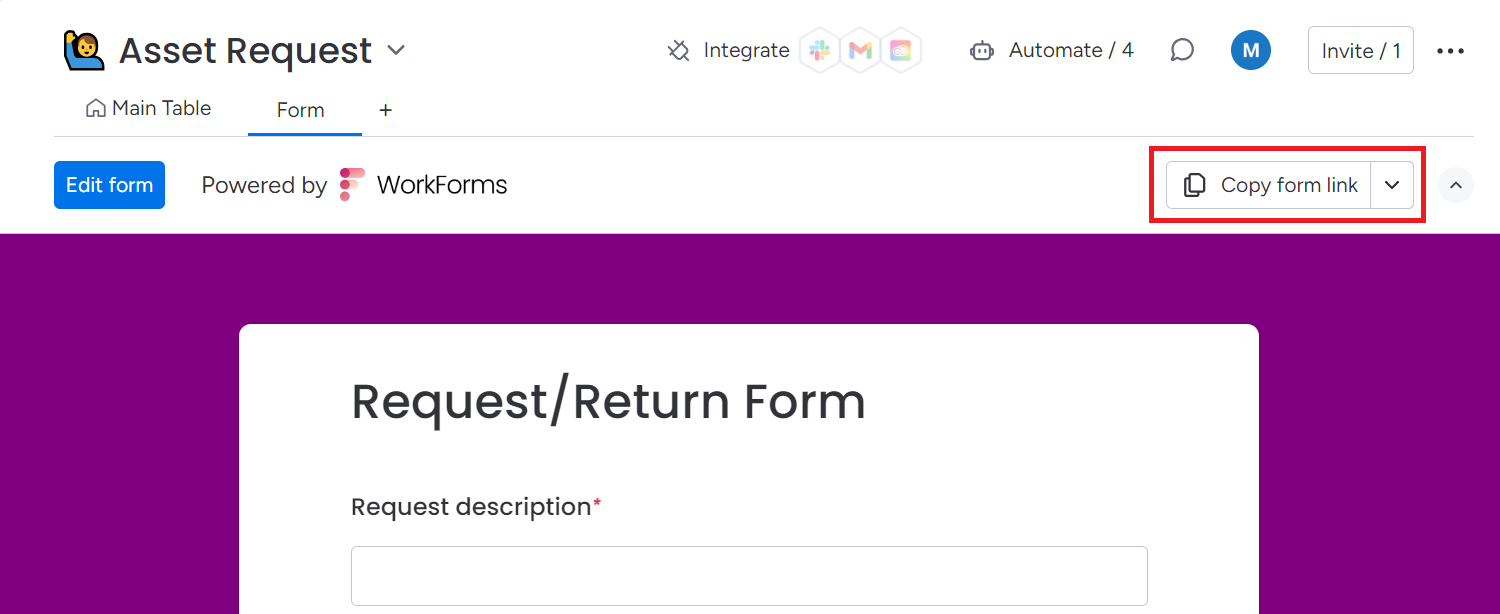
Step 2: Click on Copy form link.
Share the link with Employee and ask them to fill the Form.
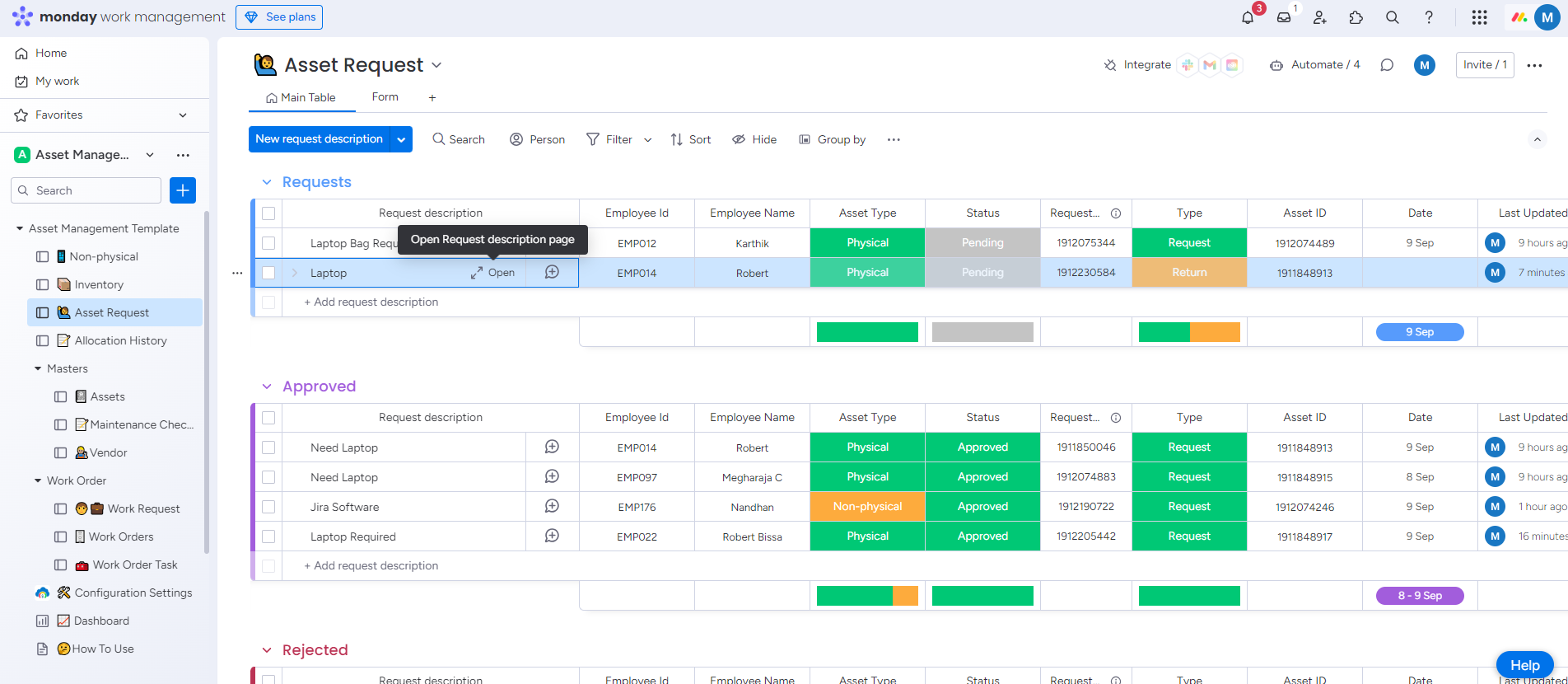
After employees submitting the form, Request will be displayed in the Asset Request board.
Step 3: Go to Asset Request board. Hover the cursor on the requested Item and Click on Open.
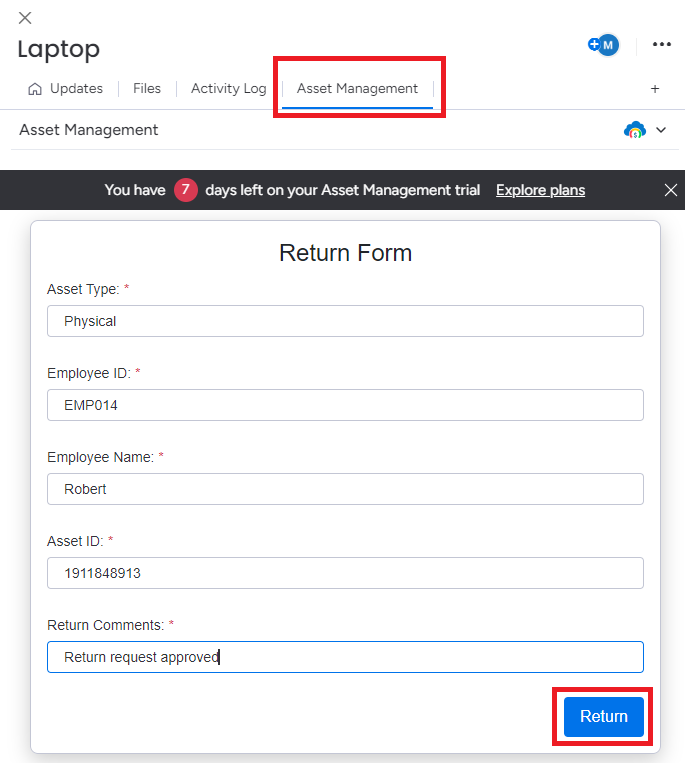
Step 4: Click on Asset Management tab. Fill the Return Form and click on Return.
Return request approved successfully. You can view the returned asset on the Approved board.
2. QR Based Return
Users can approve return request for only Physical Assets or Inventories through QR based allocation.
Follow the below steps to complete the asset return process using QR Code.
Step 1: Go to Asset Request. Click on Form.
Step 2: Click on Copy form link.
Share the link with Employee and ask them to fill the Form.
After employees submitting the form, Request will be displayed in the Asset Request board.
Step 3: Go to Assets or Inventory board based on the requested asset type. Choose the Item you want to get return. Click on QR code.
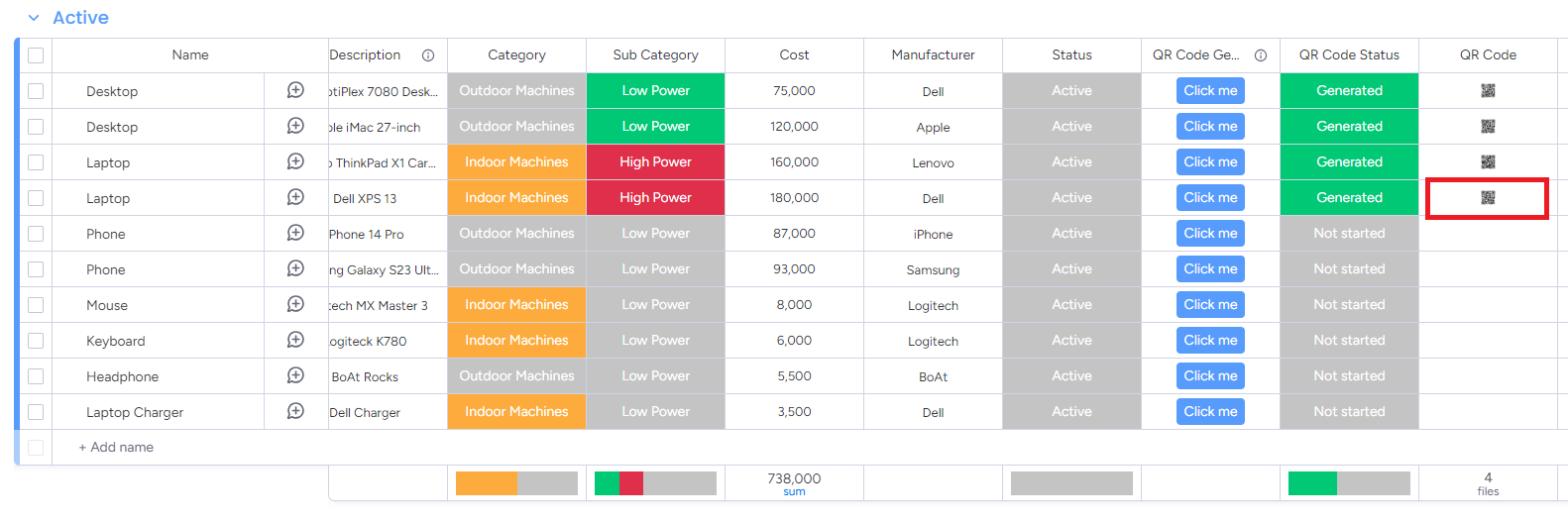
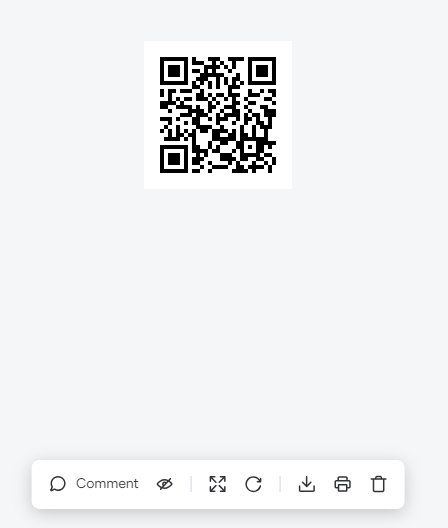
Step 4: Scan the QR code.
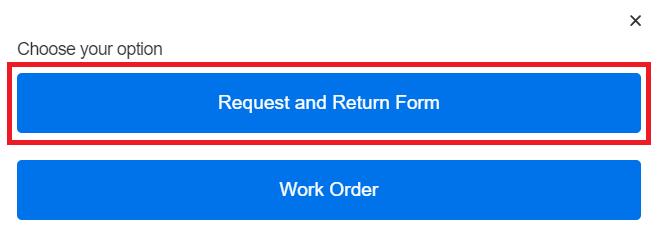
Step 5: Select Request and Return Form.
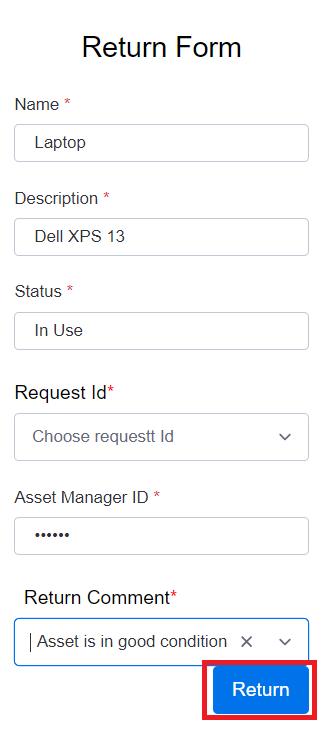
Step 6: Fill out the Return Form and Click on Return.
Return request approved successfully. You can view the returned asset on the Approved board.