

The Asset Manager has to create Email configurations manually to get the email notification.
Follow the below steps to create the email configuration:
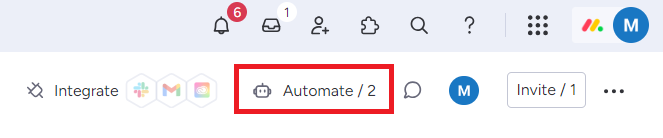
Step 1: Click on Automate.
Step 2: Click on Add automation.
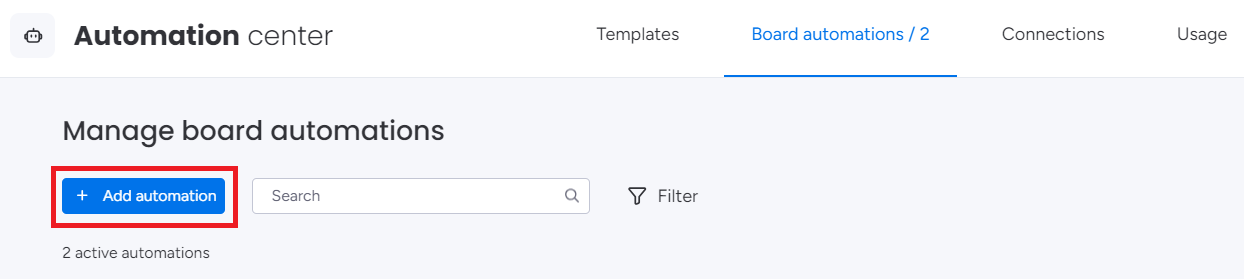
Automation setup window will open.
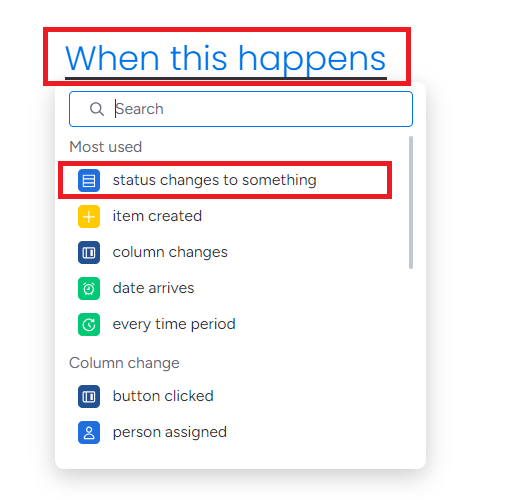
Step 3: Select When this happens. Click on status changes to something.
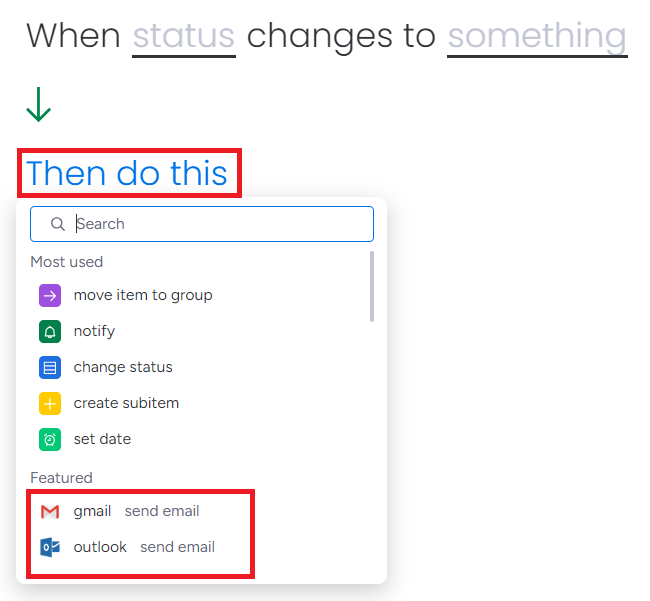
Step 4: Select the field Then do this. Select any email platform based on your choice.
Step 5: Map all the fields and click on Create Automation.
To map Email field select the board items and add the text to send mail with Subject, Body, and other Details to the board member.
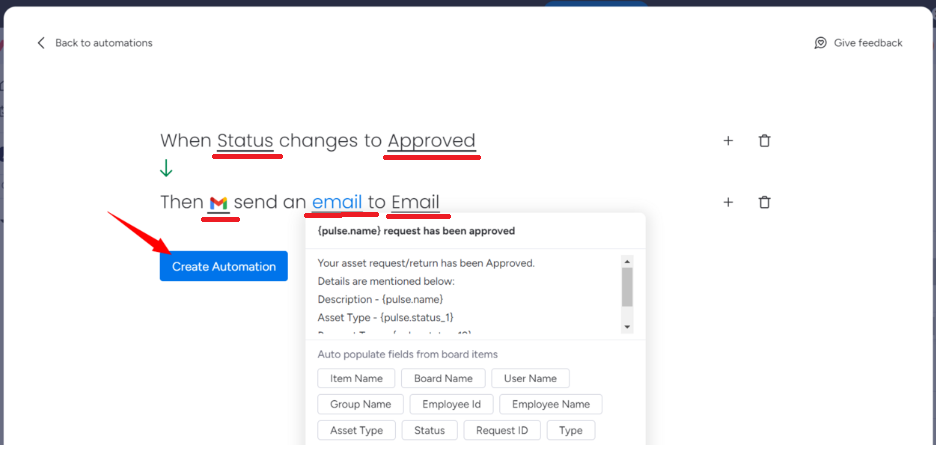
The following example demonstrates how to map Email field for status changes when an asset request is approved or rejected on the Asset Request board.
Subject - {pulse.name} request has been created or approved or rejected
Body - Your asset request or return has been Created or Approved or Rejected.
Details are mentioned below:
Description - {pulse.name}
Asset Type - {pulse.status_1}
Request Type - {pulse.status_12}
Asset ID - {pulse.text1}
Your email configuration setup is complete.