

Step1: Go to Work Order Request. Click on Work Request Form.
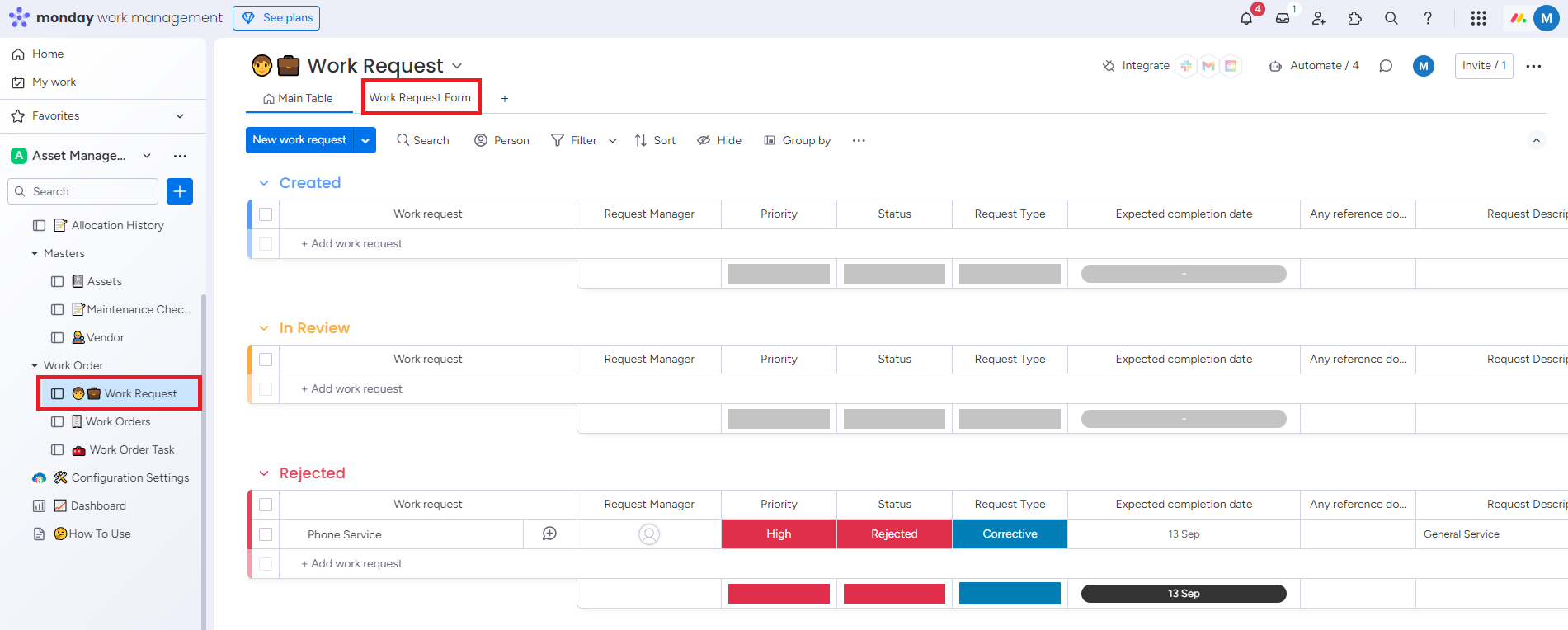
Step 2: Click on Copy form link.
Share the link with Employee and ask them to fill the Form.
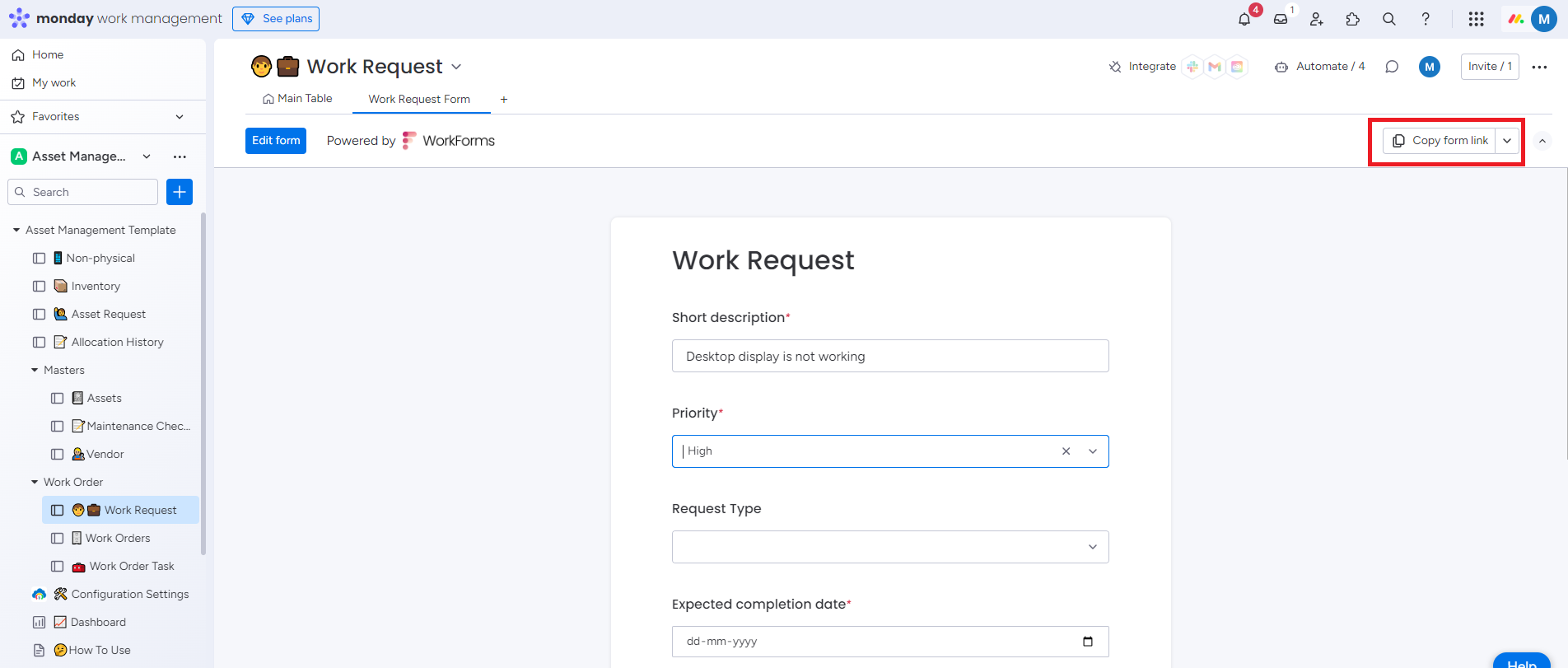
After employees submitting the form, Request will be Created and displayed on the Work Request board.
Step 3: Go to Work Request board. Go to Asset column and select an Asset that you want to repair.
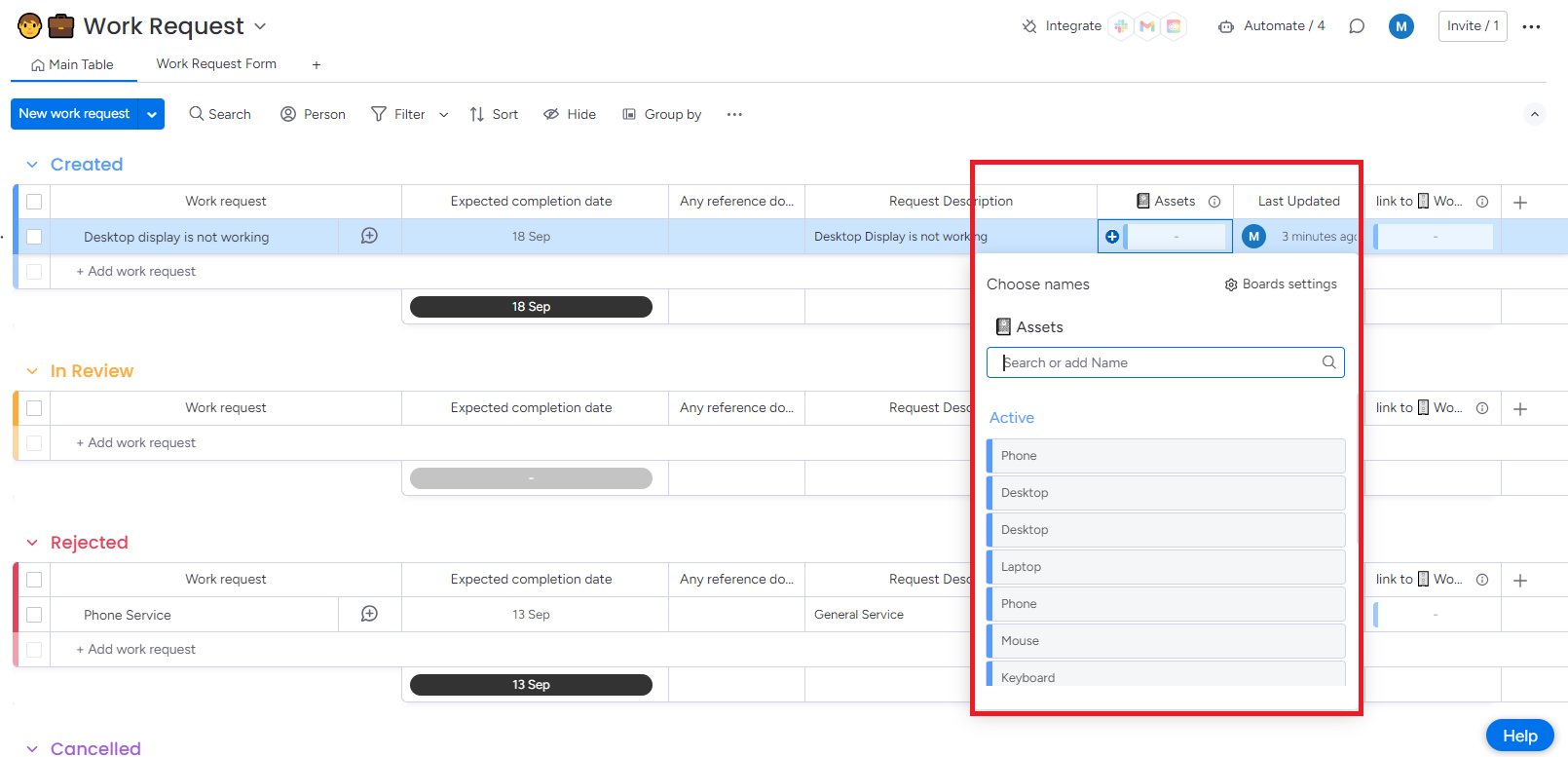
Step 4: Update Work Status from Status column based on the requirement.
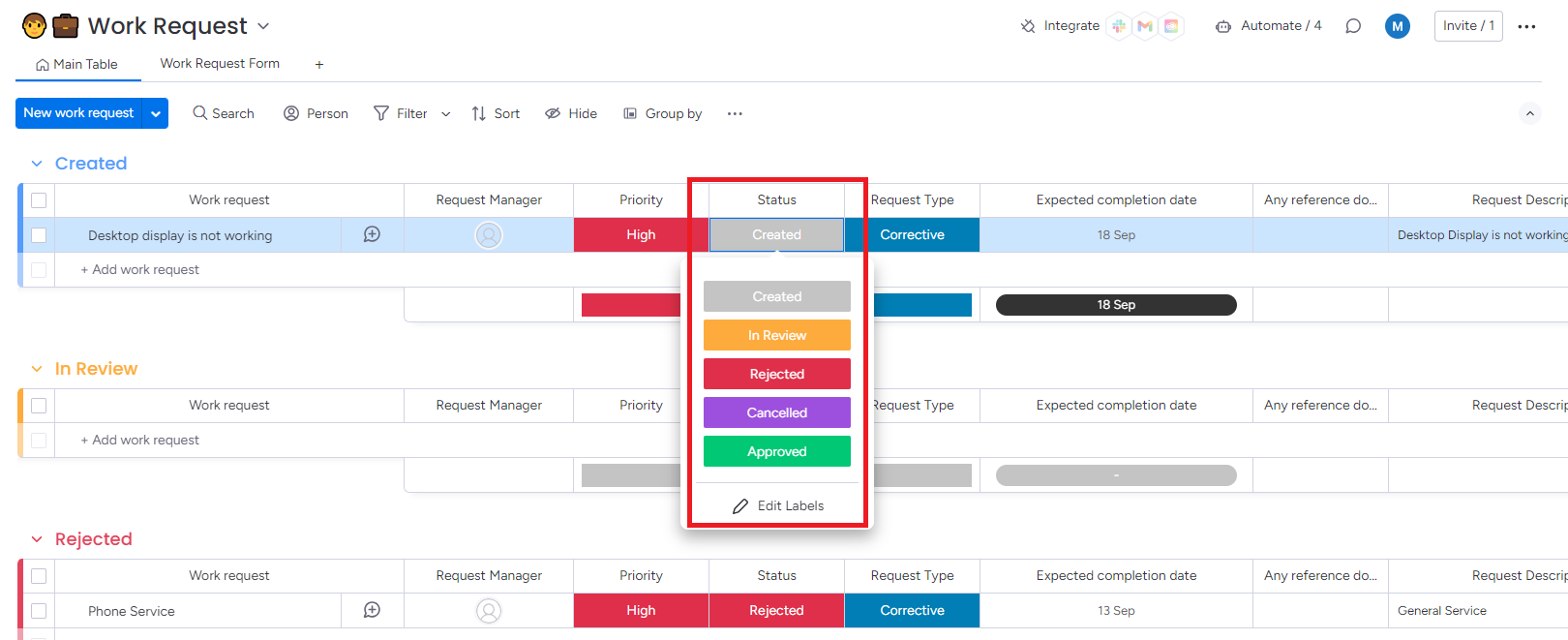
If you approve the Work Request, Work Order will be created.
Step 5: Create the Sub Items and Work order Tasks related to your Work Order.
Create Subitem
-
Click on Dropdown. Click on Add subitem.
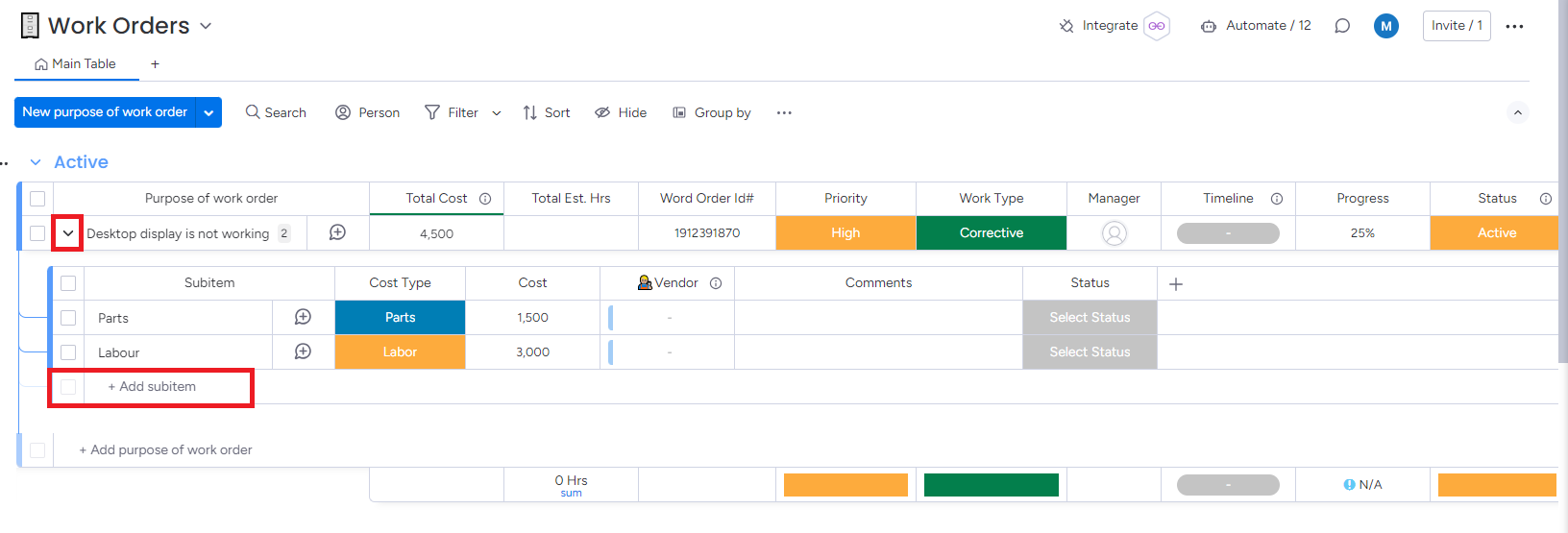
Parts and Labor subitems are available from the template.
-
Mention the details like Cost and Vendor.
-
Update the Status column to according to the job status.
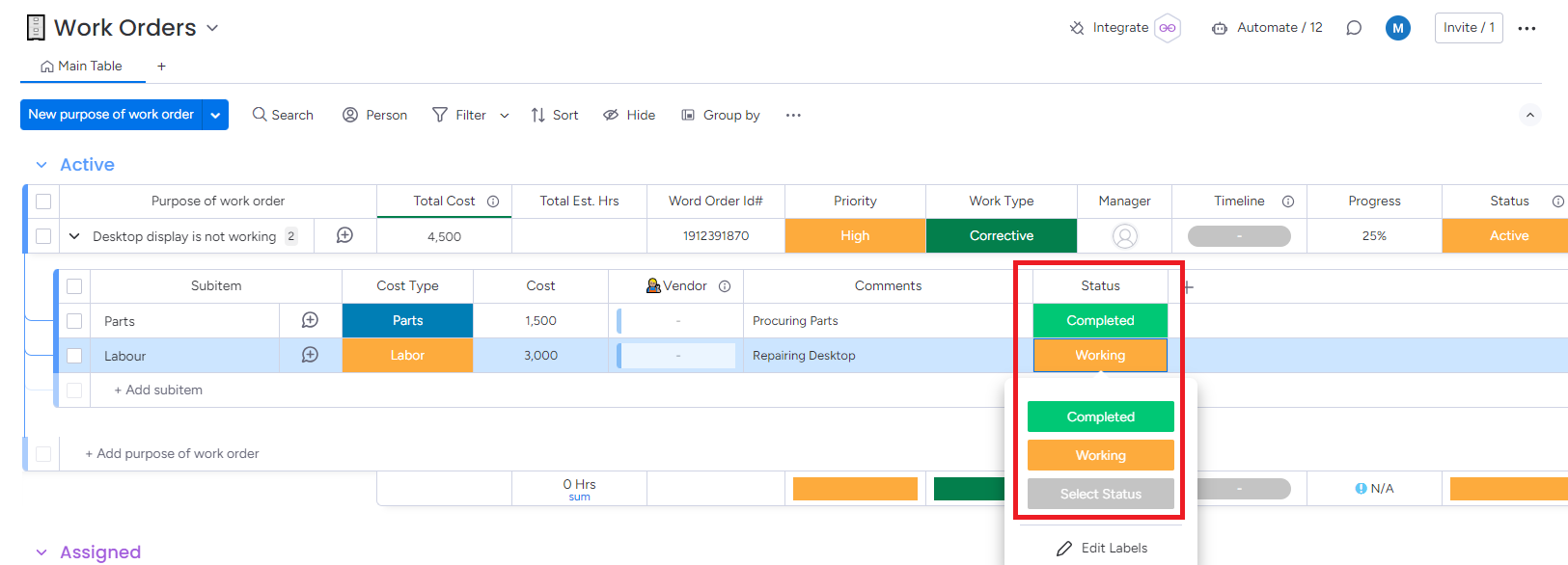
Updated subitems status as completed to complete the Work Order.
Create Work Order Task
-
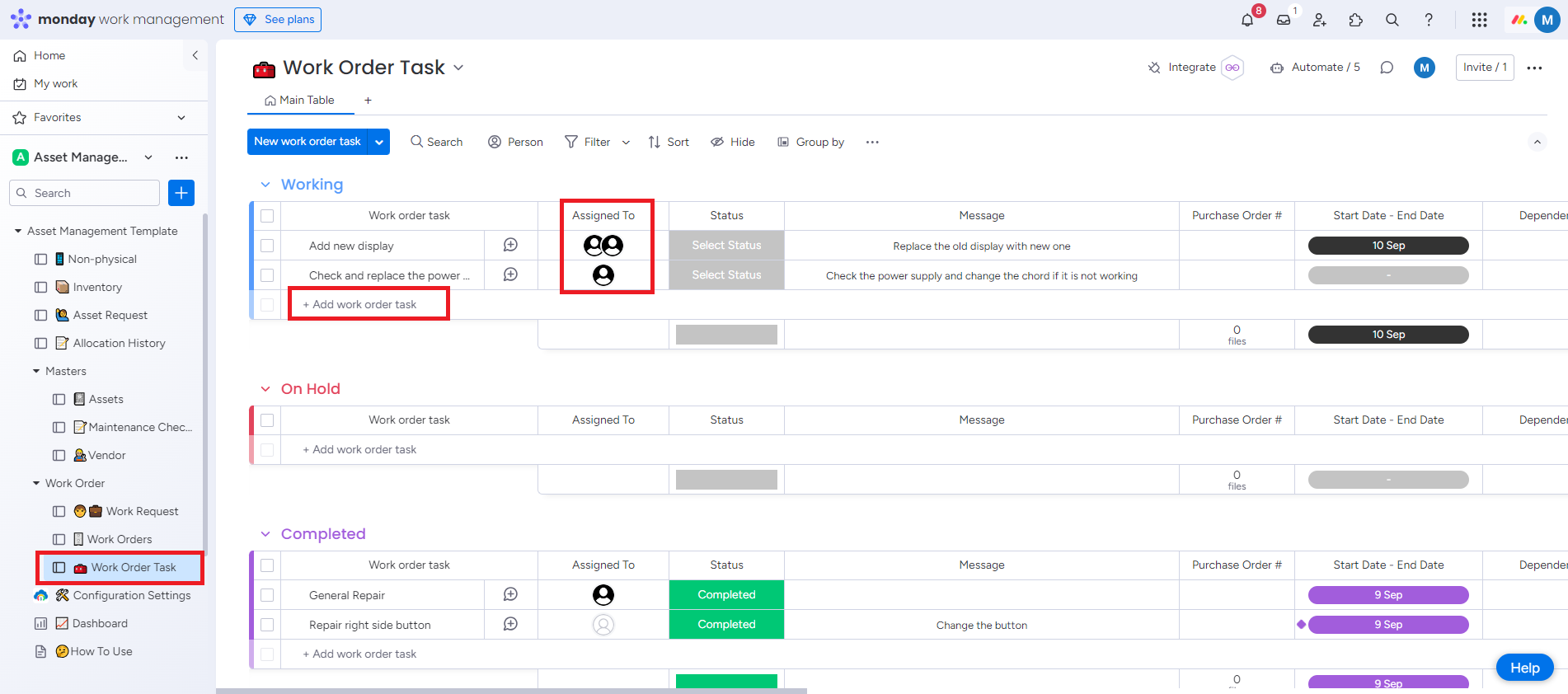
Go to Work Order Task board. Click on Add work order task. Assign the task to responsible member.
-
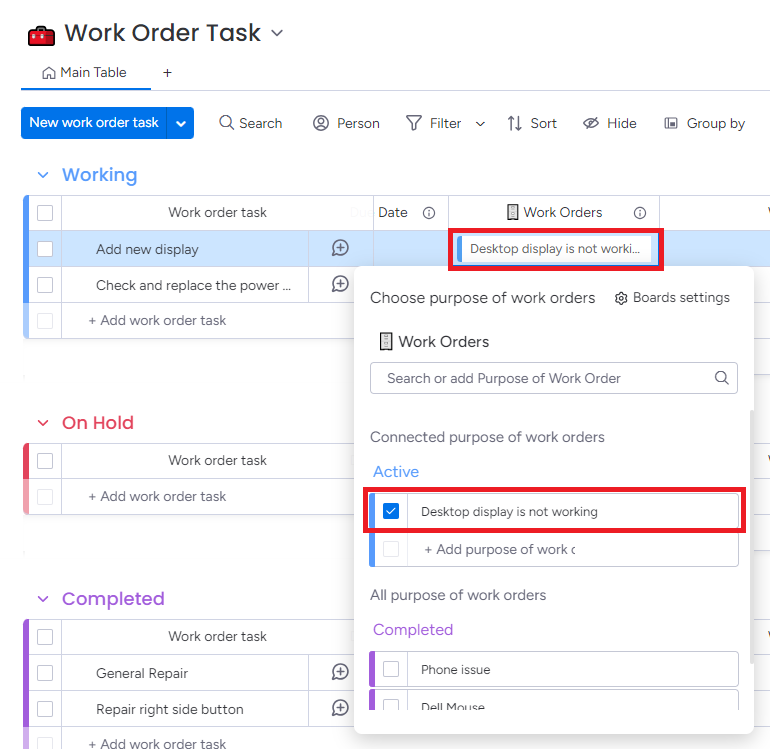
Go to Work Order column. Click on the checkbox to link the Work Order Task to the main Work Order.
Step 6: After completing the task, the assigned team must upload both Before work and After work images, then update the status to Completed to finish the Work Order.
After completing the sub items and work order tasks, the Work Order status is changed to completed automatically and you can review the job in Completed Work Order board.