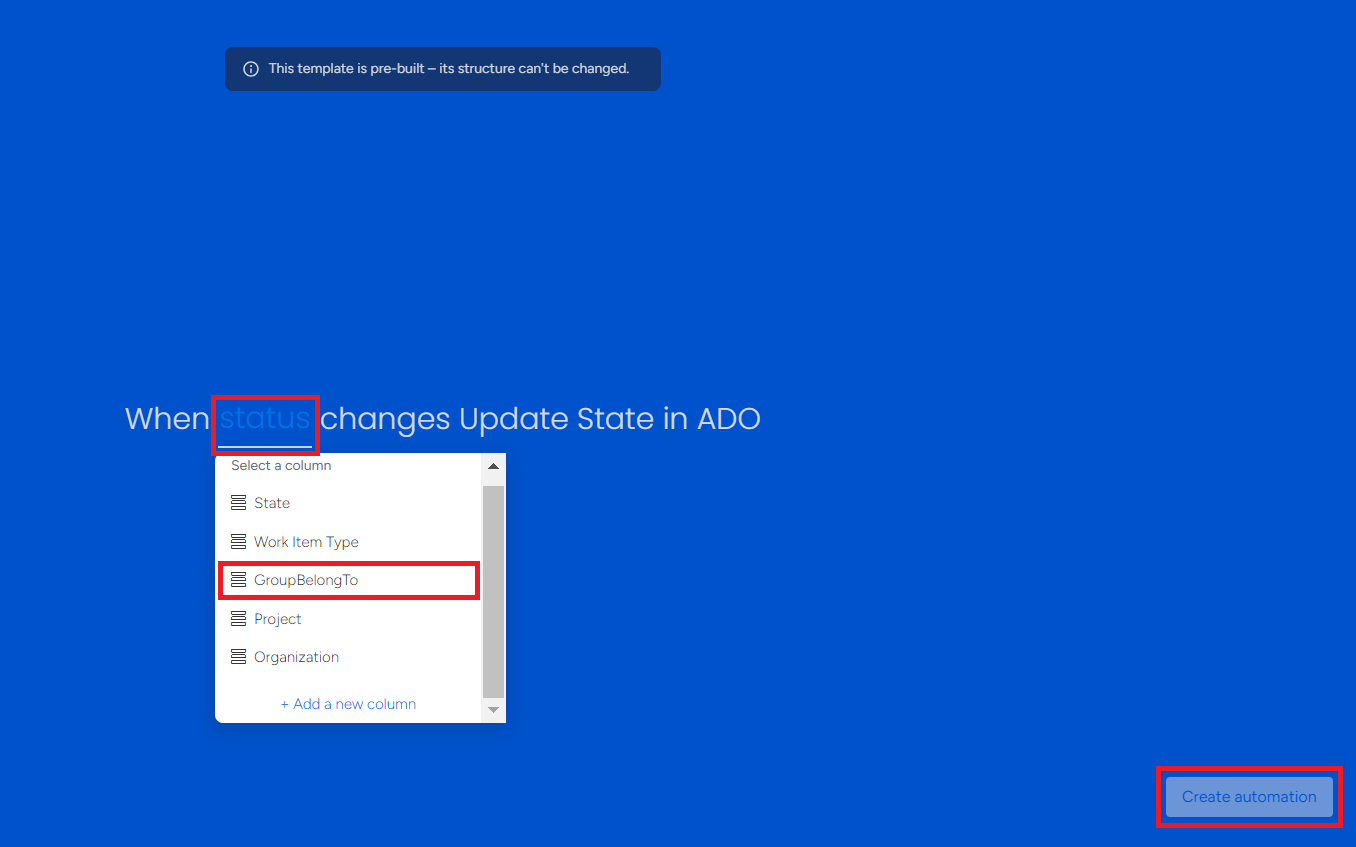

The Epic WorkItem board allows seamless synchronization of Epic work items between Azure DevOps and monday boards. Users should add automation recipes to manage and track projects by automatically syncing high-level Epics across both platforms, ensuring consistency and real-time updates.
Follow the steps below to add the three recipes for the Epic WorkItem board.
1. Epic Item Recipe
This recipe will create an Item and sync future changes along with the comments.
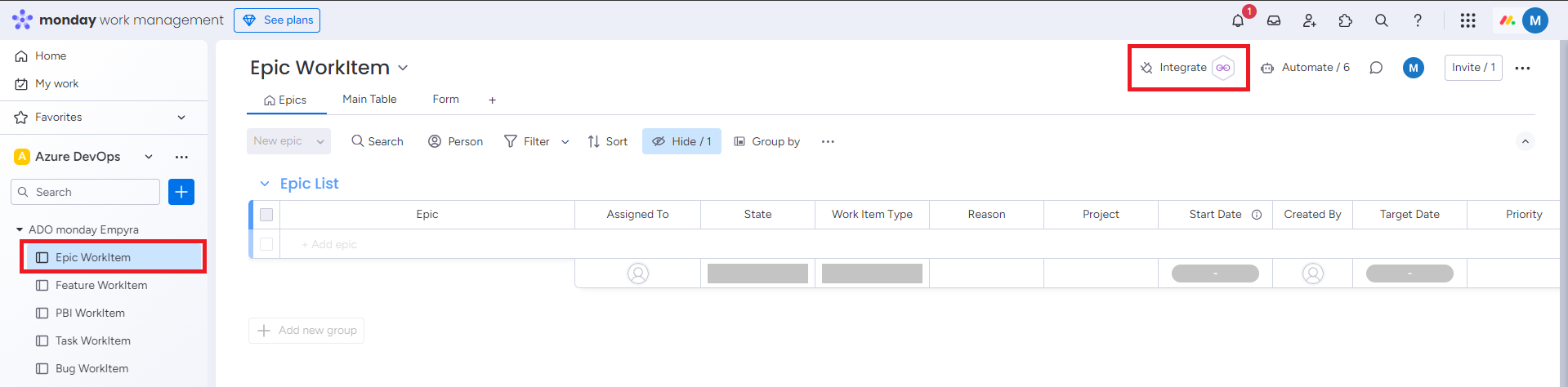
Step 1: Go to Epic WorkItem. Click on Integrate.
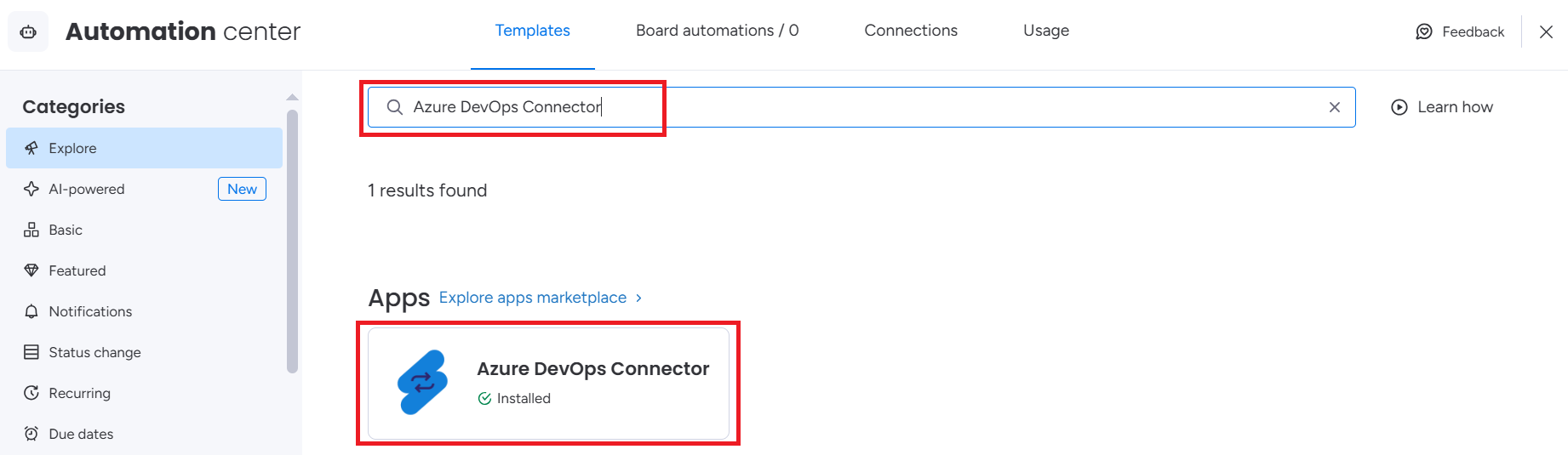
Step 2: Search Azure DevOps Connector app and click on the app.
Step 3: Select create an item recipe and click on Use template.
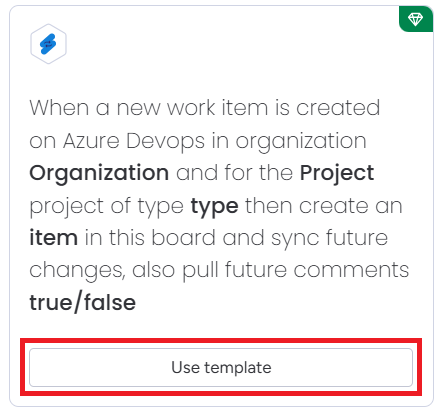
A mapping screen will appear.
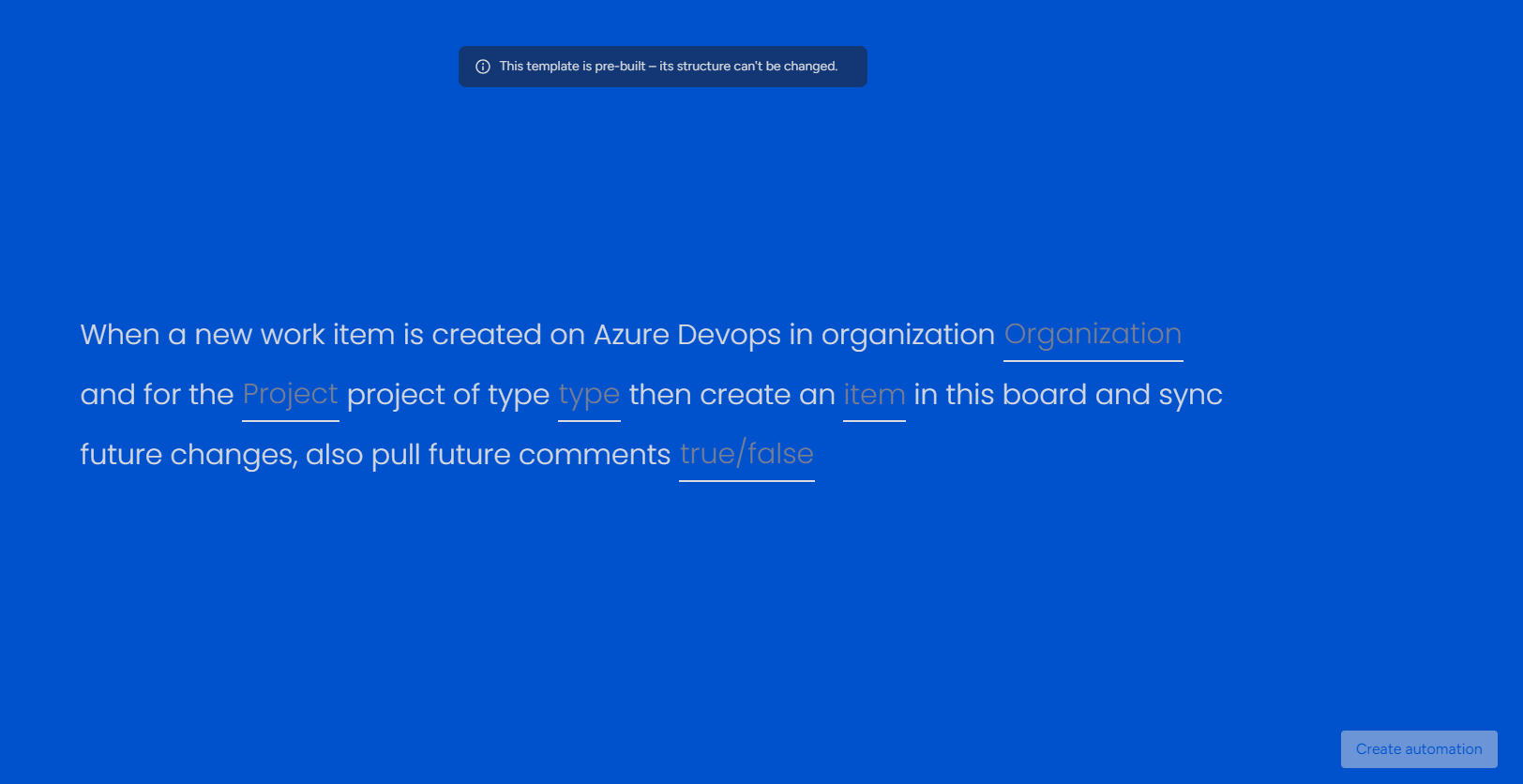
Step 4: Map the fields as given in below steps.
-
Click on Organization and select the organization from the list.
-
Click on Project and select the project from the list.
-
Click on Type and select Epic.
-
Click on Item.
Field mapping window will appear.
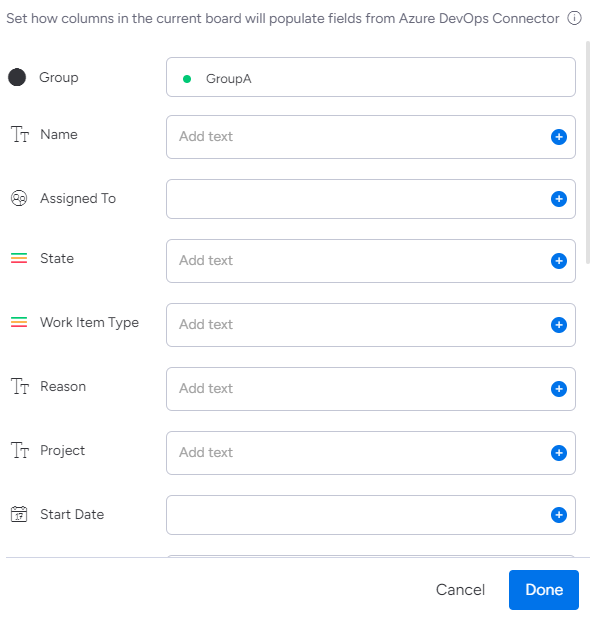
Map the ADO fields with monday columns.
|
ADO Fields |
monday Columns |
|---|---|
|
Name |
Title |
|
GroupBelongTo |
GroupBelongTo |
Name and GroupBelongTo are mandatory fields. Map other fields based on your requirements.
After mapping the fields click on Done.
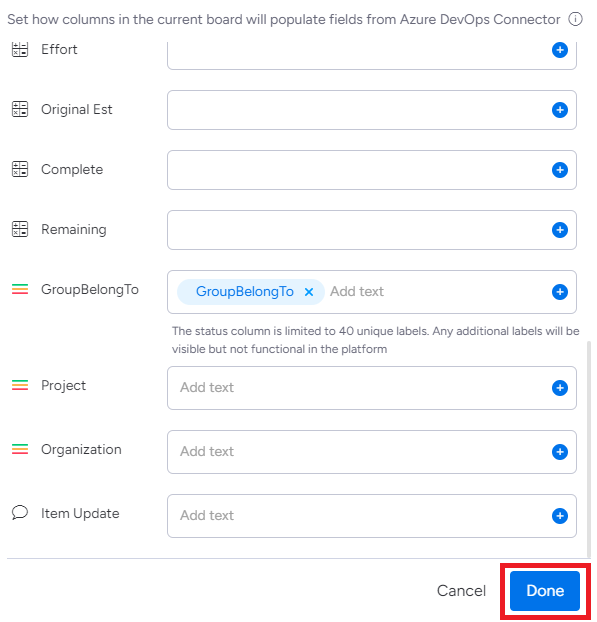
-
Click on True/False.
-
Select True to synchronize comments.
-
Select False to not synchronize comments.
Step 5: After mapping all the fields, click on Create automation.
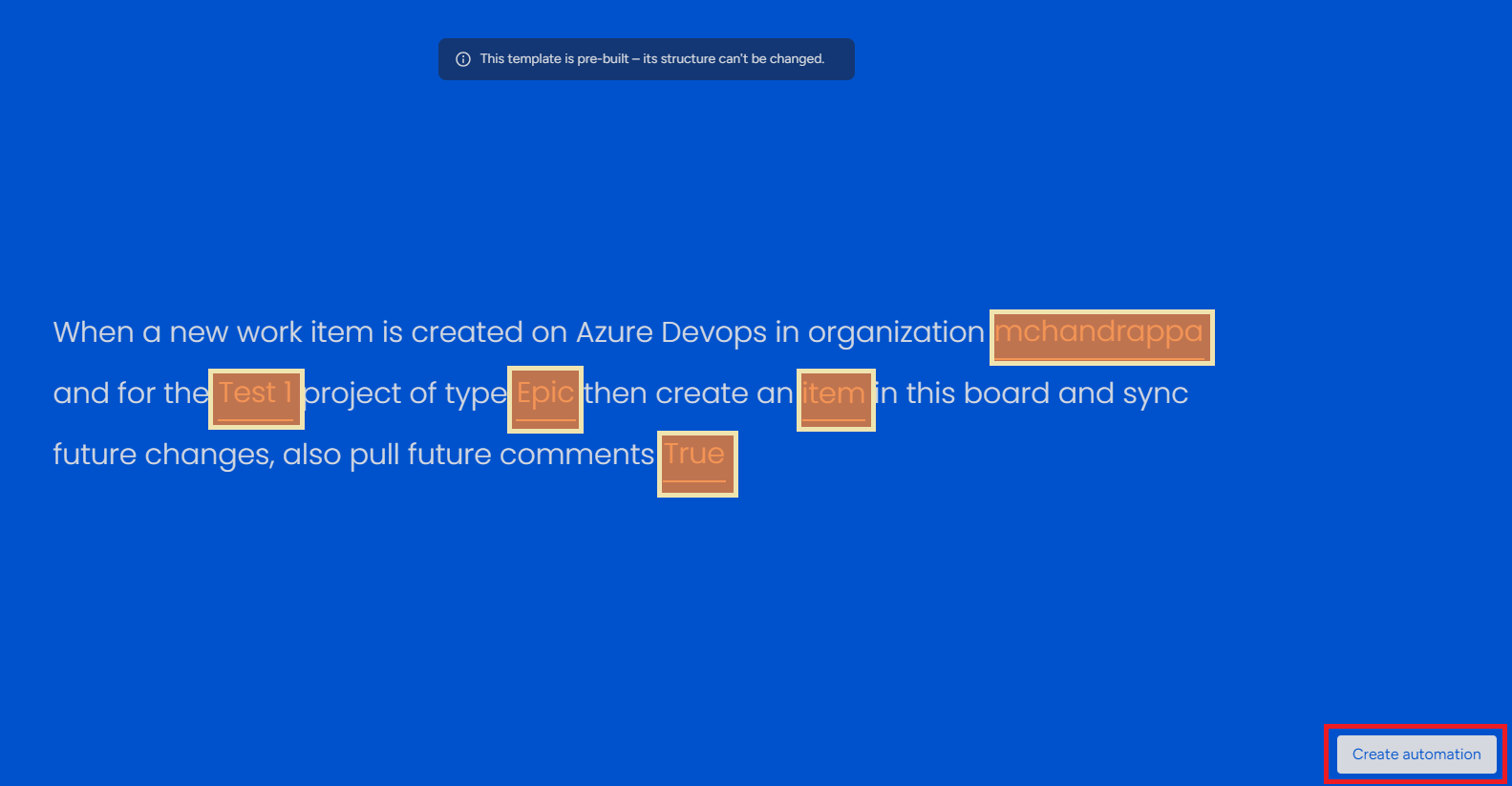
Webhooks related to this recipe will be created and added automatically.
2. Status Change Recipe
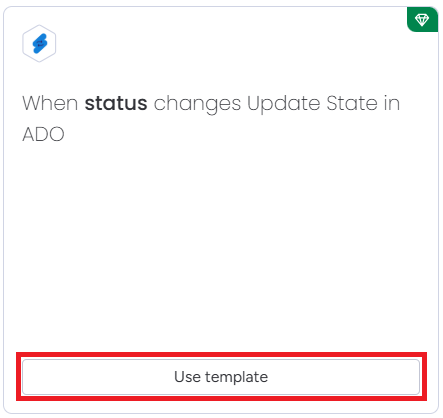
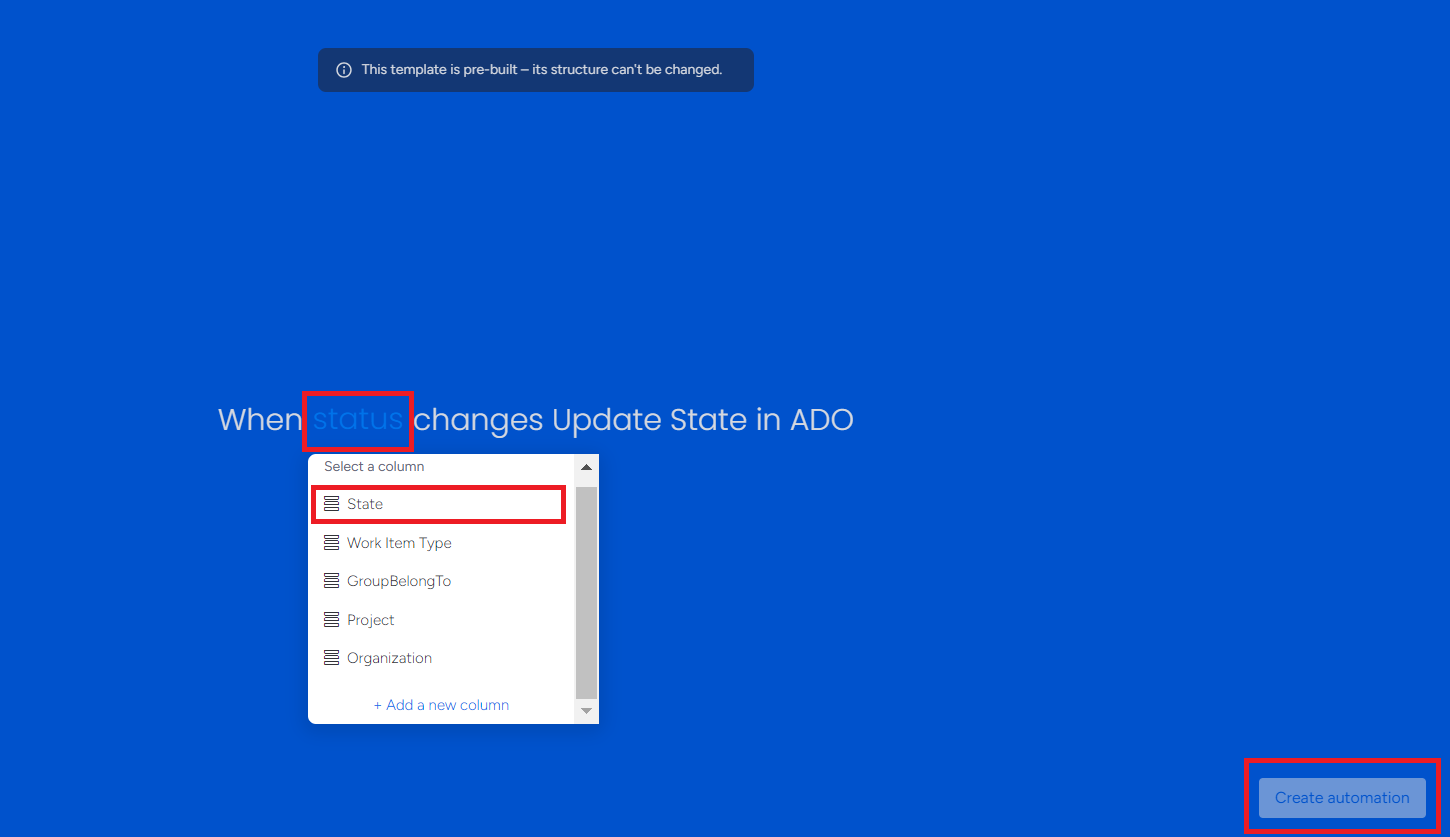
This recipe will update the State in ADO when the status changes in monday board and vice-versa.
Step 1: Click on Use Template.
Step 2: Click on status and select State. Click on Create automation.
3. Group Update Recipe (Optional)
Skip adding this recipe if you are not using the GroupBelongTo field.
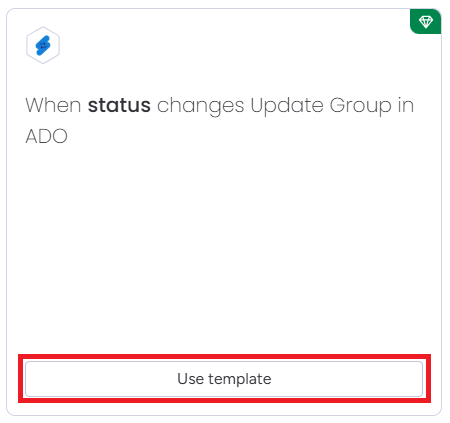
This recipe will update the Group in ADO when the status changes in monday board and vice-versa.
Step 1: Click on Use Template.
Step 2: Click on status and select GroupBelongTo. Click on Create automation.