

Business Rules configuration is required for automating processes and enforcing business logic within the platform. It enables proper synchronization of data between ServiceNow and monday.com.
The ServiceNow administrator must complete the Business Rule configuration. Ensure accuracy while adding scripts and updating user details within the scripts.
The following steps show how to configure business rules for Incidents. If you want to add other entities, contact the Empyra support team for the related business rules.
The user must configure business rules for the following four incident scenarios:
Case 1 - Creating an incident in ServiceNow will automatically create a corresponding item in monday.com.
Case 2 - Updating an incident in ServiceNow will trigger an update to the related item on monday.com.
Case 3 - Uploading an attachment in ServiceNow will upload the same attachment to monday.com.
Case 4 - Adding work notes in ServiceNow will synchronize the comments in monday.com.
Follow the below steps to create Business Rules in your ServiceNow platform:
Step 1: Login to the ServiceNow account.
Step 2: Click on All and search Business Rules. Select Business Rules under the Administration option.
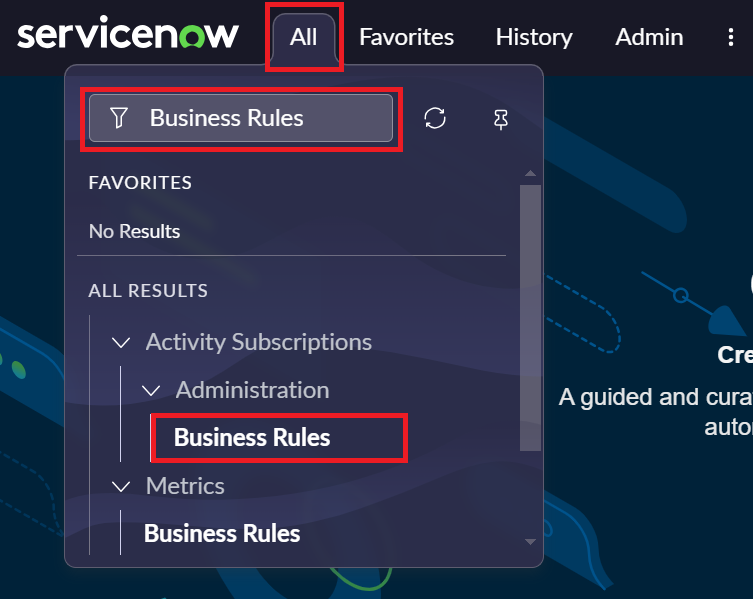
Step 3: Click on New.

Step 4: Add new business rules using the below steps.
Case 1: Creating an incident on ServiceNow should create an item on monday.
-
Add name.
Example: 200_emp_monday_create_item
-
Click on Table dropdown and select Incident [Incident].
-
Click on the Advanced checkbox.
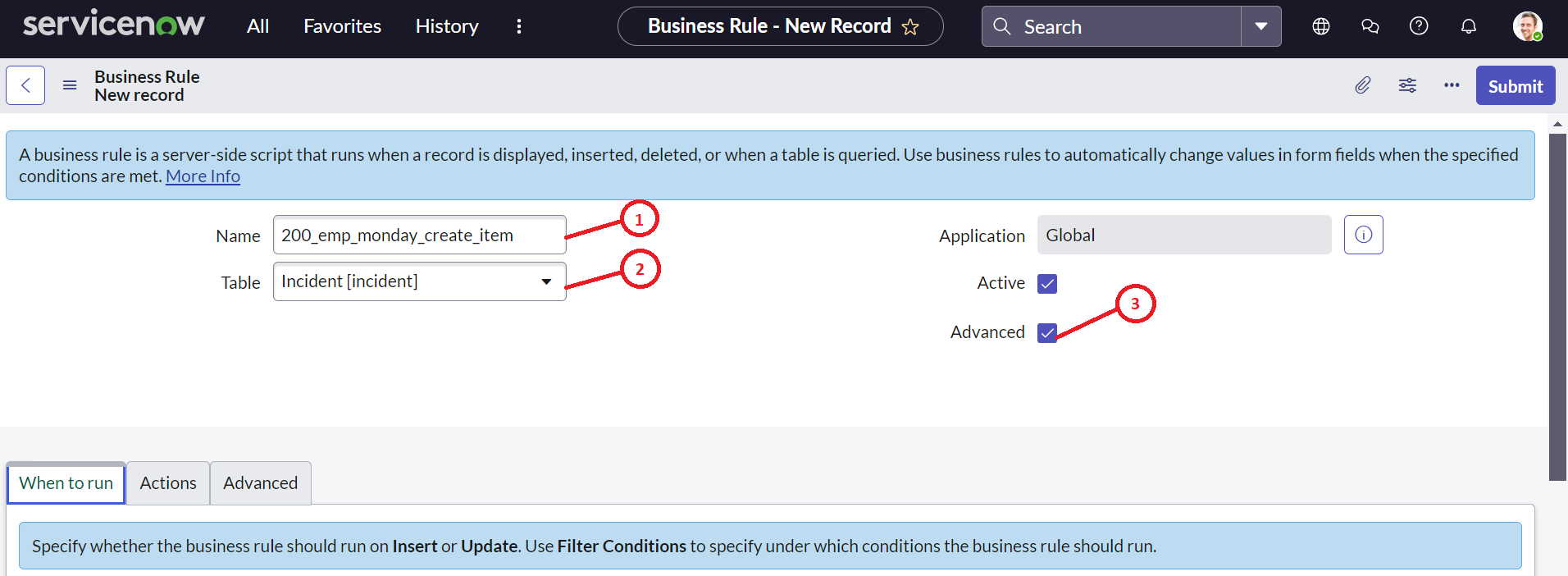
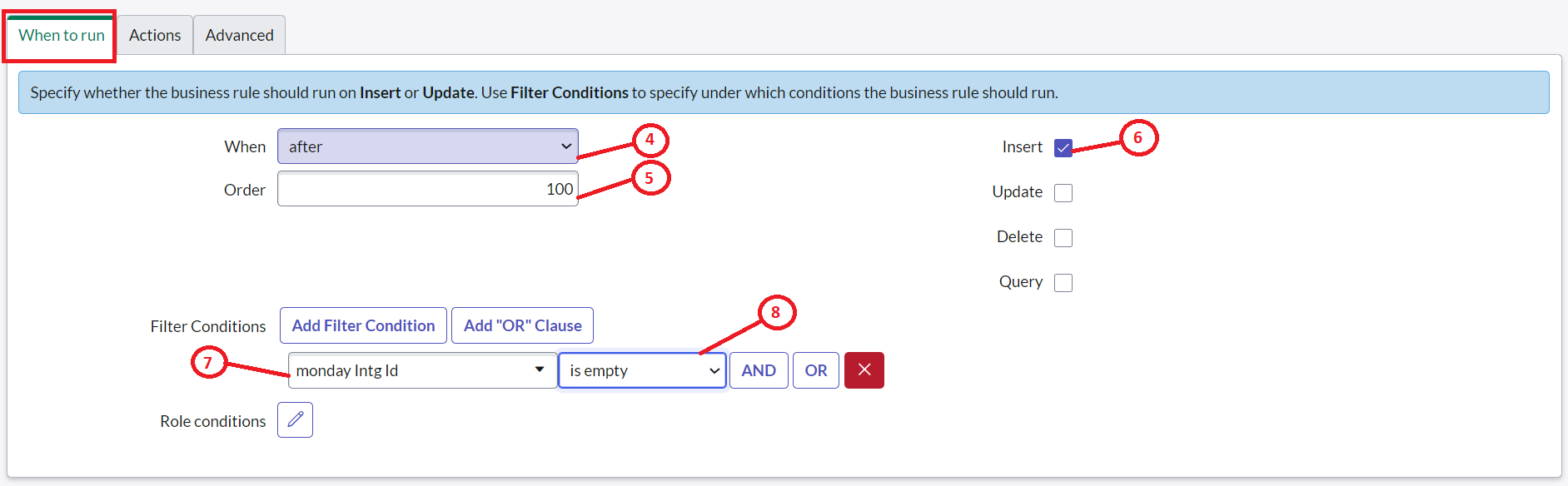
Select the When to run tab and fill the below details in the fields.
-
Click on the When dropdown and select the after option.
-
Add value 100 to the Order field.
-
Select the Insert checkbox.
Add below Filter Conditions -
Click on the choose field dropdown and select Monday Intg Id.
-
Click on Starts with dropdown and select is empty.
-
Click on Update.
-
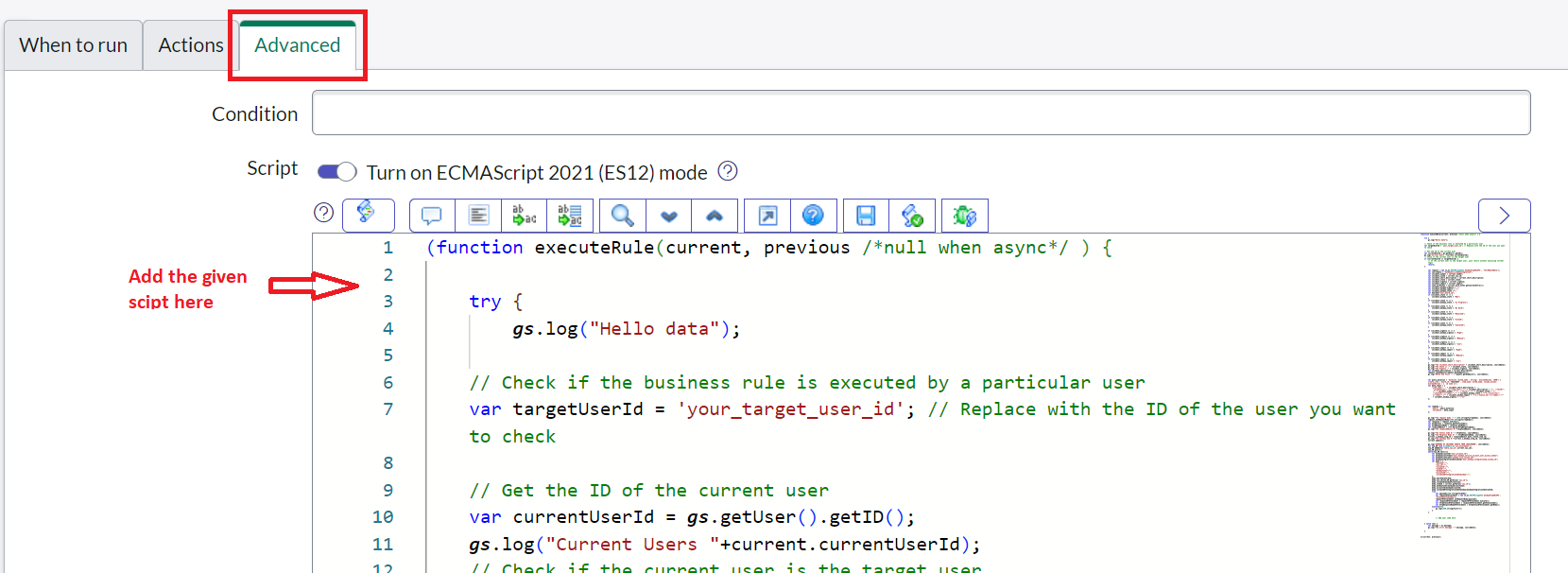
Select the Advanced tab and add the below-given script.
-
Copy the script below and paste it in the Advanced tab.
(function executeRule(current, previous /*null when async*/ ) {

    try {
		gs.log("Hello data");

	// Check if the business rule is executed by a particular user
    var targetUserId = '89899'; // Replace with the ID of the user you want to check

    // Get the ID of the current user
    var currentUserId = gs.getUser().getID();
	gs.log("Current Users "+current.currentUserId);
    // Check if the current user is the target user
    if (currentUserId == targetUserId) {
        // If the current user is the target user, just return without executing further logic
        return;
    }

		var request = new sn_ws.RESTMessageV2('MondayGraphQLAPI', 'fetchBoardData');
        var sourceData = "MondayServiceNowIntegration";
        var incident_number = current.number;
        var incident_sysId = current.sys_id;
        var incident_short_description = current.short_description;
        var incident_state = current.state;
        var incident_urgency = current.urgency;
        var incident_impact = current.impact;
		var snow_worknotes = current.work_notes.getJournalEntry(1);
        var incident_monday_urgency = "";
        var incident_monday_impact = "";
		var incident_monday_state ="";
		var boardId="Your monday Board ID";
		if (incident_state == 1) {
            incident_monday_state = "New";
        }
		if (incident_state == 2) {
            incident_monday_state = "In Progress";
        }
		if (incident_state == 3) {
            incident_monday_state = "On Hold";
        }
		if (incident_state == 6) {
            incident_monday_state = "Resolved";
        }
		if (incident_state == 7) {
            incident_monday_state = "Closed";
        }
		if (incident_state == 8) {
            incident_monday_state = "Canceled";
        }

        if (incident_urgency == 1) {
            incident_monday_urgency = "High";
        }
        if (incident_urgency == 2) {
            incident_monday_urgency = "Medium";
        }
        if (incident_urgency == 3) {
            incident_monday_urgency = "Low";
        }
        if (incident_impact == 1) {
            incident_monday_impact = "High";
        }
        if (incident_impact == 2) {
            incident_monday_impact = "Medium";
        }
        if (incident_impact == 3) {
            incident_monday_impact = "Low";
        }
        gs.log("The incident_short_description" + incident_short_description, sourceData);
        gs.log("The State is :" + incident_state, sourceData);
        gs.log("The Urgency :" + incident_urgency, sourceData);
        var incident_description = current.description;
        request.setEndpoint(request.getEndpoint());
        gs.log("##The End Point :" + request.getEndpoint(), sourceData);


        var query_mutation = 'mutation ($item_name : String!, $columnValues: JSON!) { create_item ( board_id:'+boardId+', item_name: $item_name, column_values: $columnValues ) {  id name }}';
        var data_input = {
            "item_name": '' + incident_short_description + '',
             "columnValues": "{\"long_text__1\":\"" + incident_description + "\", \"__incident_number5__1\": \"" + incident_number + "\", \"__integration_id4__1\": \"" + incident_sysId + "\",\"status\":{\"label\":\"" + incident_monday_state + "\"},\"status_1__1\":{\"label\":\"" + incident_monday_impact + "\"},\"status_11__1\":{\"label\":\"" + incident_monday_urgency + "\"}}"
        };


        var reqbody = {
            'query': query_mutation,
            'variables': data_input
        };


        gs.log("The request body :" + JSON.stringify(reqbody), sourceData);
        request.setRequestBody(JSON.stringify(reqbody));
        var response = request.execute();
        var httpStatus = response.getStatusCode();
        var httpResponseBody = response.getBody();
        var responseObject = JSON.parse(httpResponseBody);
		gs.log("The responseObject #:"+responseObject, sourceData);

        gs.log("The Status Code #:" + httpStatus, sourceData);
        gs.log("The Response Body #:" + httpResponseBody, sourceData);
        current.u_monday_intg_id = responseObject.data.create_item.id;
		gs.log("The monnday key #:"+current.u_monday_intg_id, sourceData);
        current.update();

        gs.log("####END OF INCIDENT UPDATE FROM CREATE####", sourceData);
		var now_GR =new GlideRecord('sys_attachment');
		now_GR.addQuery('table_sys_id',current.sys_id);
		now_GR.query();
		while(now_GR.next()){
			var mondayAccountId="Your monday account ID";
			var mondayAccessToken="Your monday Service User ID Token";
			var mondayFileColumn="Your monday File Column ID";
			var mondayIntegrationIdColumnId="Your monday IntegrationID Column ID";
			var body = {
				"boardId":"",
				"sys_id":"",
				"columnId":"",
				"itemId":"",
				"mondayToken":"",
				"accountId":"",
				"columnIdOfIntegrationIdInMonday":"",
			};
			body.boardId=boardId;
			body.sys_id=now_GR.getValue('sys_id');
			body.columnId=mondayFileColumn;
			body.itemId = current.getValue('sys_id');
			body.mondayToken=mondayAccessToken;
			body.accountId=mondayAccountId;
			body.columnIdOfIntegrationIdInMonday=mondayIntegrationIdColumnId;
			try{
				var payLoad=JSON.stringify(body);
				var requestOfAttachment = new sn_ws.RESTMessageV2('MondayGraphQLAPI','AttachmentToMonday');
				requestOfAttachment.setRequestBody(payLoad);
				var responseOfAttachment = requestOfAttachment.execute();
				var httpStatusOfAttachment = responseOfAttachment.getStatusCode();
				var httpResponseBodyOfAttachment = httpStatusOfAttachment.getBody();
			}catch(err){
				gs.log(JSON.stringify(err));
			}
		}


				// Add your code here


    } catch (ex) {
        var message = ex.message;
        gs.log("The error message " + message, sourceData);

    }


})(current, previous);
-
After pasting the script, you have to replace the below details inside the script.
|
What to replace |
Where to replace |
|---|---|
|
mondayBoardId |
Replace with your monday board ID on line number 30. |
|
monday column Ids |
Replace with your monday column Id’s on line number 79. |
|
mondayAccountId |
Replace with your monday account ID on line number 109. |
|
mondayAccessToken |
Replace with your monday My access token on line number 110. |
|
mondayFileColumnId |
Replace with your monday Files column Id on line number 111. |
|
mondayIntegrationColumnId |
Replace with your monday Integration Id column Id on line number 112. |
-
Click on the Save button to update the script.

-
Click on Submit.

Case 2: Updating an incident on ServiceNow should update an item on monday.
-
Add name.
Example: 200_emp_monday_update_item
-
Click on Table dropdown and select Incident [Incident].
-
Click on the Advanced checkbox.
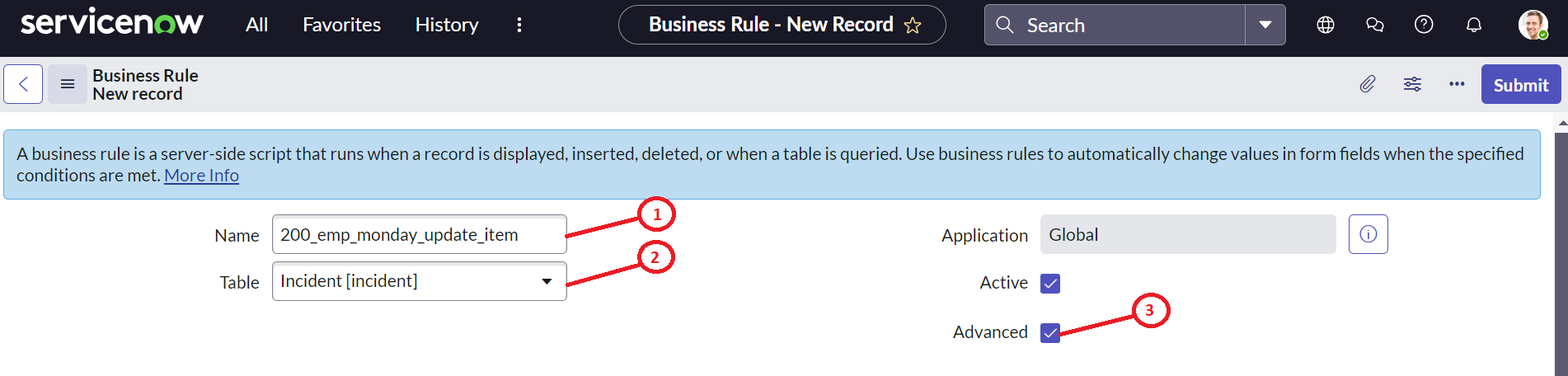
Select the When to run tab and fill the below details in the fields.
-
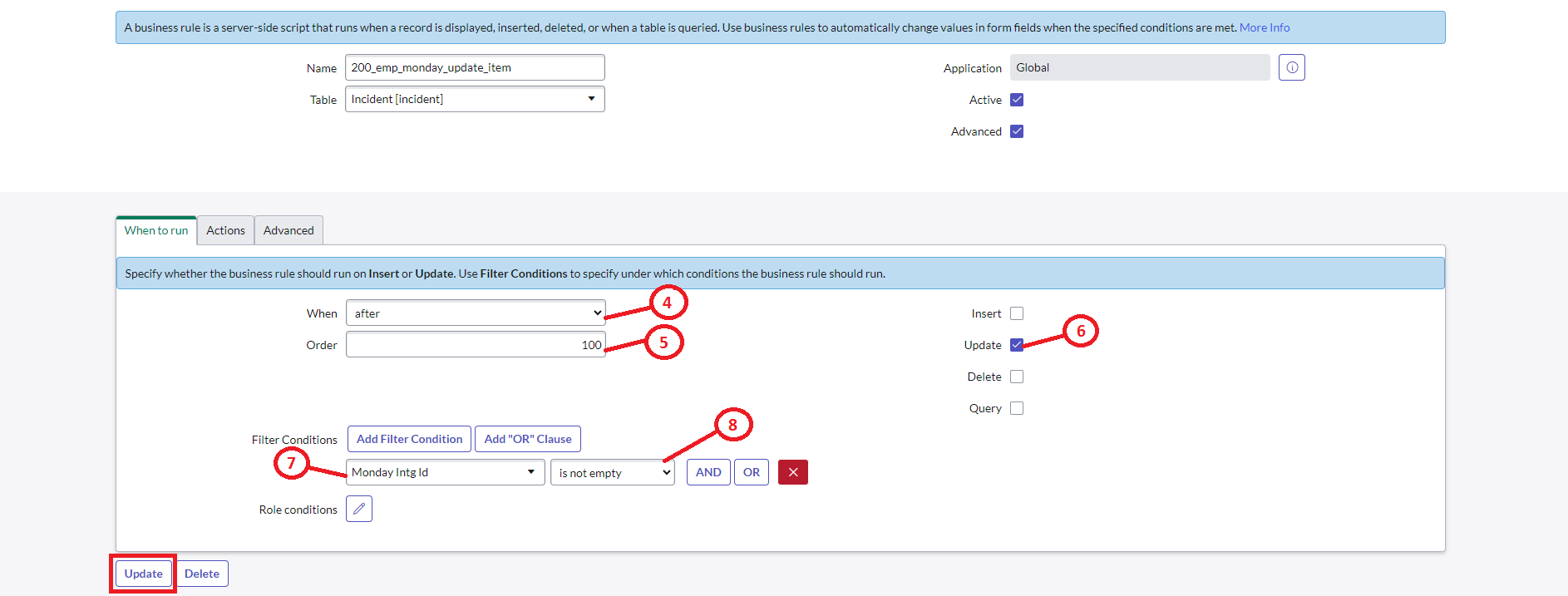
Click on the When dropdown and select the after option.
-
Add value 100 to the Order field.
-
Select the Update checkbox.
Filter Conditions -
Click on the choose field dropdown and select Monday Intg Id.
-
Click on starts with dropdown and select is not empty.
-
Click on Update.
-
Select the Advanced tab and add the below-given script.
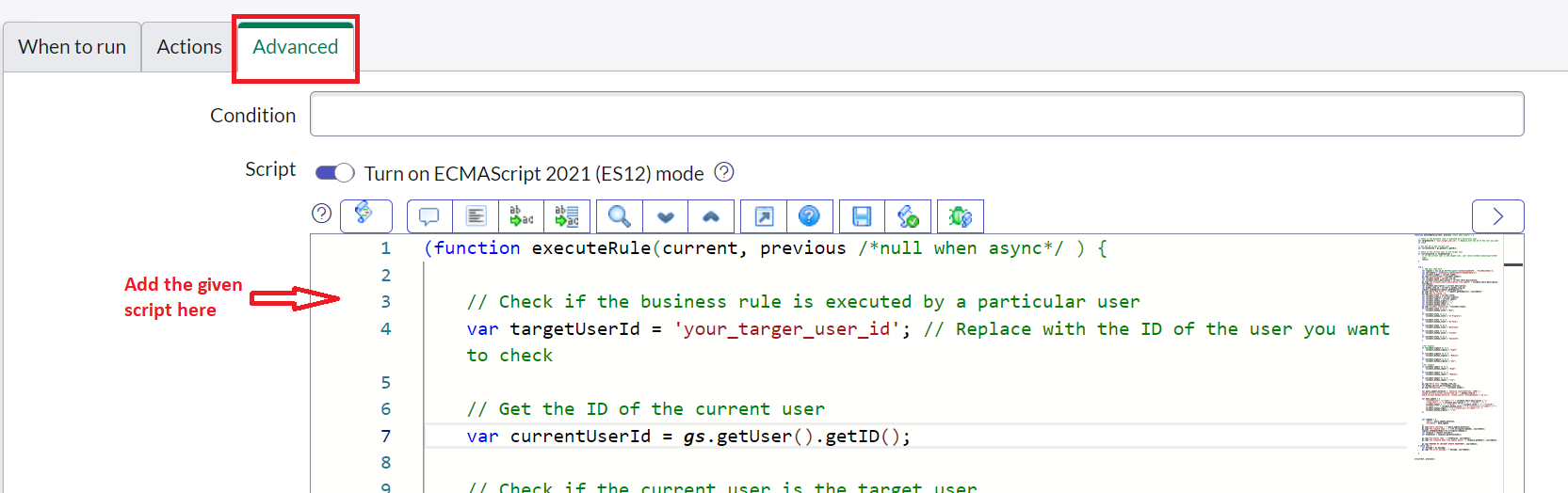
Copy the script below and paste it in the Advanced tab.
(function executeRule(current, previous /*null when async*/ ) {

	// Check if the business rule is executed by a particular user
    var targetUserId = '997787887'; // Replace with the ID of the user you want to check
	gs.log("Iaiaiiaiaii");
    // Get the ID of the current user
    var currentUserId = gs.getUser().getID();

    // Check if the current user is the target user
    if (currentUserId == targetUserId) {
        // If the current user is the target user, just return without executing further logic
        return;
    }


    try {
        // Add your code here
        var request = new sn_ws.RESTMessageV2('MondayGraphQLAPI', 'fetchBoardData');
        var sourceData = "MondayServiceNowIntegrationUpdateQuery";
        var incident_number = current.number;
		gs.log("IncidentNumber:"+incident_number);
        var incident_sysId = current.sys_id;
        var incident_short_description = current.short_description;
        gs.log("The incident_short_description from update" + incident_short_description, sourceData);
        var incident_description = current.description;
        var monday_item_id = current.u_monday_intg_id;
        request.setEndpoint(request.getEndpoint());
        gs.log("##The End Point :" + request.getEndpoint(), sourceData);
		gs.log("##I am coming :");
        var incident_state = current.state;
        var incident_urgency = current.urgency;
        var incident_impact = current.impact;
        var incident_monday_urgency = "";
        var incident_monday_impact = "";
		var incident_monday_state ="";
		gs.log("Incident statessssss "+incident_state);
		if (incident_state == 1) {
            incident_monday_state = "New";
        }
		if (incident_state == 2) {
            incident_monday_state = "In Progress";
        }
		if (incident_state == 3) {
            incident_monday_state = "On Hold";
        }
		if (incident_state == 6) {
            incident_monday_state = "Resolved";
        }
		if (incident_state == 7) {
            incident_monday_state = "Closed";
        }
		if (incident_state == 8) {
            incident_monday_state = "Canceled";
        }


		//For Urgency
        if (incident_urgency == 1) {
            incident_monday_urgency = "High";
        }
        if (incident_urgency == 2) {
            incident_monday_urgency = "Medium";
        }
        if (incident_urgency == 3) {
            incident_monday_urgency = "Low";
        }
		//For Imapact
        if (incident_impact == 1) {
            incident_monday_impact = "High";
        }
        if (incident_impact == 2) {
            incident_monday_impact = "Medium";
        }
        if (incident_impact == 3) {
            incident_monday_impact = "Low";
        }
		gs.log("Hello Itis "+monday_item_id);
		var monday_id=JSON.parse(monday_item_id);
		gs.log("Moondayitem______:"+incident_number);

        var query_update_mutation = 'mutation ($columnValues: JSON!) {  change_multiple_column_values(item_id:' + monday_item_id + ', board_id:'+Your monday Board ID+', column_values: $columnValues) { id }}';

        var data_update = {
            "columnValues": "{\"name\":\"" + incident_short_description + "\" ,\"long_text__1\":\"" + incident_description + "\" ,\"__incident_number5__1\": \"" + incident_number + "\", \"__integration_id4__1\": \"" + incident_sysId + "\",\"status\":{\"label\":\"" + incident_monday_state + "\"},\"status_1__1\":{\"label\":\"" + incident_monday_impact + "\"},\"status_11__1\":{\"label\":\"" + incident_monday_urgency + "\"}}"
        };


        var reqbody = {
            'query': query_update_mutation,
            'variables': data_update
        };
		gs.log("query checking :" + query_update_mutation);
        gs.log("The request body :" + JSON.stringify(reqbody), sourceData);
        request.setRequestBody(JSON.stringify(reqbody));
        var response = request.execute();
        var httpStatus = response.getStatusCode();

        gs.log("The Status Code " + httpStatus, sourceData);
        gs.log("The response body from update query:" + response.getBody(), sourceData);

        gs.log("####END OF INCIDENT UPDATE QUERY####", sourceData);
    } catch (ex) {
        var message = ex.message;
        gs.log("The error message " + message, sourceData);

    }


})(current, previous);
-
After pasting the script, you have to replace the below details inside the script.
|
What to replace |
Where to replace |
|---|---|
|
board Id |
Replace with your monday board ID on line number 81. |
|
monday column Ids |
Replace with your monday column Id’s on line number 84. |
-
Click on the Save button to update the script.
-
Click on Submit.
Case 3: Uploading an attachment on ServiceNow should upload the attachment on monday.
-
Add name.
Example: 200_attachment to monday
-
Click on the Table dropdown and select Attachment [sys_attachment].
-
Click on the Advanced checkbox.
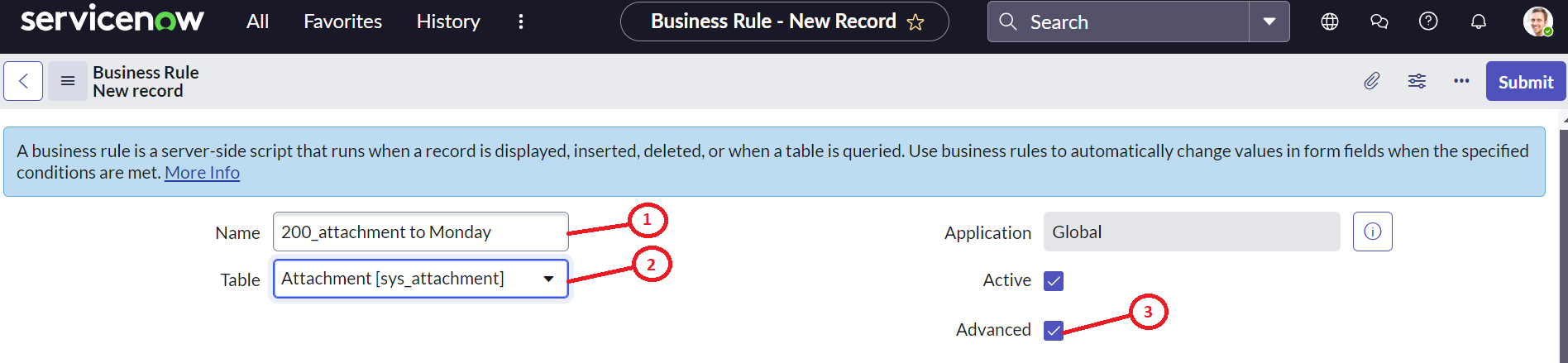
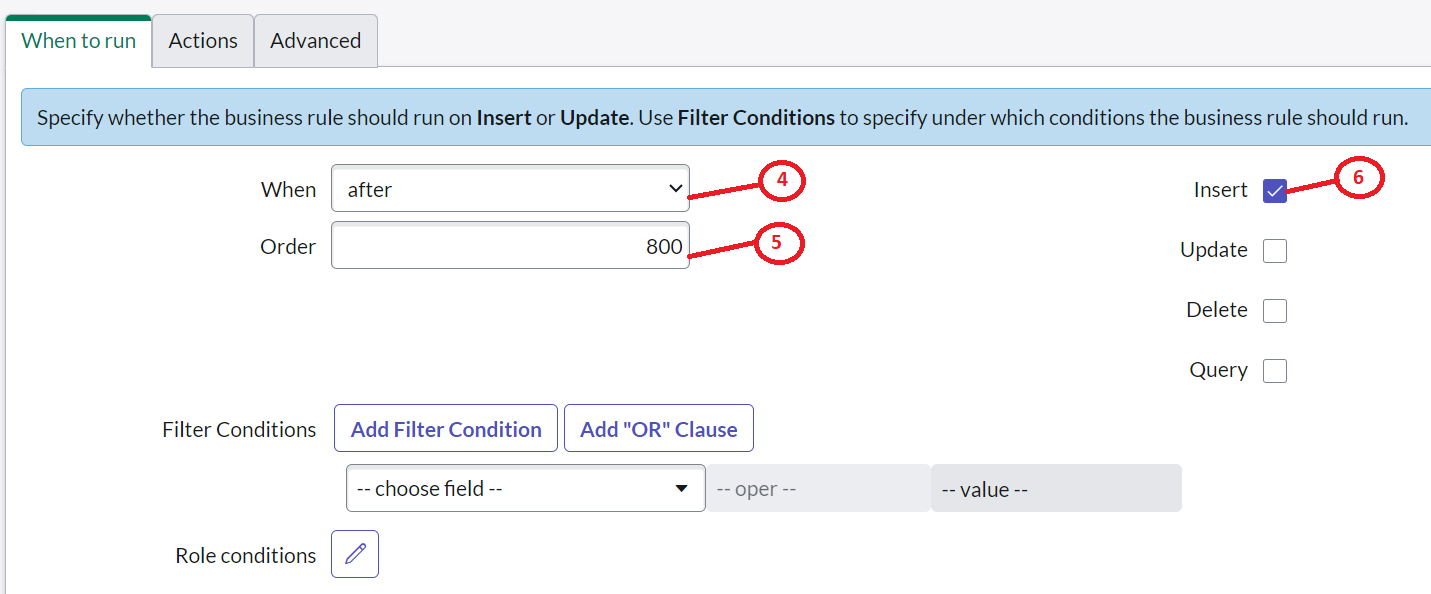
Select the When to run tab and fill the below details in the fields.
-
Click on the When dropdown and select the after option.
-
Add value 800 to the Order field.
-
Select the Insert checkbox.
Don’t select or add any values to Filter Conditions.
-
Select the Advanced tab and add the below-given script.
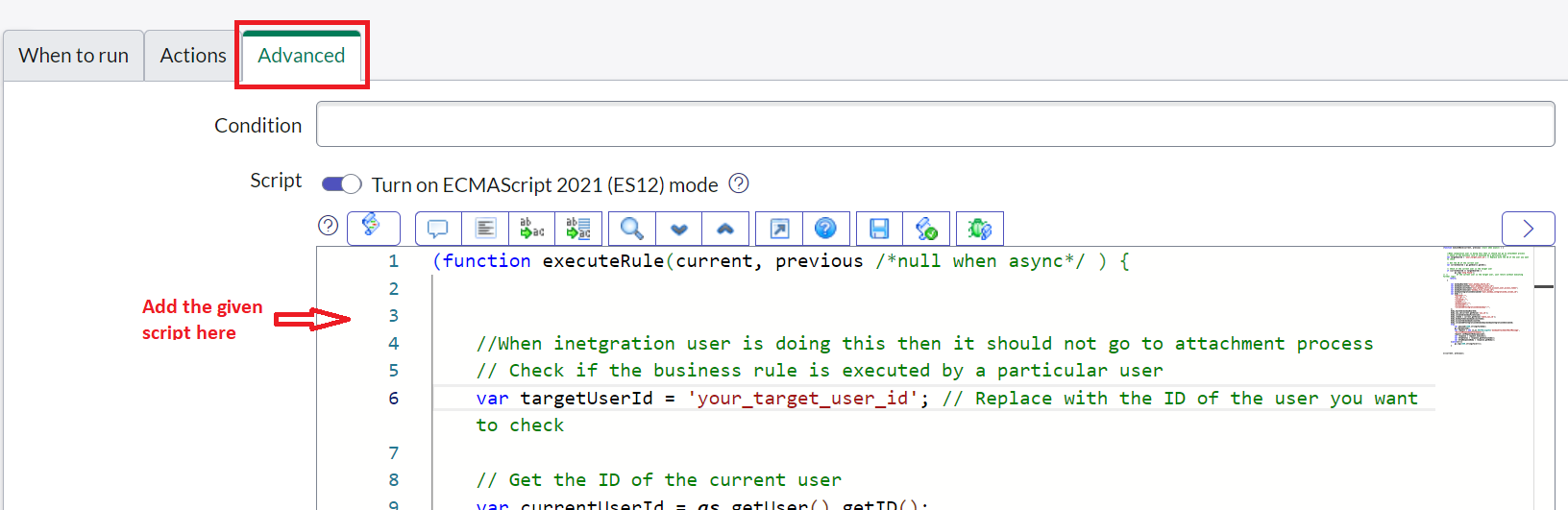
(function executeRule(current, previous /*null when async*/ ) {


	//When inetgration user is doing this then it should not go to attachment process
	// Check if the business rule is executed by a particular user
    var targetUserId = '7676767'; // Replace with the ID of the user you want to check

    // Get the ID of the current user
    var currentUserId = gs.getUser().getID();

    // Check if the current user is the target user
    if (currentUserId == targetUserId) {
			gs.log('Intg Found');
// //         If the current user is the target user, just return without executing further logic
       return;
    }

		var mondayBoardId="Your monday Board ID";
		var mondayAccountId="Your monday Account ID";
		var mondayAccessToken="Your monday Service User ID Token";
		var mondayFileColumn="Your monday File column ID";
		var mondayIntegrationIdColumnId="Your monday IntegrationID column ID";
		var body = {
			"boardId":"",
			"sys_id":"",
			"columnId":"",
			"itemId":"",
			"mondayToken":"",
			"accountId":"",
			"columnIdOfIntegrationIdInMonday":"",
        };
		body.boardId=mondayBoardId;
		body.sys_id=current.getValue('sys_id');
		body.columnId=mondayFileColumn;
		body.itemId = current.getValue('table_sys_id');
		body.mondayToken=mondayAccessToken;
		body.accountId=mondayAccountId;
		body.columnIdOfIntegrationIdInMonday=mondayIntegrationIdColumnId;
		try{
			var payLoad=JSON.stringify(body);
			gs.log(payLoad);
			var request = new sn_ws.RESTMessageV2('MondayAttachmentRestMessage','ServiceNowMondayAttachement');
			request.setRequestBody(payLoad);
			var response = request.execute();
			var httpStatus = response.getStatusCode();
			var httpResponseBody = response.getBody();
		}catch(err){
			gs.log(JSON.stringify(err));
		}


})(current, previous);
-
After pasting the script, you have to replace the below details inside the script.
|
What to replace |
Where to replace |
|---|---|
|
mondayBoardId |
Replace with your monday board ID on line number 18. |
|
mondayAccountId |
Replace with your monday account ID on line number 19. |
|
mondayAccessToken |
Replace with your monday My access token on line number 20. |
|
mondayFileColumnId |
Replace with your monday board Files column Id on line number 21. |
|
mondayIntegrationIdColumnId |
Replace with your monday board Integration Id column Id on line number 22. |
-
Click on the Save button to update the script.
-
Click on Submit.
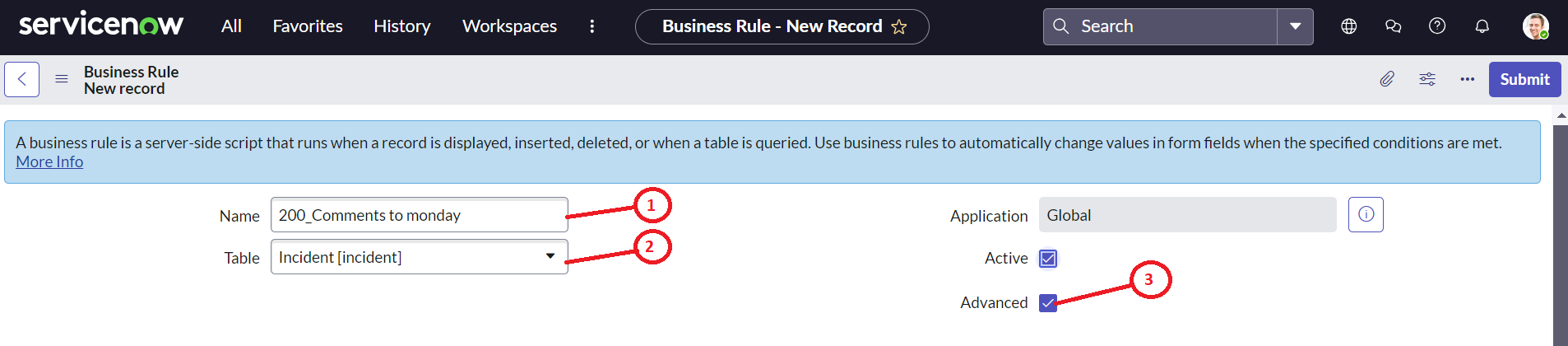
Case 4: Adding work notes on ServiceNow should update a comment on monday.
-
Add name.
Example: 200_Comments to monday
-
Click on the Table dropdown and select Incident [incident].
-
Click on the Advanced checkbox.
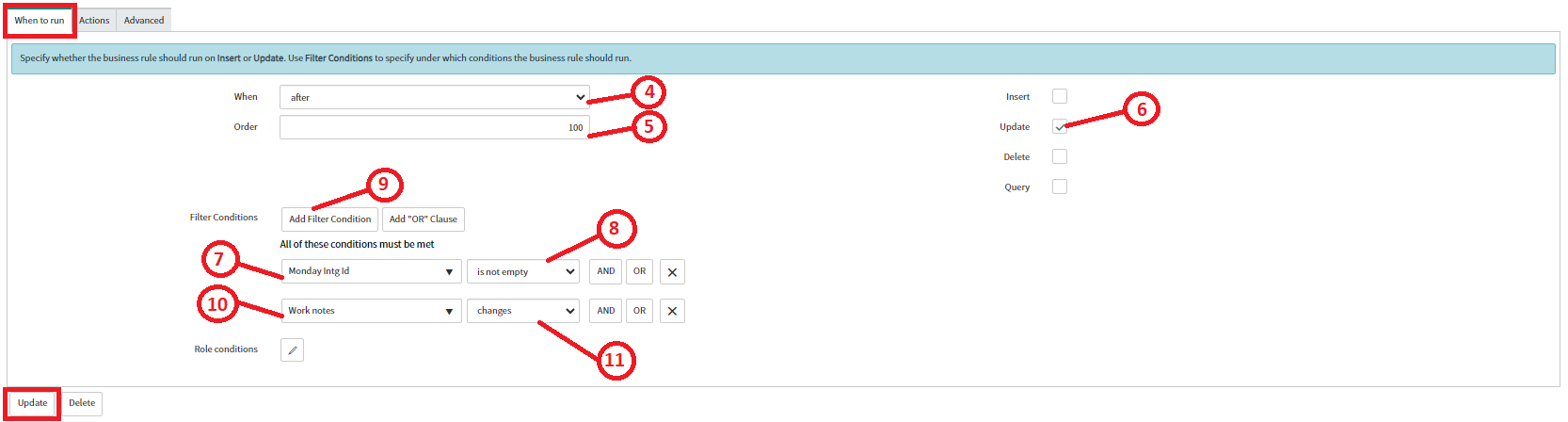
Select the When to run tab and fill the below details in the fields.
-
Click on the When dropdown and select after option.
-
Add value 100 to the Order field.
-
Select the Update checkbox.
Filter Conditions -
Click on the choose field dropdown and select Monday Intg Id.
-
Click on starts with dropdown and select is not empty.
-
Click on Add Filter Condition.
-
Click on choose field dropdown and select Work notes.
-
Click on starts with dropdown and select changes.
-
Click on Update.
-
Select the Advanced tab and add the below-given script.
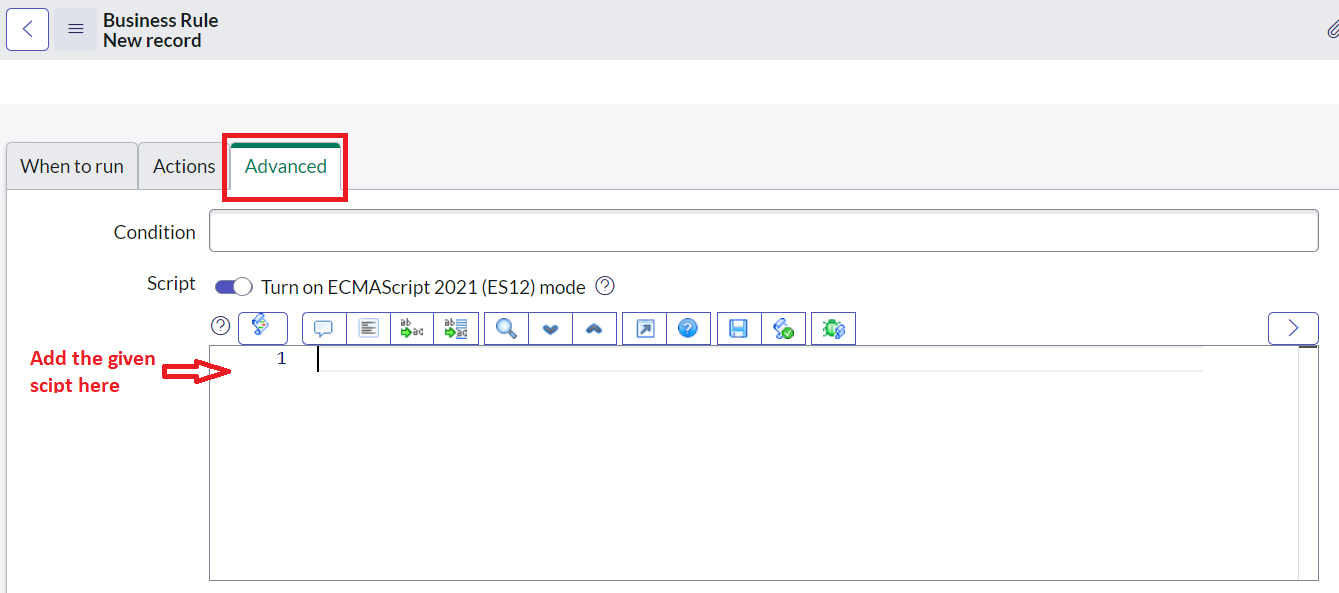
(function executeRule(current, previous /*null when async*/ ) {

	// Check if the business rule is executed by a particular user
    var targetUserId = '8989999'; // Replace with the ID of the user you want to check

    // Get the ID of the current user
    var currentUserId = gs.getUser().getID();

    // Check if the current user is the target user
    if (currentUserId == targetUserId) {
        // If the current user is the target user, just return without executing further logic
        return;
    }

    try {
        // Add your code here
        var request = new sn_ws.RESTMessageV2('MondayGraphQLAPI', 'fetchBoardData');
        var sourceData = "MondayServiceNowIntegrationUpdateComments";
        var incident_number = current.number;
        var incident_sysId = current.sys_id;
        var incident_short_description = current.short_description;
        var snow_worknotes = current.work_notes.getJournalEntry(1);
        var incident_description = current.description;
        var monday_item_id = current.u_monday_intg_id;
        request.setEndpoint(request.getEndpoint());


		var query_update_mutation = 'mutation { create_update (item_id: ' + monday_item_id +
			' , body: "' +  snow_worknotes + '") {id}} ';

        var reqbody = {
            'query': query_update_mutation,
        };

        request.setRequestBody(JSON.stringify(reqbody));
        var response = request.execute();
        var httpStatus = response.getStatusCode();

        gs.log("The Status Code " + httpStatus, sourceData);
        gs.log("The response body:" + response.getBody(), sourceData);

    } catch (ex) {
        var message = ex.message;
        gs.log("The error message " + message, sourceData);
    }

})(current, previous);
-
Click on the Save button to update the script.
-
Click on Submit.
After completing the business rule configuration for all four cases, users should proceed with the REST message configuration to finalize the setup for their ServiceNow account.