Set up the LookupSync app by mapping corresponding common columns and syncing columns between the Source and Target Boards.
Follow the below steps to complete the mappings between the Source Board and Target Board.
Step 1: Go to LookupSync workspace and click on Target Board.
Add LookupSync Mapping Editor board view.
Step 2: Click on the '+' button. Select Apps. Click on LookupSync Mapping Editor.
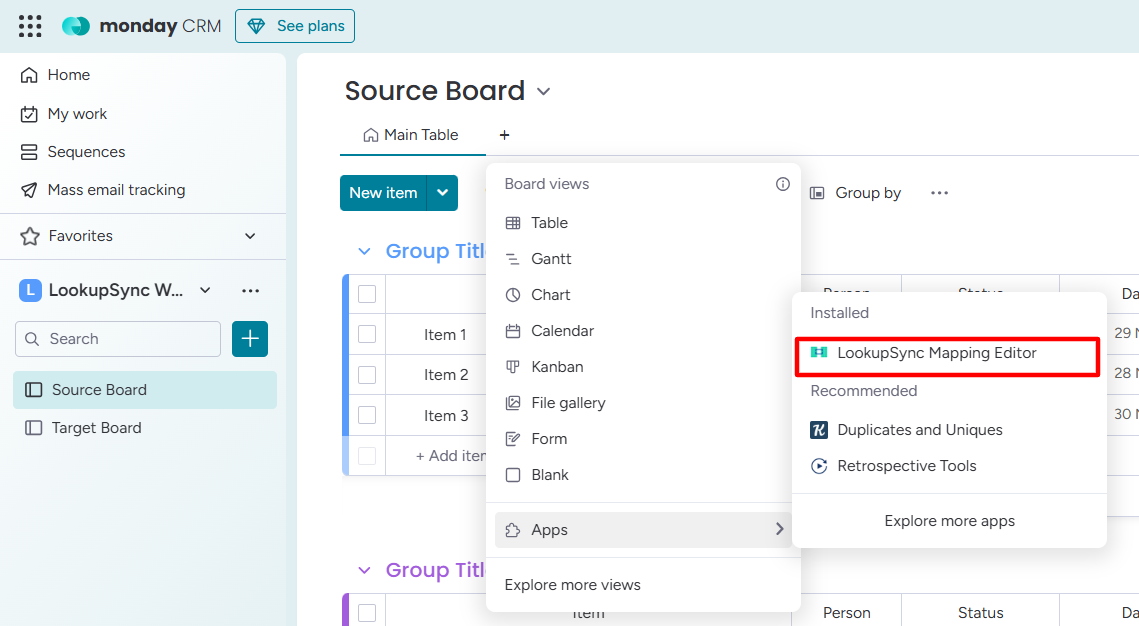
LookupSync Mapping Editor window will appear.
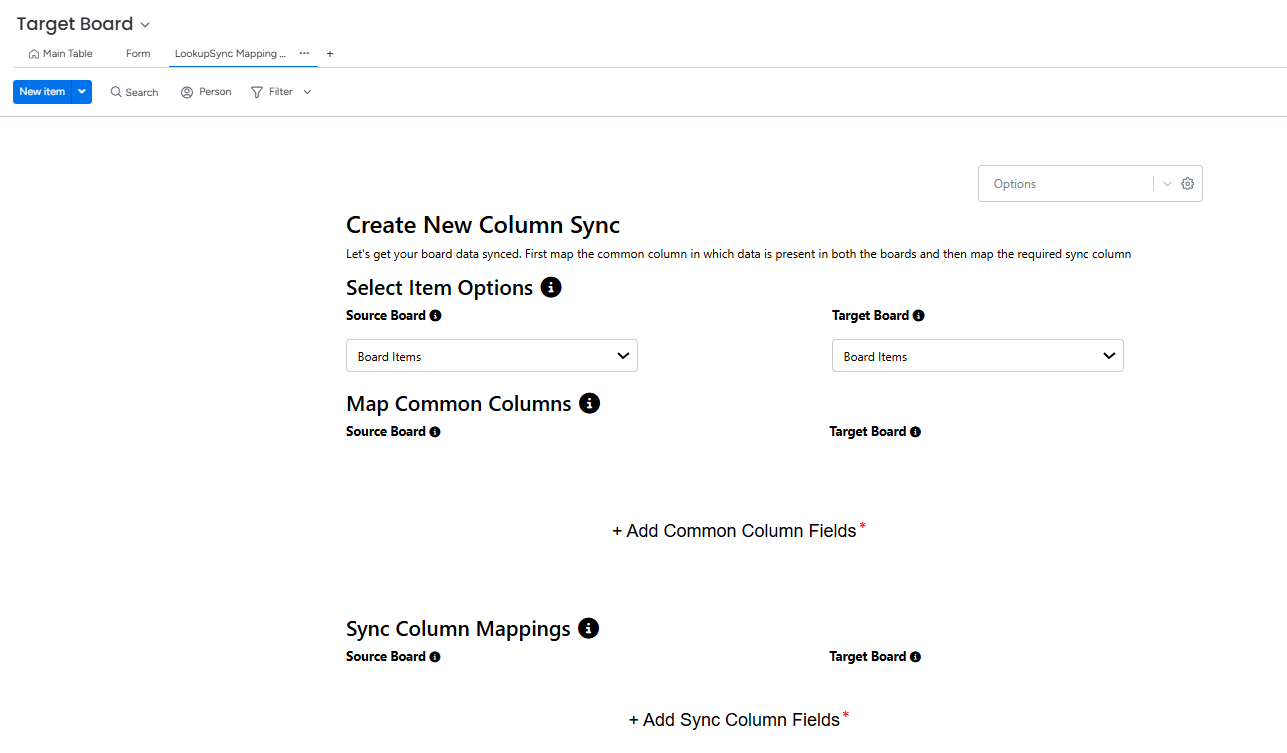
Step 3: Select the item Options from the Source Board and Target Board drop-down.
Choose the board item type based on your requirements to lookup and sync the data between the source board and the target board.
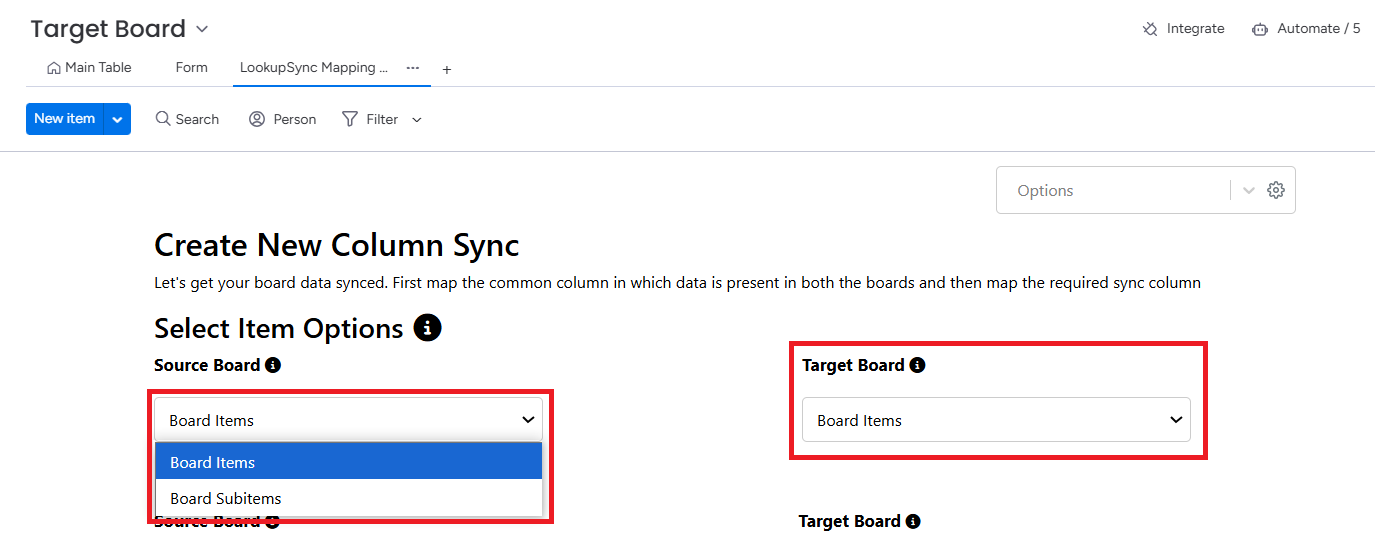
Data will be synced based on the selected board item type.
Sync Options:
-
Source Board Items to Target Board Items
-
Source Board Subitems to Target Board Items
-
Source Board Items to Target Board Subitems
-
Source Board Subitems to Target Board Subitems
Step 3: Map common columns between the Source and Target Boards.
-
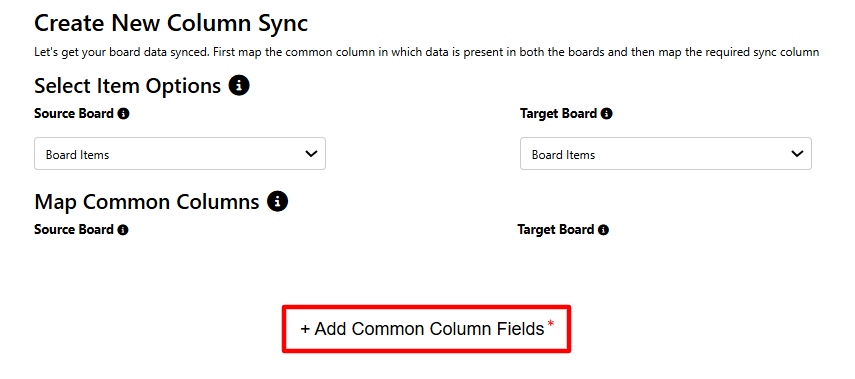
Click on the +Add Common Column Fields button.
-
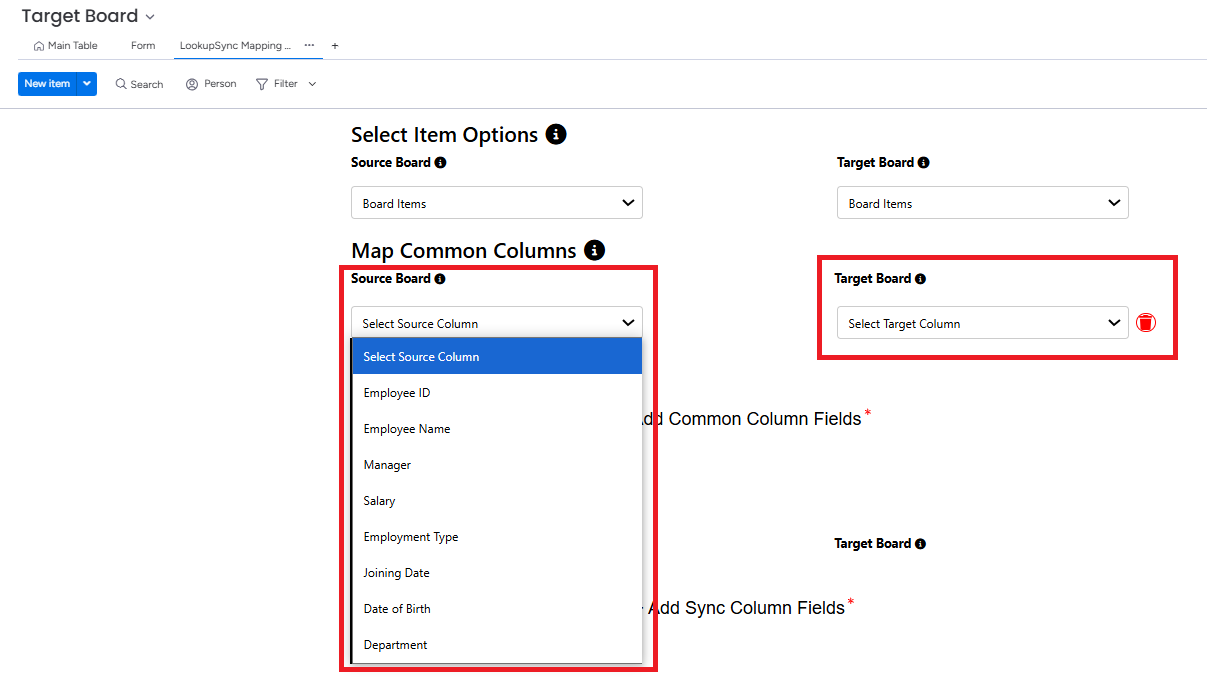
Select the common columns from the Source Board and Target Board dropdown.
-
Click on +Add Common Column Fields button to add more common columns.
-
Choose one or more columns as a common column based on the requirement.
-
The app supports selecting up to 10 columns as common columns.
Step 3: Map Sync columns between the Source and Target Boards.
-
Click on the +Add Sync Column Fields button.
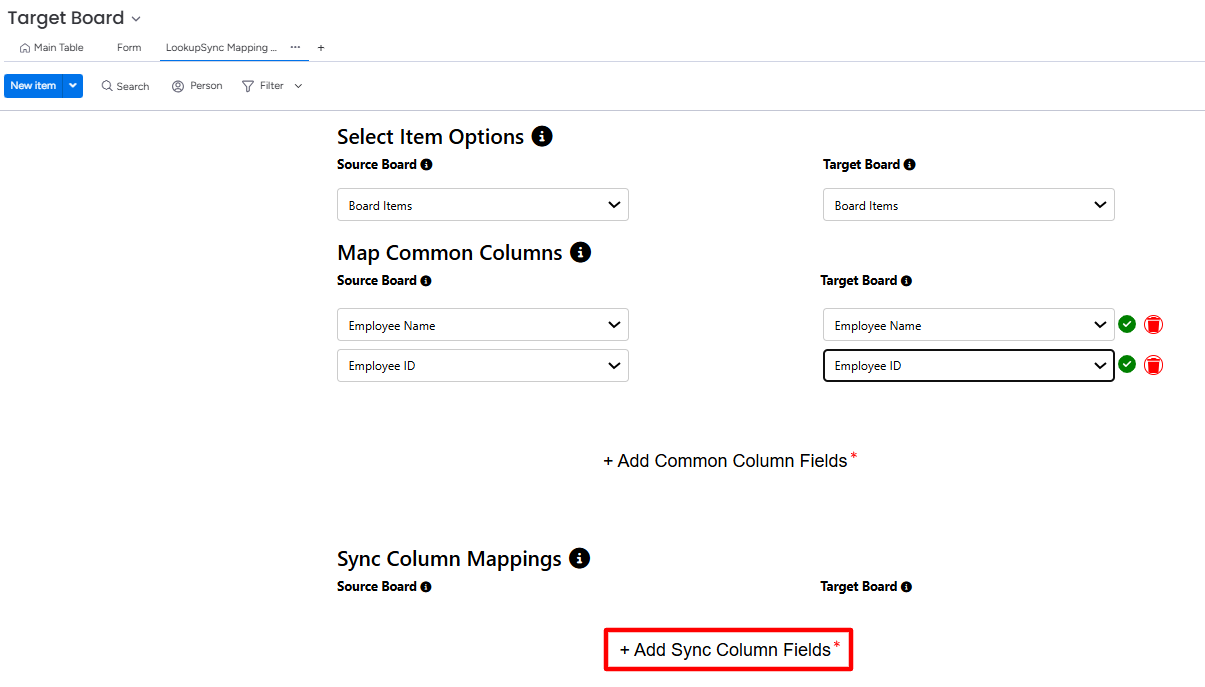
-
Select the sync columns from the Source Board and Target Board dropdown.
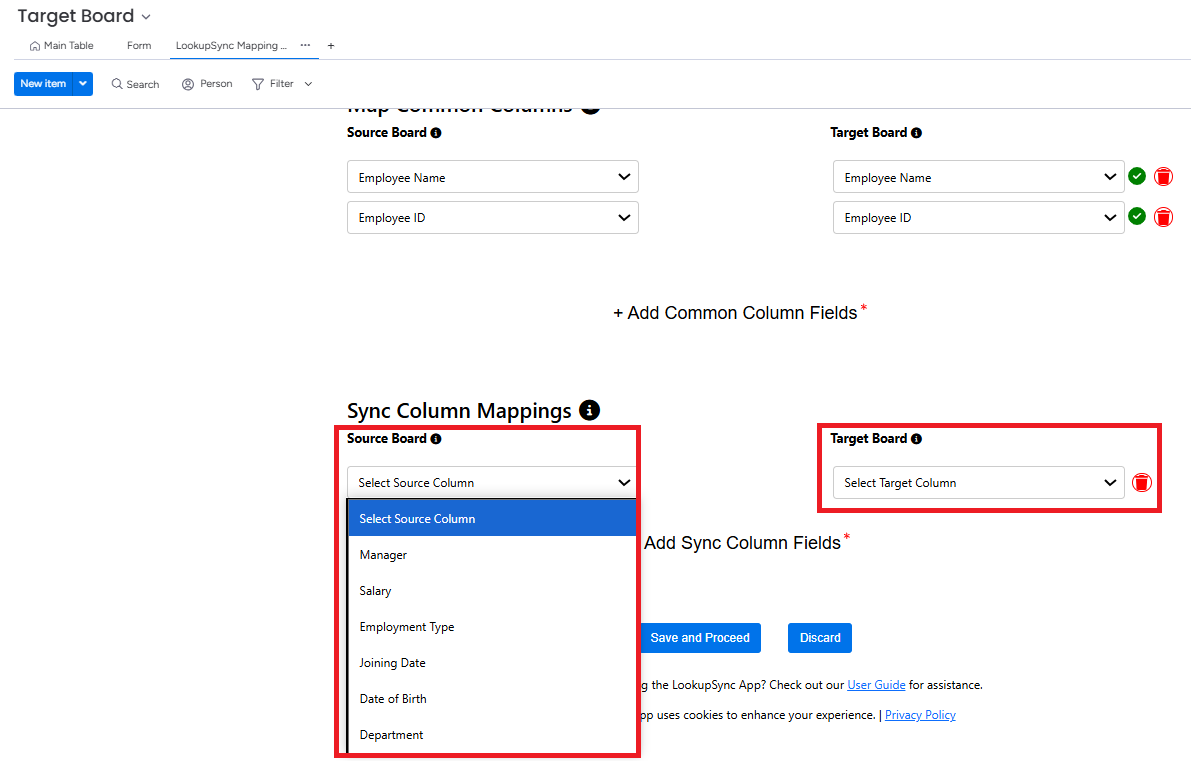
-
Click on +Add Sync Column Fields button to add more sync columns.
Step 4: After mapping common columns and sync columns, click on Save and Proceed.
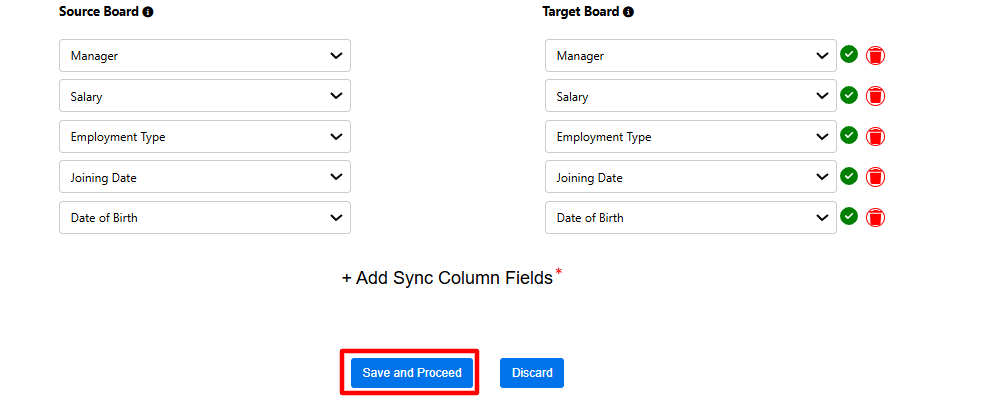
Examples of common and sync column mappings are shown in the screenshot below. Select and map your columns according to the project requirements.
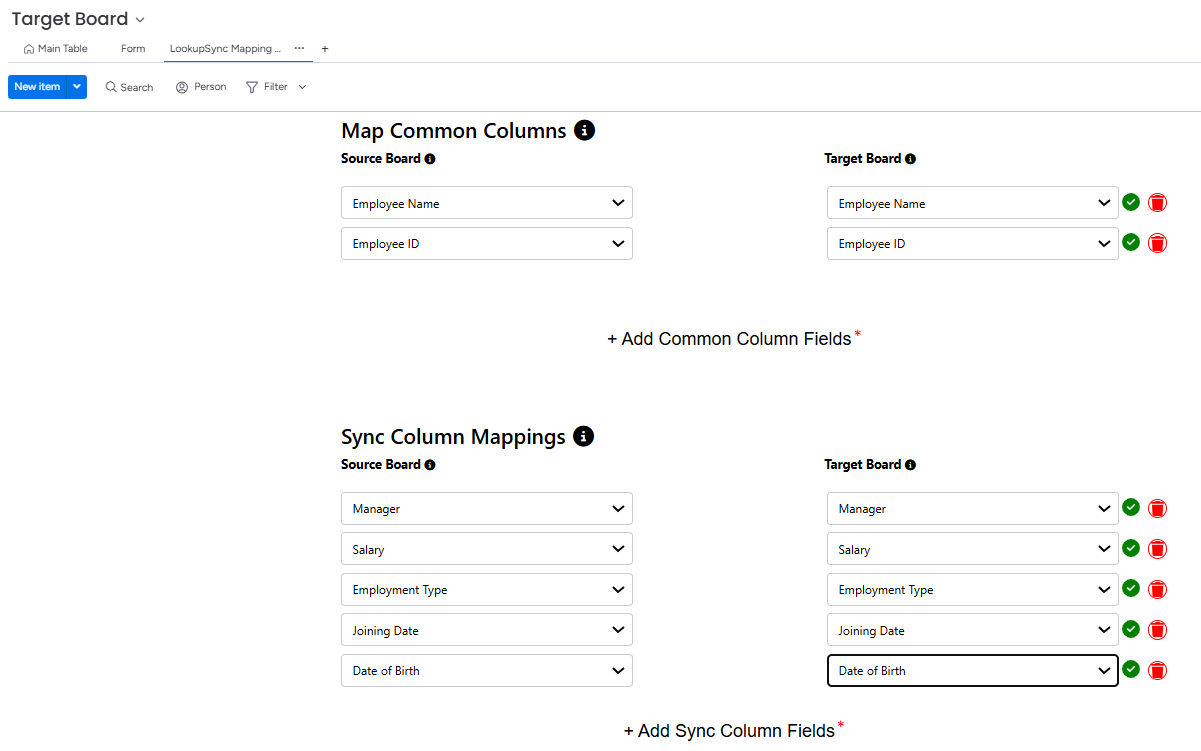
It will store the mappings in the database and redirect them to the target board.
How to modify the column Mappings
-
Go to LookupSync Mapping Editor view board.
-
Add or delete the columns. Click on Modify.
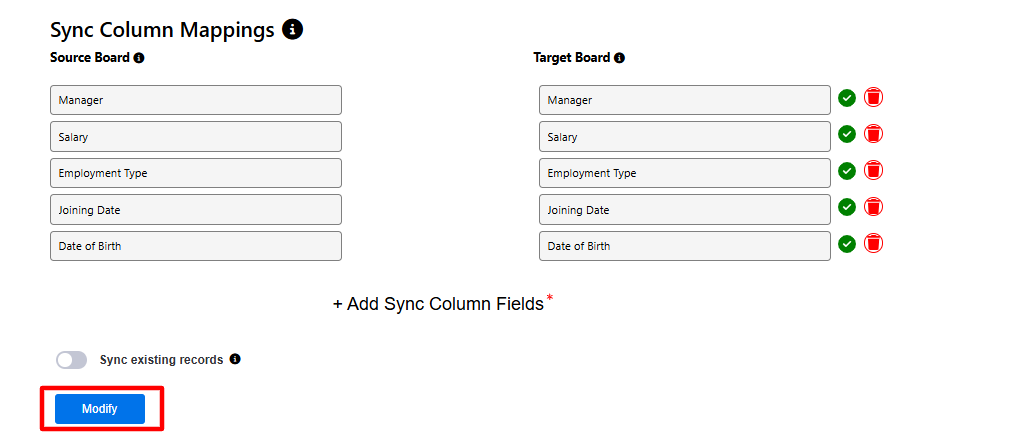
-
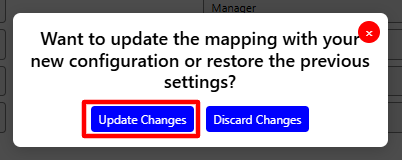
Update mappings pop-up will appear. Click on Update Changes.