The Sync Existing Records feature in the Lookup Sync app simplifies the process of updating and aligning existing data across your monday boards based on the mapping configuration. With this feature, you can seamlessly synchronize all previously created records, ensuring they are up-to-date and consistent with the latest information.
1. Sync Existing Records
Follow the below steps to sync existing records:
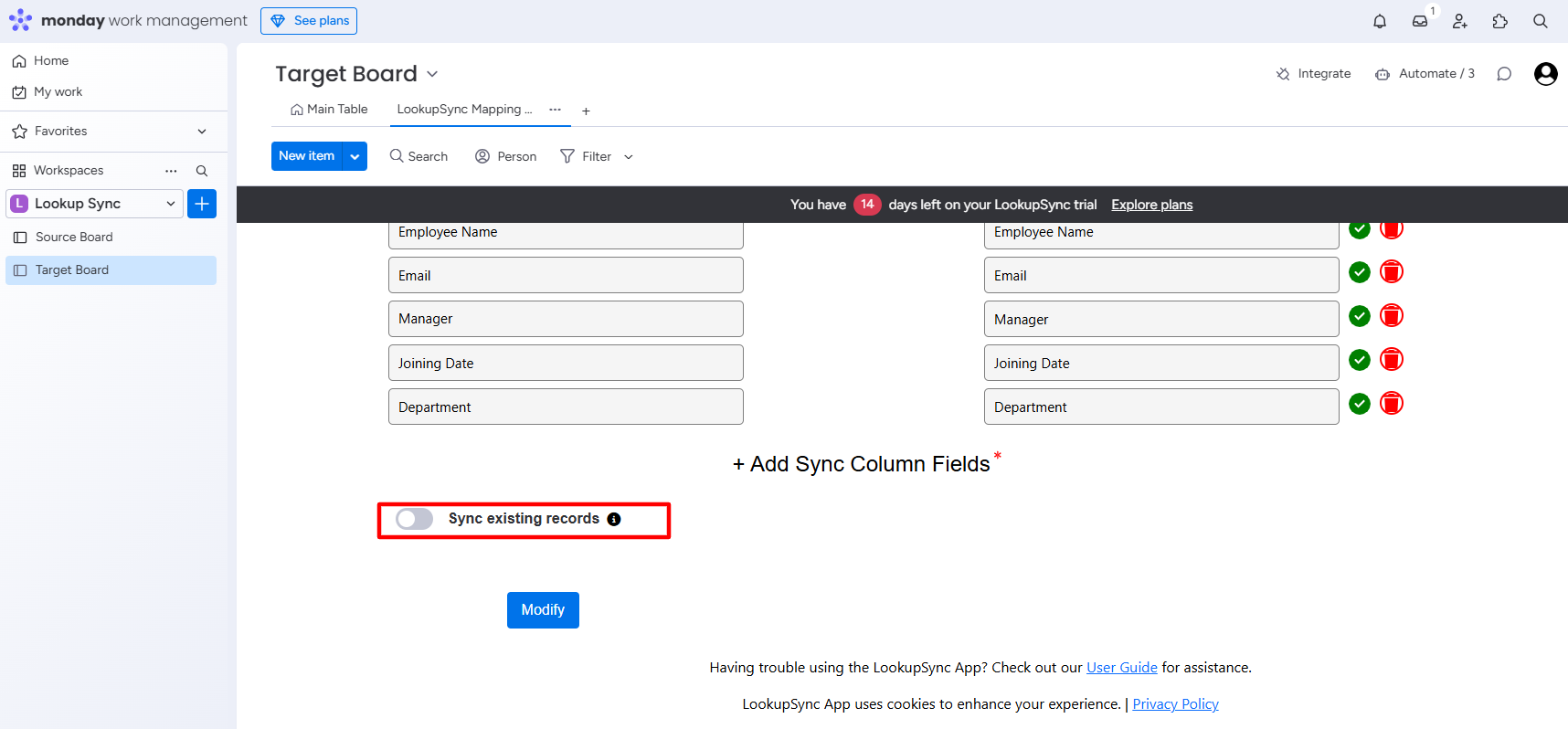
Step 1:Turn on the Sync existing records toggle button to sync all the existing data.
Existing records will sync based on the mapping configuration.
A pop-up message will appear to proceed with the existing record sync process.
Step 2: Click Yes to proceed with the sync or No to cancel the process.
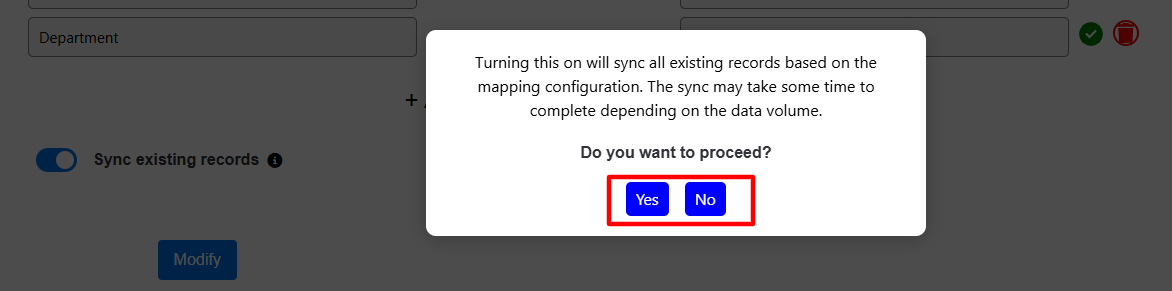
If you select the Yes option, the synching process of existing records will start.
The existing record synching process may take some time depending on the data volume.
.png?cb=79a44576c7b544534ba36d21b48d3a88)
Step 3: After the syncing process completes you can start the lookup and sync process for your existing data.
.png?cb=67b2fff854f85cb63ebab9c2c606a980)
2. Stop Sync
If you press the Stop Sync button during the existing record synchronization process, the sync will halt immediately. Any records synced before stopping will remain available for lookup and sync between the Source and Target board.
Step 1: Click on the Stop Sync button.
.png?cb=d98c162b7d9056ab087ce15064addcc7)
A pop-up message will appear to proceed with the stop existing records synchronization process.
Step 2: Click Yes to proceed or No to cancel the process.
.png?cb=da5c2319448c7cf81ade22e60252ed58)