
This page provides a step-by-step procedure for using the LookupSync app with sample use cases. This app facilitates seamless synchronization and search across multiple board data within the monday.com platform. LookupSync app keeps your data up-to-date and readily accessible.
To ensure optimal performance, it is recommended to limit lookup and synchronization tasks to 100 items on monday boards.
Notice: There is an ongoing issue with bulk actions. We are working with monday team to resolve it soon.
Follow the steps below to efficiently look up and sync data, ensuring it’s available exactly when and where you need it.
Start from Step 2, if you have existing data in your board.
Step 1: Add or import the data to Source Board.
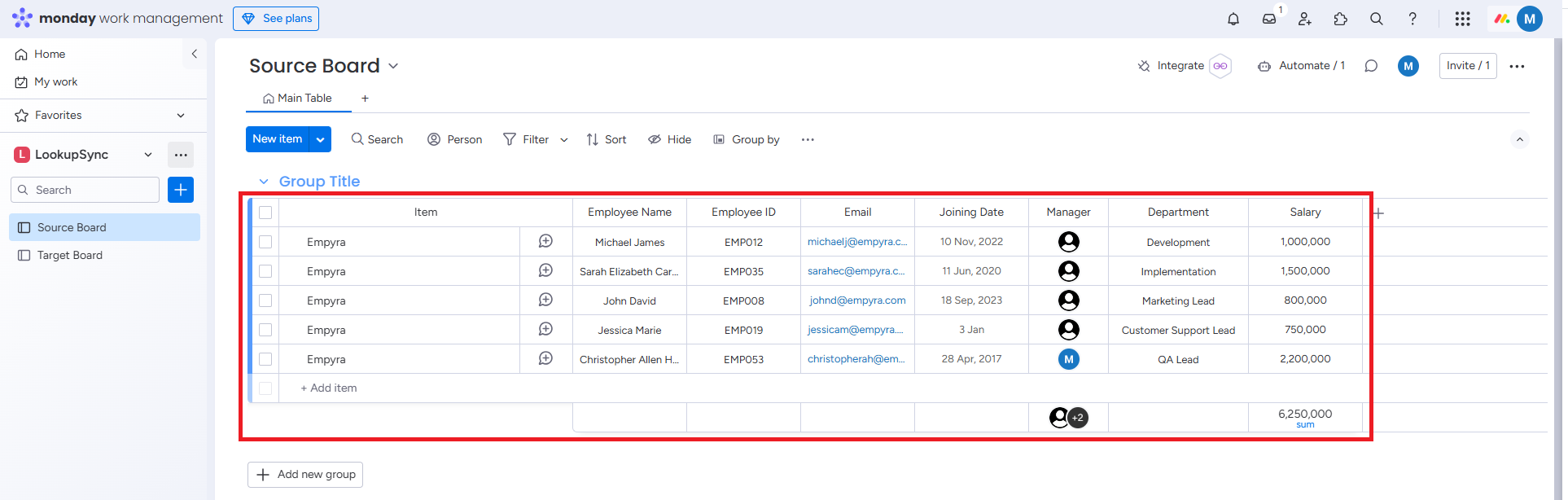
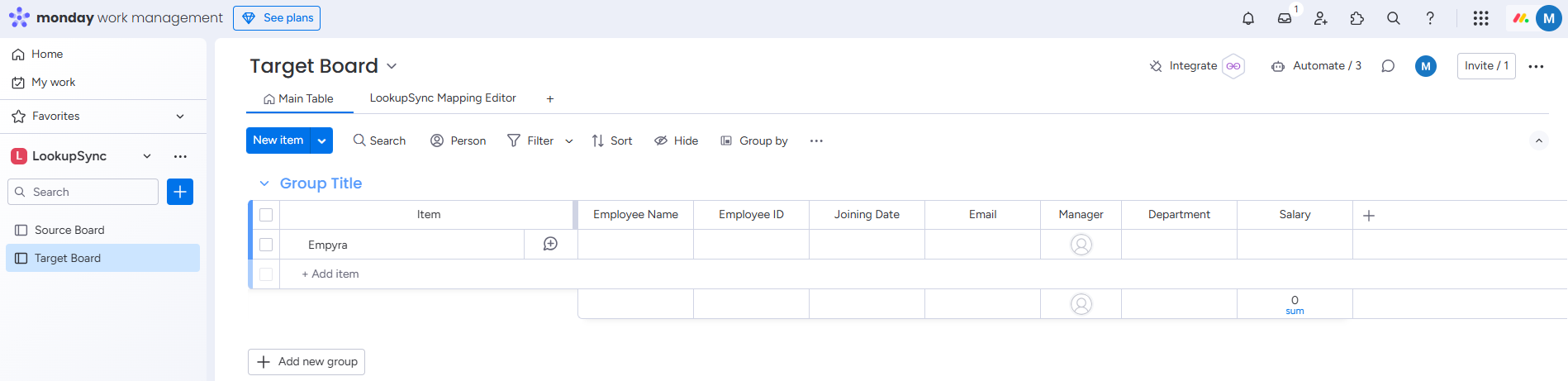
Step 2: Go to Target Board and click on LookupSync Mapping Editor.
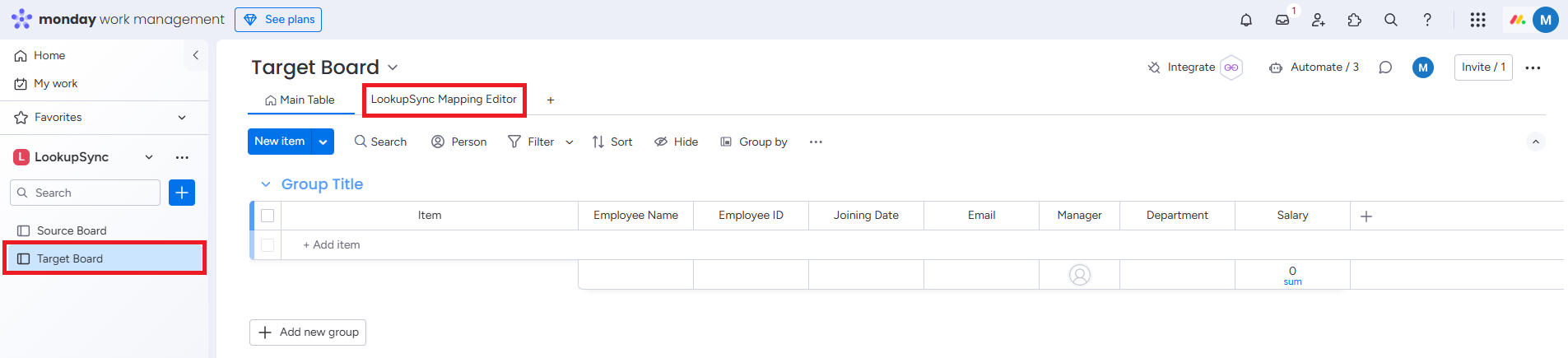
Create New Column Sync window will appear.
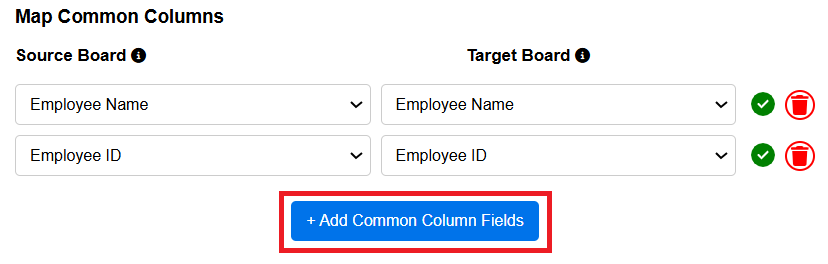
Step 3: Click on + Add Common Column Fields and map common columns between source board and target board.
Example:
Employee Name and Employee ID columns are added as Common Columns.
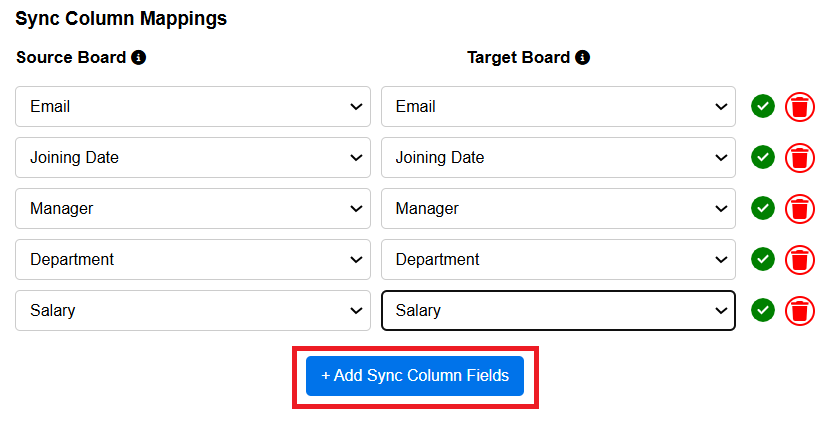
Step 4: Click on + Add Sync Column Fields and map sync columns between the source board and target board.
Example:
Joining Date, Email, Manager, Department, and Salary columns are added as Sync Columns.
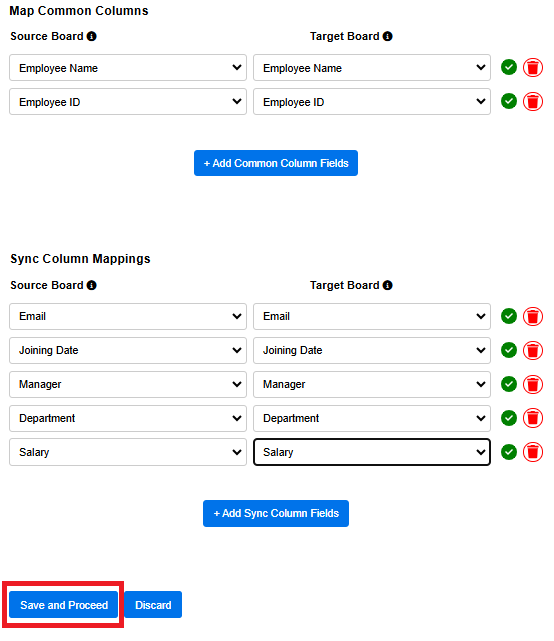
Step 5: Click on Save and Proceed button.
Step 6: Go to Target Board. Click on Main Table.
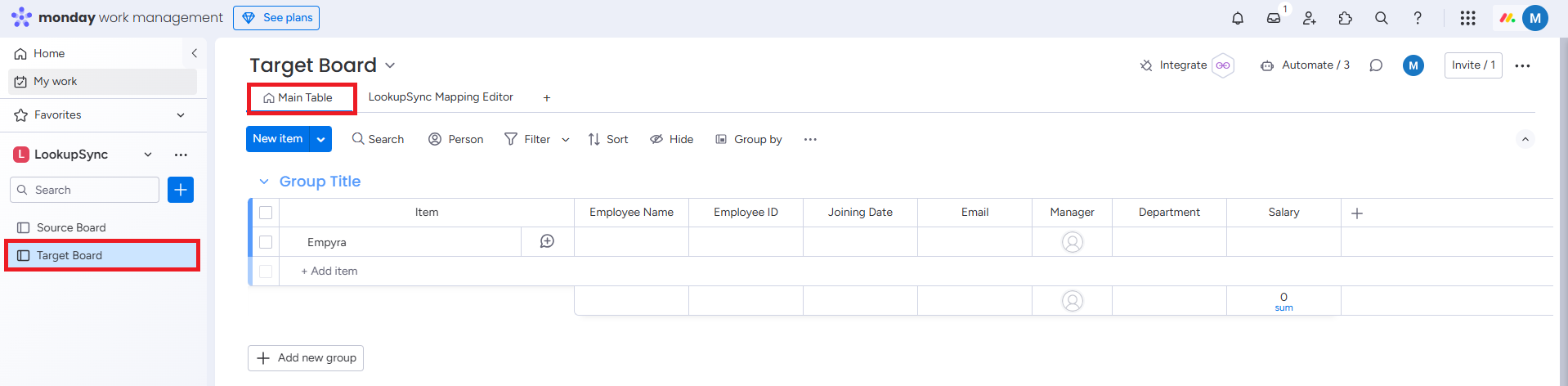
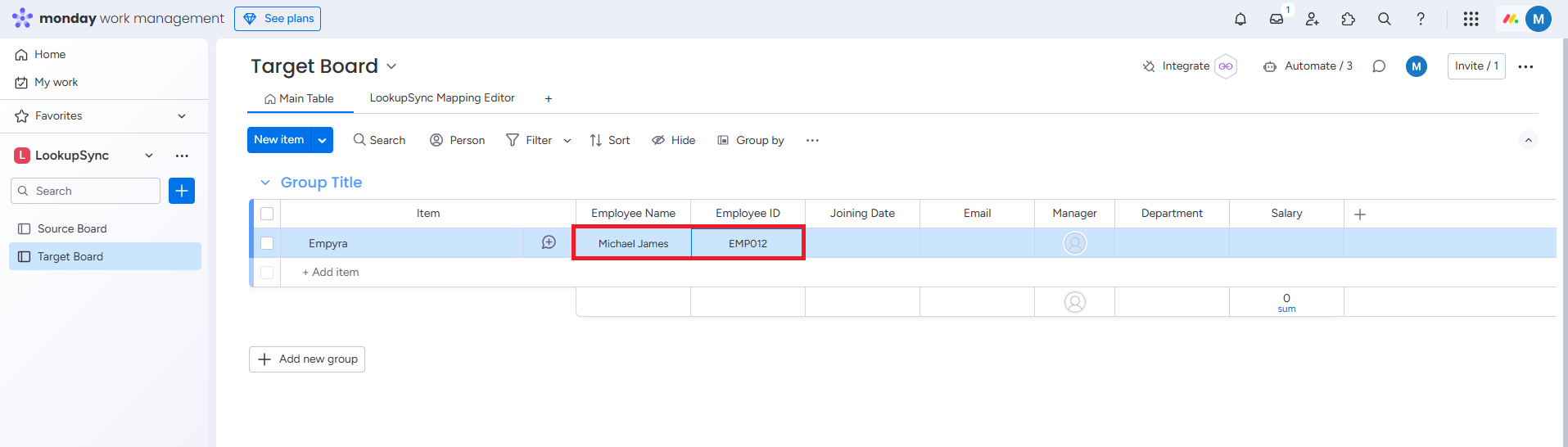
Step 7: Enter the details in common columns.
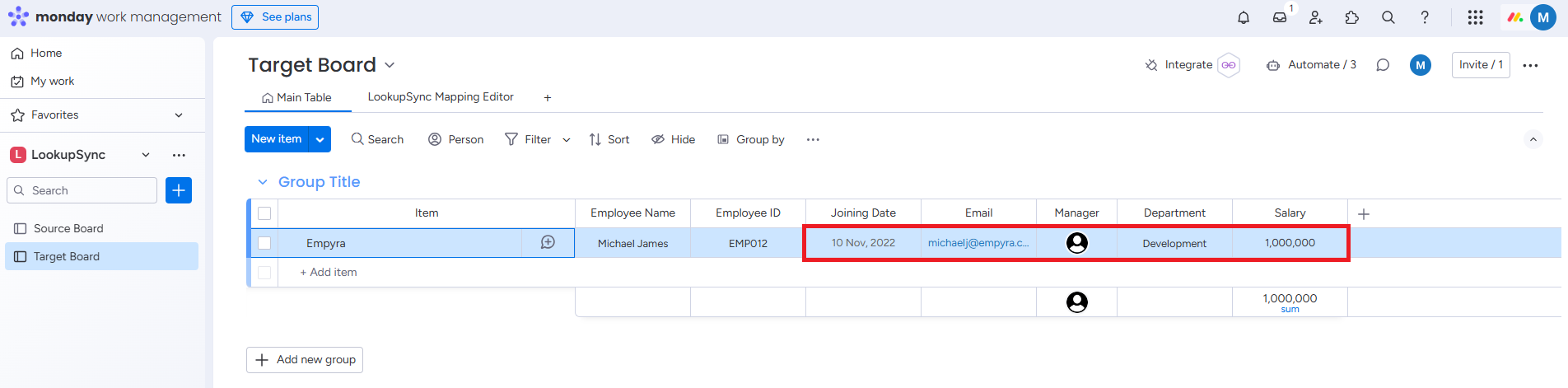
Sync columns will be filled automatically.
Sample Use Cases:
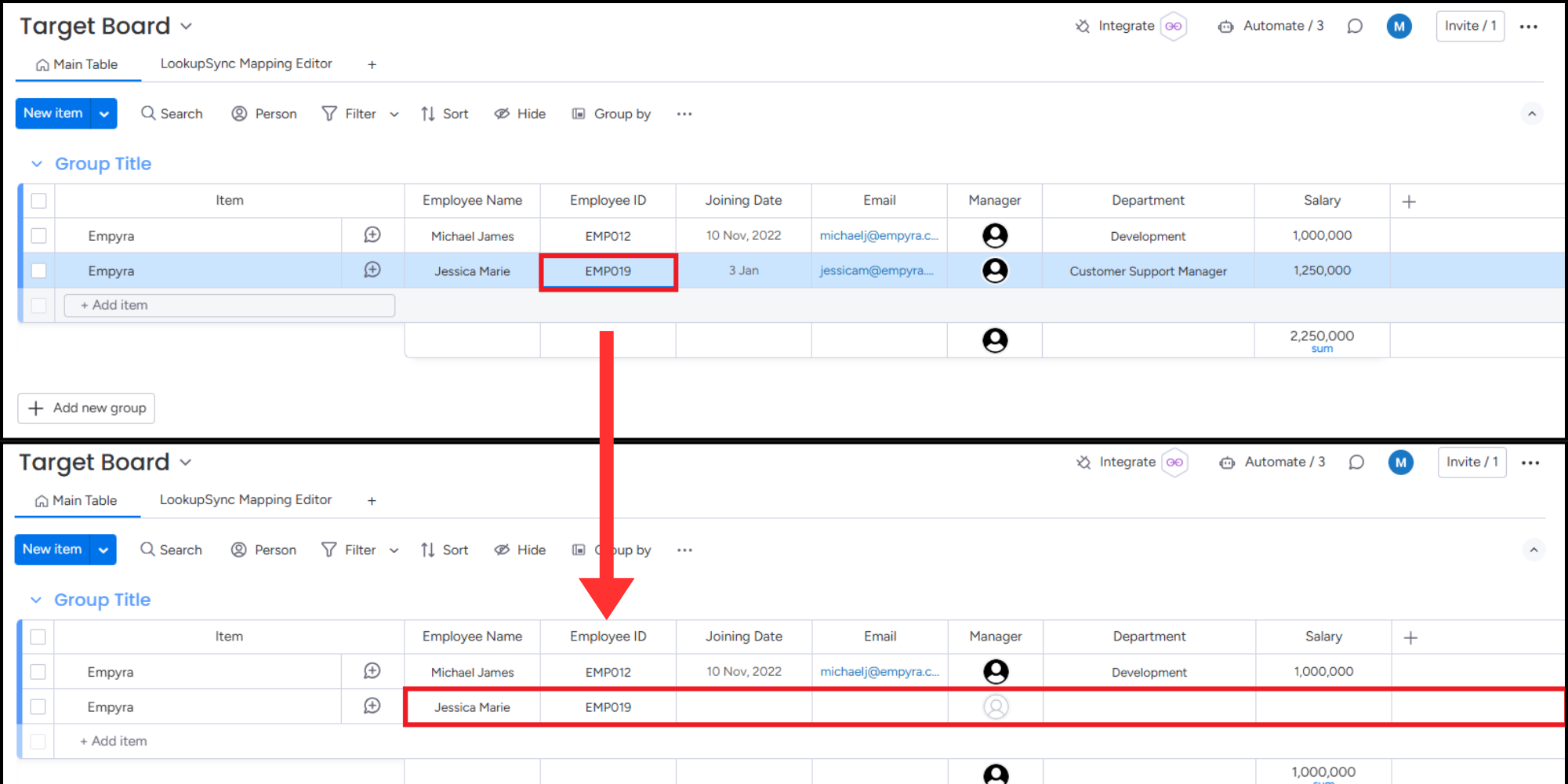
Case 1: When Employee Name and Employee ID is added to the target board, LookupSync app will automatically pull related information from the source board, updating other columns like Joining Date, Email, Manager, Department, and Salary details on the target board.
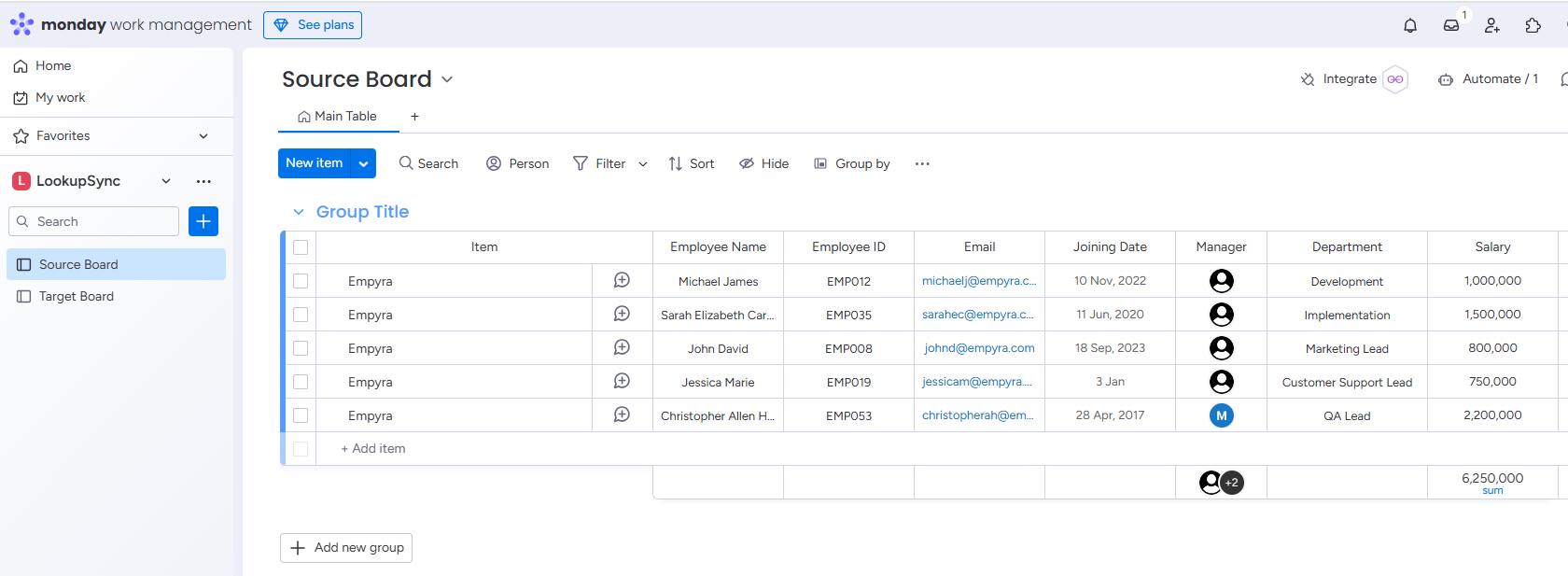
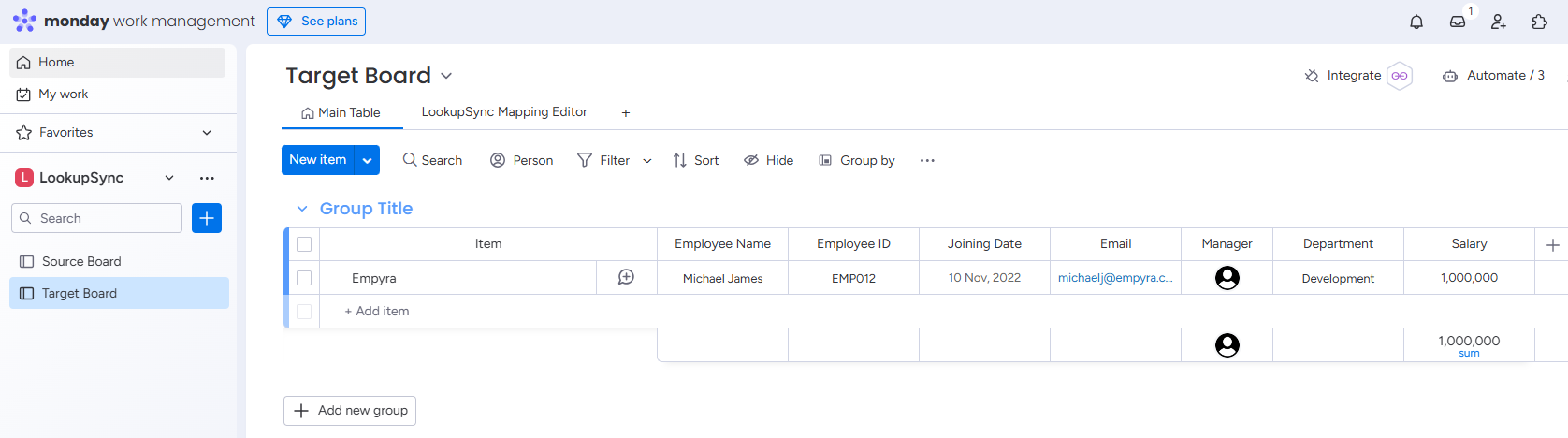
Case 2: If the Employee Name or Employee ID is updated or removed from the target board, all syncronized columns (e.g., Joining Date, Email, Manager, Department, and Salary) will be cleared. This occurs because LookupSync app will detects a mismatch with the source board due to the common column update or removal, ensuring data consistency.
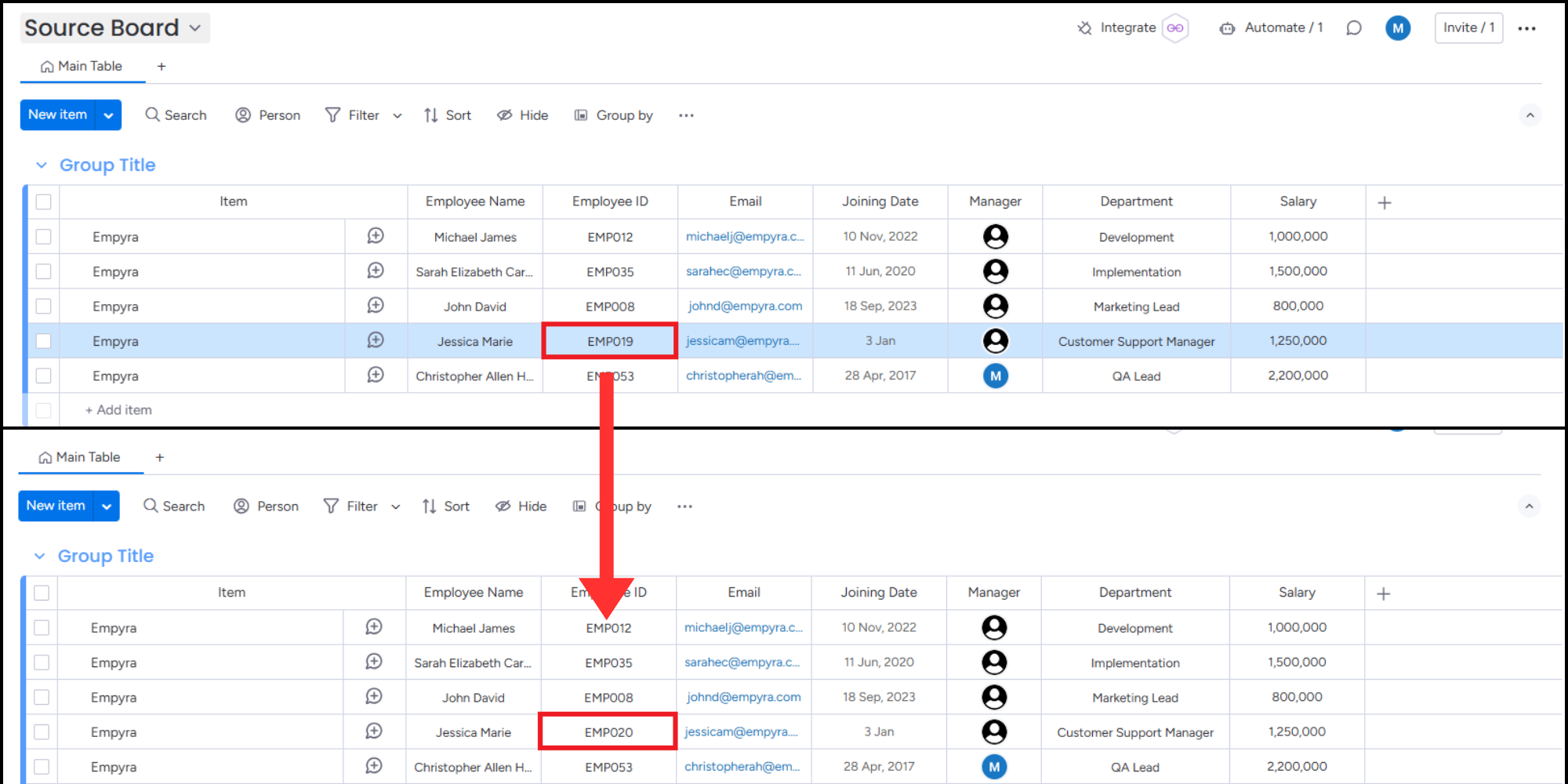
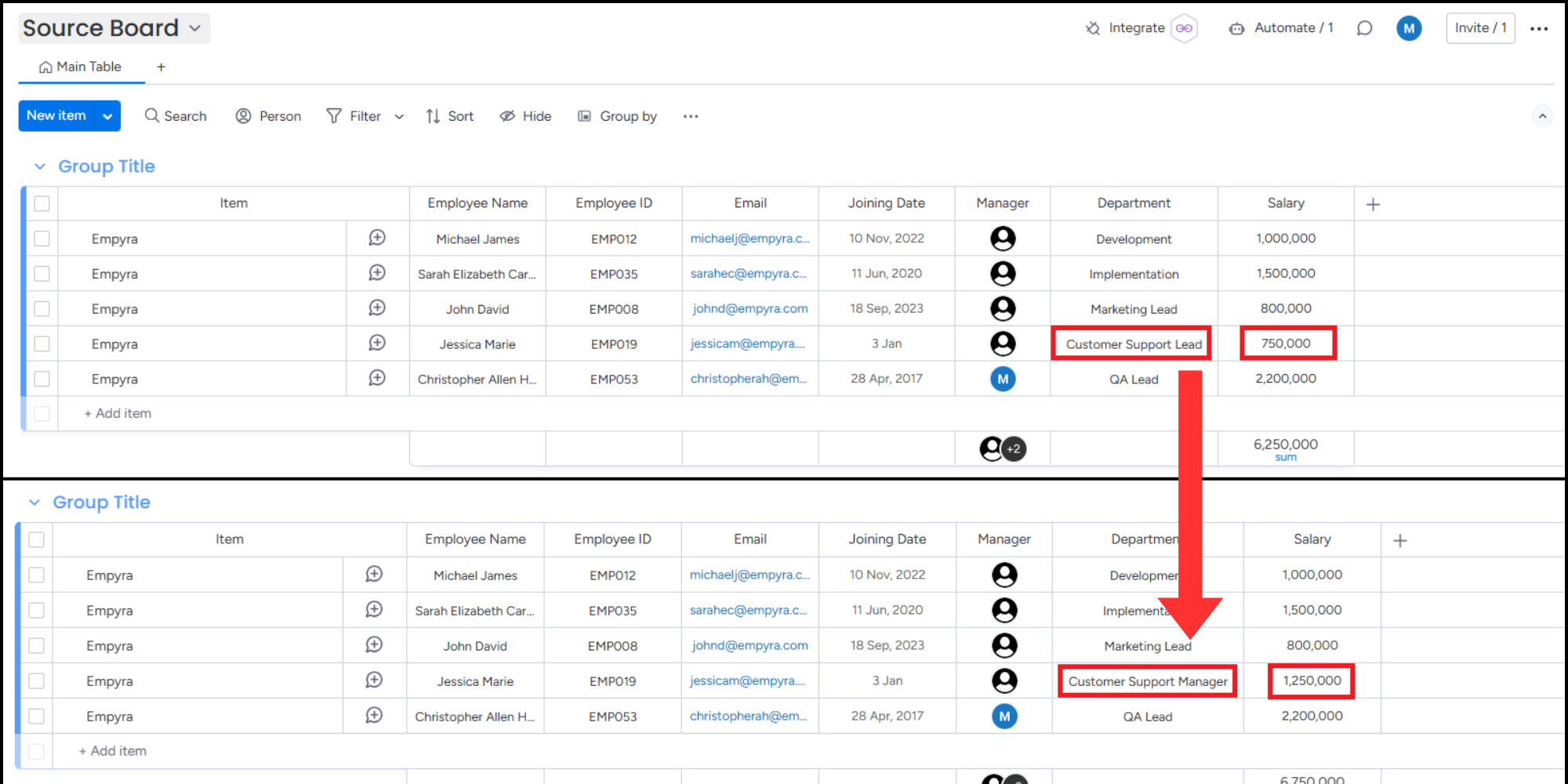
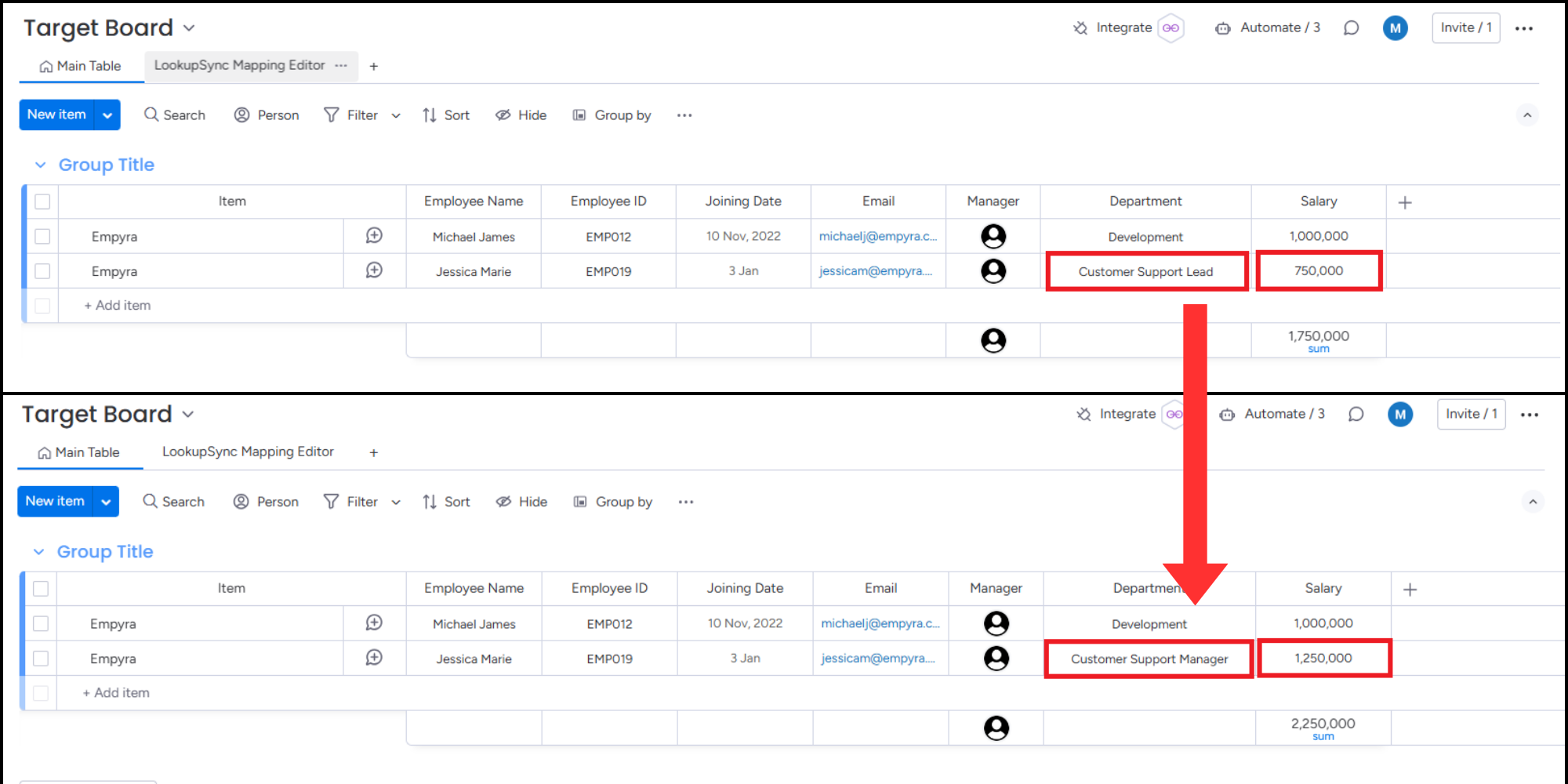
Case 3: When synchronized columns like Department and Salary columns are modified on the source board, the corresponding column on the target board is updated automatically, reflecting the latest information.
Case 4: When Employee ID column on the source board is updated, the corresponding entry on the target board is deleted along with all synchronized columns.